Print a box label and close the box, or fix a label that did not print
Print a box label from Packaging or close the box without one, and find out why a label is missing or out of date.
In Packaging, an open box shows 'Print label & close the box'.
✓ Checked in the product on 19 October 2026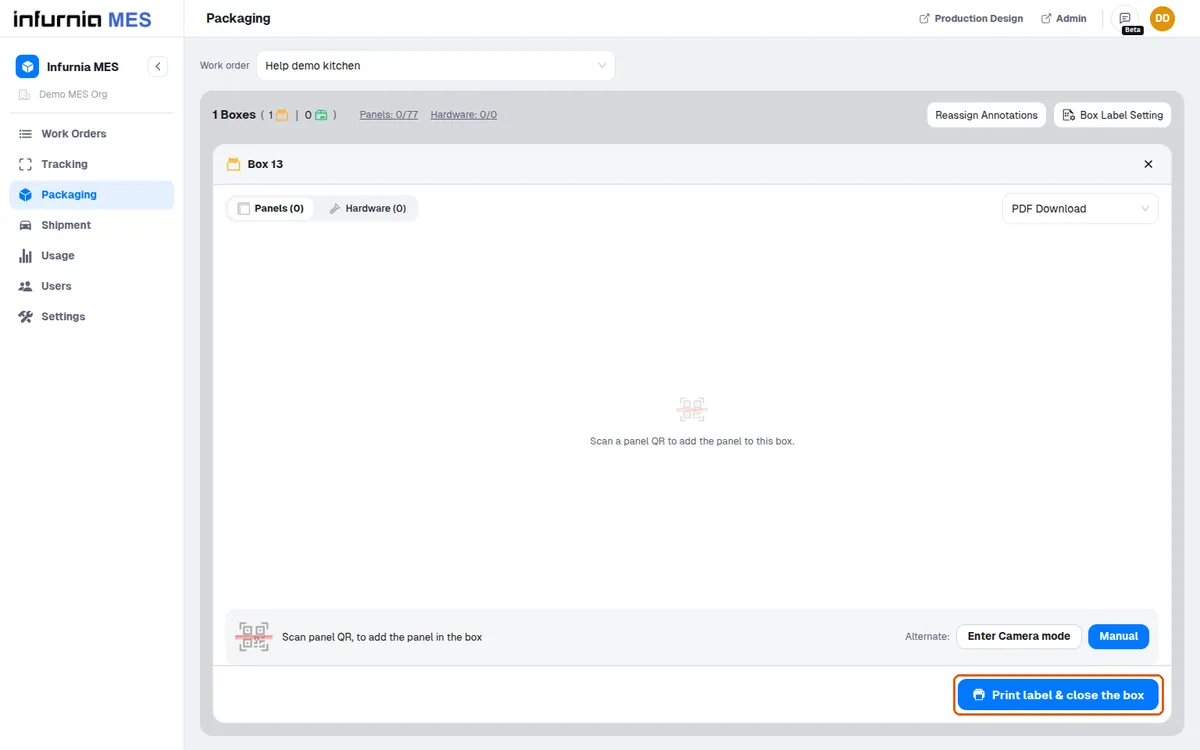
Where output goes depends on the printer selector next to the tabs: 'PDF Download' (the default) saves the PDF; 'Browser Printing' opens the browser print dialog (desktop only); a physical printer sends the job to the selected online printer; 'No Printing' only closes the box (the dialog's button reads 'Close box (no printing)') and produces no label, so when a label is missing check whether 'No Printing' was selected or the printer is offline.
If the selected networked printer goes offline, the selector switches itself back to 'No Printing' and says so.
Printer online status is live, driven by heartbeats from the on-site printer controller. A printer that is not confirmed online — because pings stopped (controller powered off, lost network, or a socket disconnect) or because it has not been pinged yet — is shown as offline, greyed out and unselectable in the printer dropdown. Online printers sort to the top, and the pseudo-options No Printing / PDF Download / Browser Printing stay pinned first (Browser Printing only exists on desktop). Print actions against a printer that is not online produce no printout until the user re-selects the printer once it is back online. Per-printer settings — name, page size entered in inches (height x width), DPI, and orientation (portrait/landscape/auto) — are editable from the gear icon on Settings > Printers or from the edit affordance beside each printer in the printer dropdown; editing is offered to users who can manage stations. These config values accompany every print job, so wrong page size or orientation is usually fixed here, not on the physical printer. First diagnosis for a persistently offline printer: check the controller device's power and network.
To re-print, open the closed box and press 'Print label' again.
✓ Checked in the product on 19 October 2026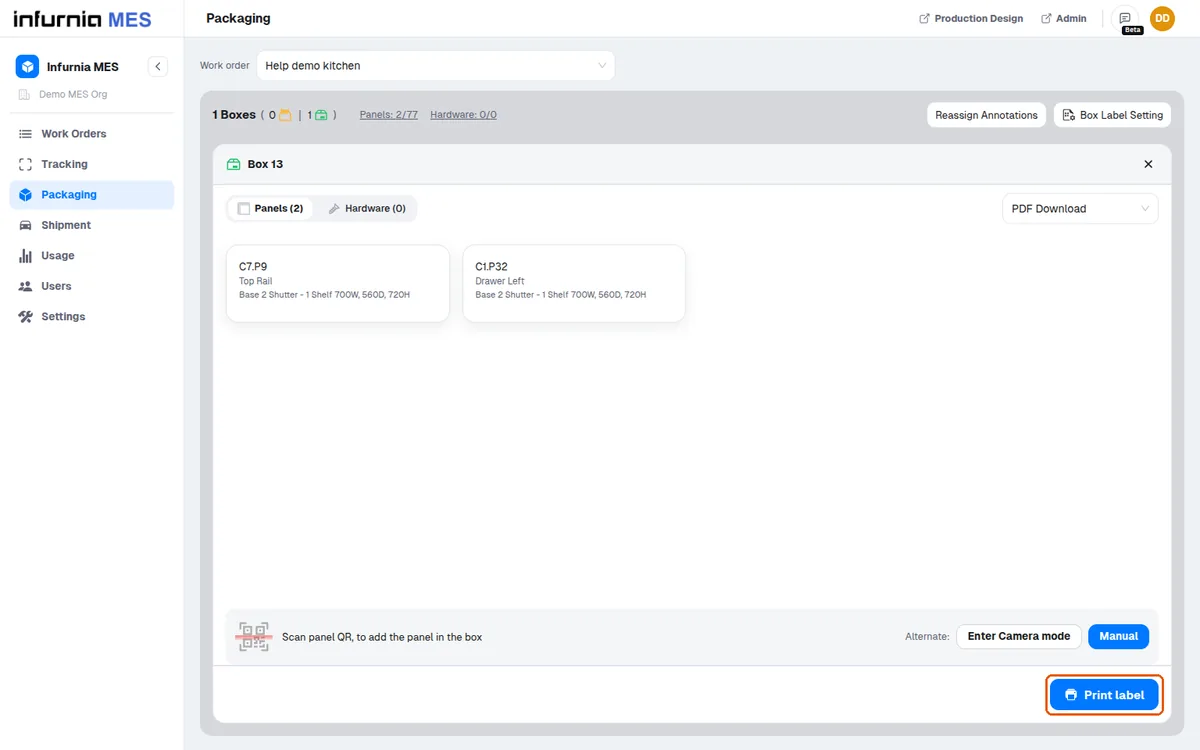
Closed boxes reopen automatically when contents change: adding a panel to a closed box asks for confirmation and reopens it, and removing a panel or hardware also reopens it, so the box must be closed (and can be reprinted) again.
✓ Checked in the product on 19 October 2026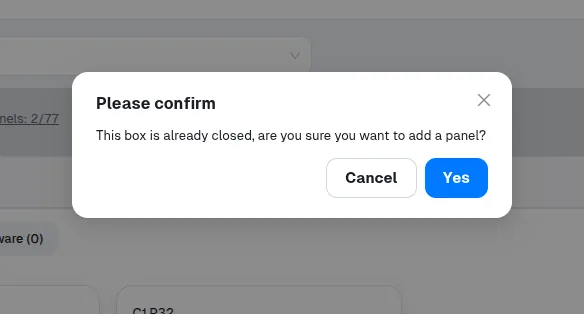
If a box's contents are changed after it was created, the box reopens.
✓ Checked in the product on 19 October 2026If a box's contents are changed after it was created, its previously printed label no longer matches the contents, so the label must be reprinted for that box.
✓ Checked in the product on 19 October 2026The label layout and styling come from the box-label template resolved for the work order (see Box Label Setting), not from anything on the Packaging page itself.
✓ Checked in the product on 19 October 2026The bulk 'Box Labels' download can regenerate labels for all boxes of the work order in one PDF.
✓ Checked in the product on 19 October 2026