Create and lock a view before adding it to a presentation
Create a view for each elevation, lock it to preserve its state, and add it to the presentation for client-facing output.
After the design is complete, create a view for each elevation and lock it.
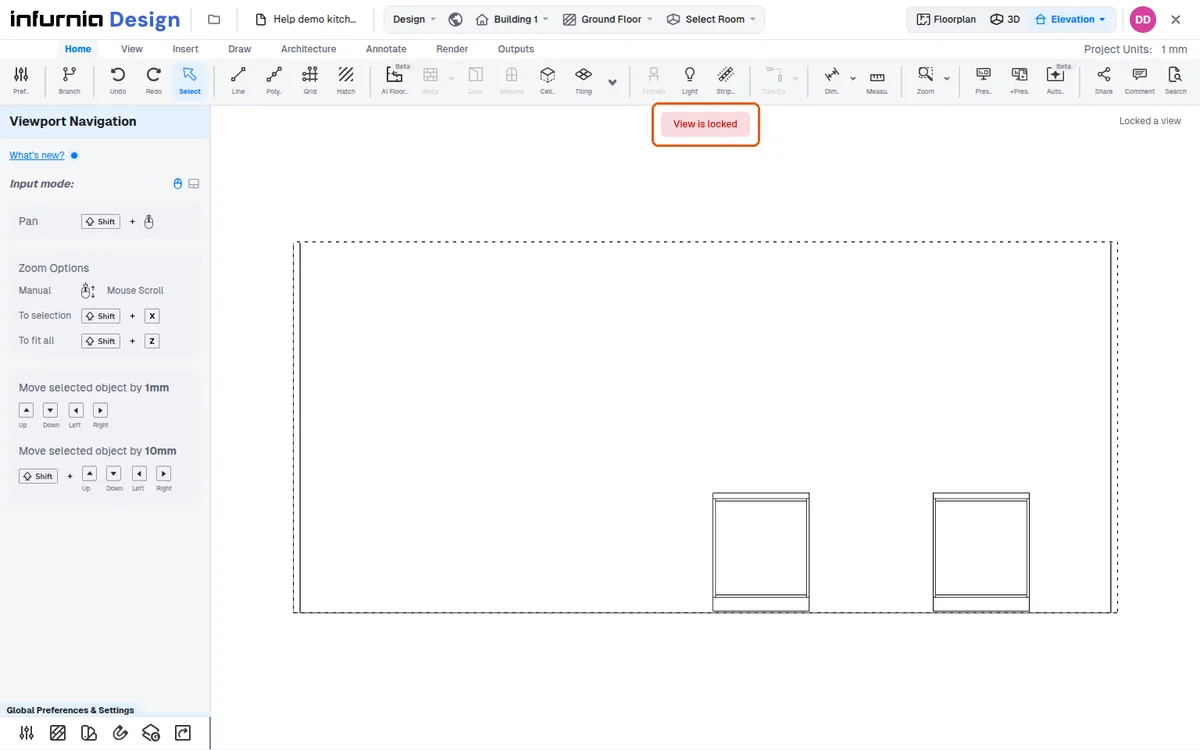
Locking the view preserves its state so it can be added to a presentation sheet without further edits.
✓ Checked in the product on 10 October 2026Once locked, the view can be added to the presentation (PPT) for client-facing output.
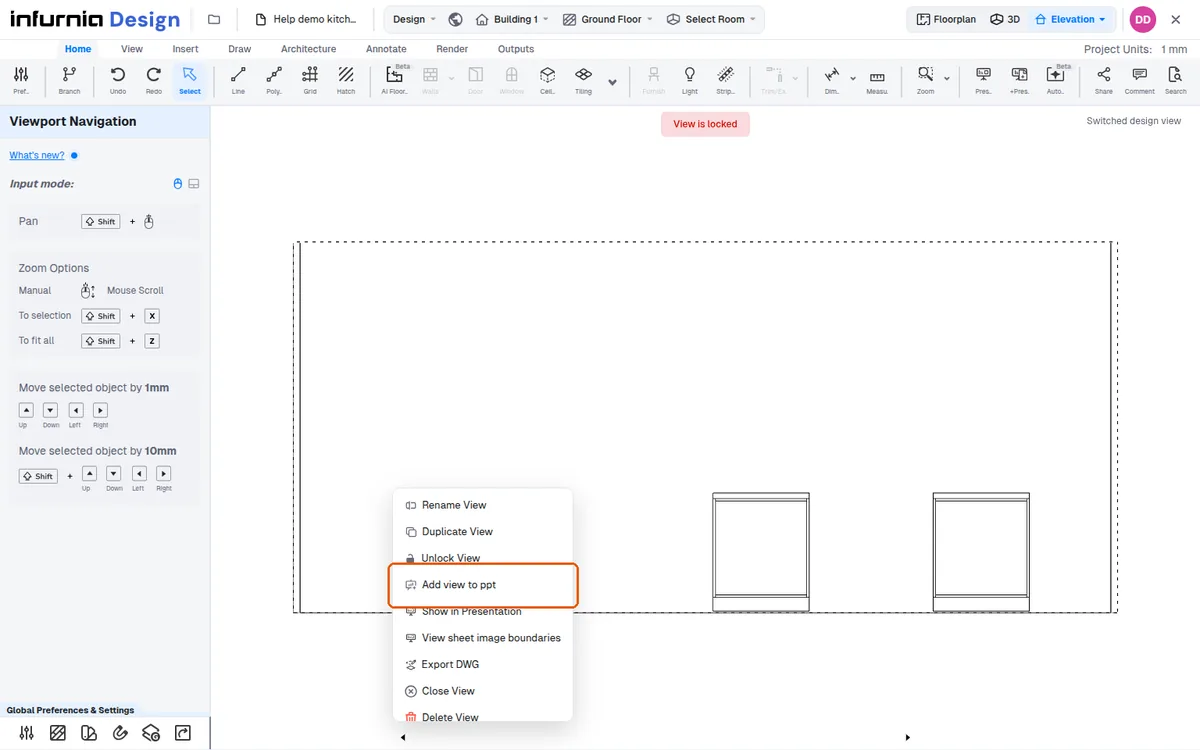
When you set and lock a view, the lock applies only to that particular view, not to the whole project. Other views keep their own settings.
✓ Checked in the product on 9 October 2026To show the same elevation in different styles, create a view, set it up (for example rich view with shutters on), and lock it. Then return to free view, create another view (for example skeleton mode), and lock that too. Switching between the locked views shows each elevation style. The same approach works for floor plan and 3D views.