How the optional Summary Page is built into quotation PDFs
Learn what the optional Summary Page adds to a downloaded quotation PDF, how its prices, notes and signatures are controlled, and how long names and overflow are handled.
When the 'Summary Page' preference is on, quotation PDFs get a final summary: logo row (org/store/both per logo preferences), store name/address/GST on the left and client name/details on the right, a project grid (Project ID, Design ID, Quote Date, No. of Items, Designer, Expiry Date, plus optional Quotation ID and Workscope), then a price card titled 'Price Summary' (or the custom Quotation Name) listing per-section prices — per room under Roomwise, per table otherwise — followed by Discount (with effective percentage when 'show percentage in discount entry' is on), any named management discount, Total Tax (only in separate-tax mode), and 'Total payable'. All money values are padded to the same number of decimal places so they align in the right column. Numbered notes come from the quotation's summary notes settings and render only when summary notes are enabled and non-empty; customer and designer signature lines appear when signatures are enabled. Two edge behaviors: design and designer names longer than 69 characters are truncated to 66 plus '...', and if the content runs past the space available the summary simply continues onto additional pages, so the export always completes without a warning.
The summary page appears in the downloaded quotation PDF only when the 'Summary Page' preference is enabled.
✓ 19 अक्टूबर 2026 को प्रोडक्ट में जाँचा गयाWhen the 'Summary Page' preference is off, the download contains just the quotation table.
✓ 19 अक्टूबर 2026 को प्रोडक्ट में जाँचा गयाThe summary page is a PDF-only addition: it is appended to the downloaded quotation after the quotation table and is not part of the on-screen design view.
✓ 19 अक्टूबर 2026 को प्रोडक्ट में जाँचा गयाWhen the Roomwise Segregation template is used, the summary's price card lists the section prices room by room, with each floor shown as a bold group header above its rooms.
The summary page's signature lines are controlled by a dedicated signature preference.
✓ 19 अक्टूबर 2026 को प्रोडक्ट में जाँचा गयाThe summary notes render only when the summary-notes preference is on and notes exist.
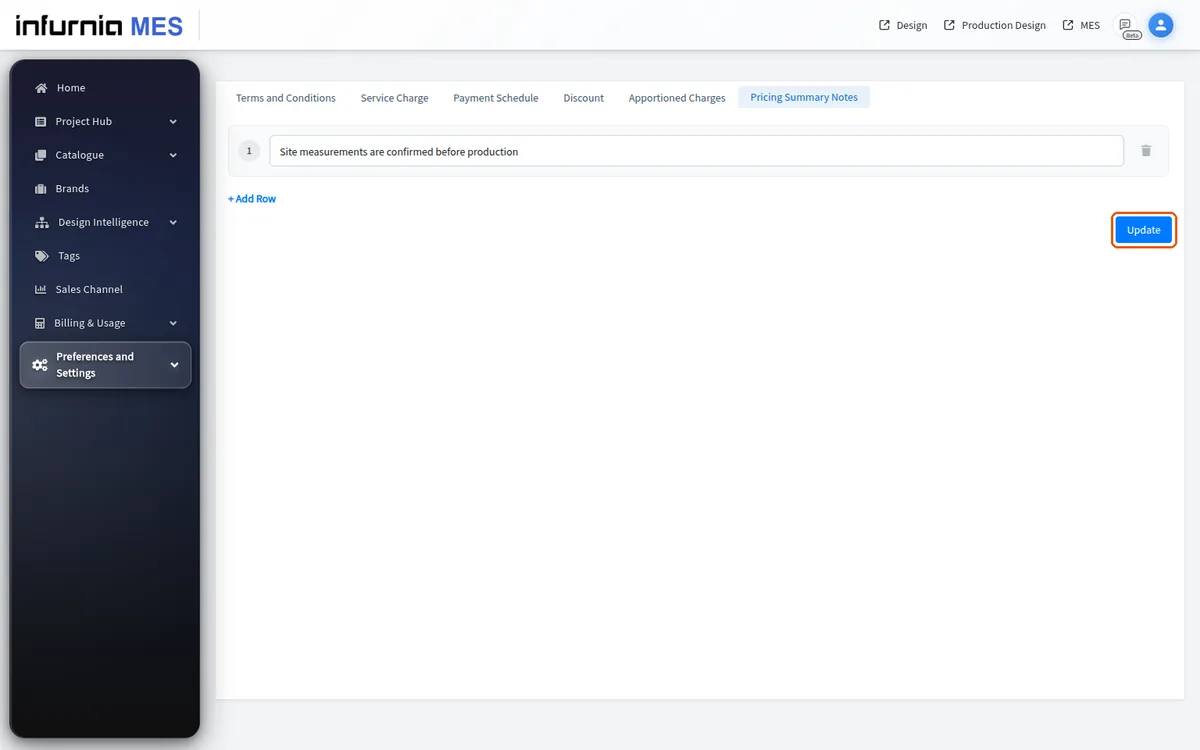
✓ 19 अक्टूबर 2026 को प्रोडक्ट में जाँचा गयाThe notes are configured once by an admin in the admin portal's Pricing Settings, on the Pricing Summary Notes tab.
✓ 19 अक्टूबर 2026 को प्रोडक्ट में जाँचा गयाType each note in a row, use Add Row for more lines, then click Update.
✓ 19 अक्टूबर 2026 को प्रोडक्ट में जाँचा गया