Understand the Brands page tabs and missing edit or delete icons
Learn how Org, Global and Deleted Brands differ, why edit and trash icons only appear on your own organisation's brands, and how to add a brand so it becomes selectable.
The Brands page has three tabs: Org Brands (created by the user's organization), Global Brands (provided by Infurnia/other stores, read-only), and Deleted Brands (with deletion date). The edit and trash icons appear on hover only for brands owned by the user's own org and not already deleted - a user asking 'why can't I edit this brand' is almost always looking at a Global brand. Deleting a brand asks for confirmation with 'Brand will be deleted permanently.'; the brand then moves to the Deleted Brands tab. There is no restore button in the UI - undeleting requires backend intervention, so treat deletions as effectively permanent from the portal's perspective. The search box filters both active and deleted brands by name simultaneously. In business-unit view the list is scoped to the current BU; switching the org/BU toggle changes which brands are returned. One display quirk: the paginator at the bottom counts only the Org/Global tabs, so page controls can look off on the Deleted tab. Brand assignment to SKUs happens in SKU editing / bulk create (brand_id column in CSV templates, with a Brand Reference sheet listing valid IDs).
Brands are created from the Brands page in admin via the Add Brand button.
✓ 2026年10月20日に製品で確認済み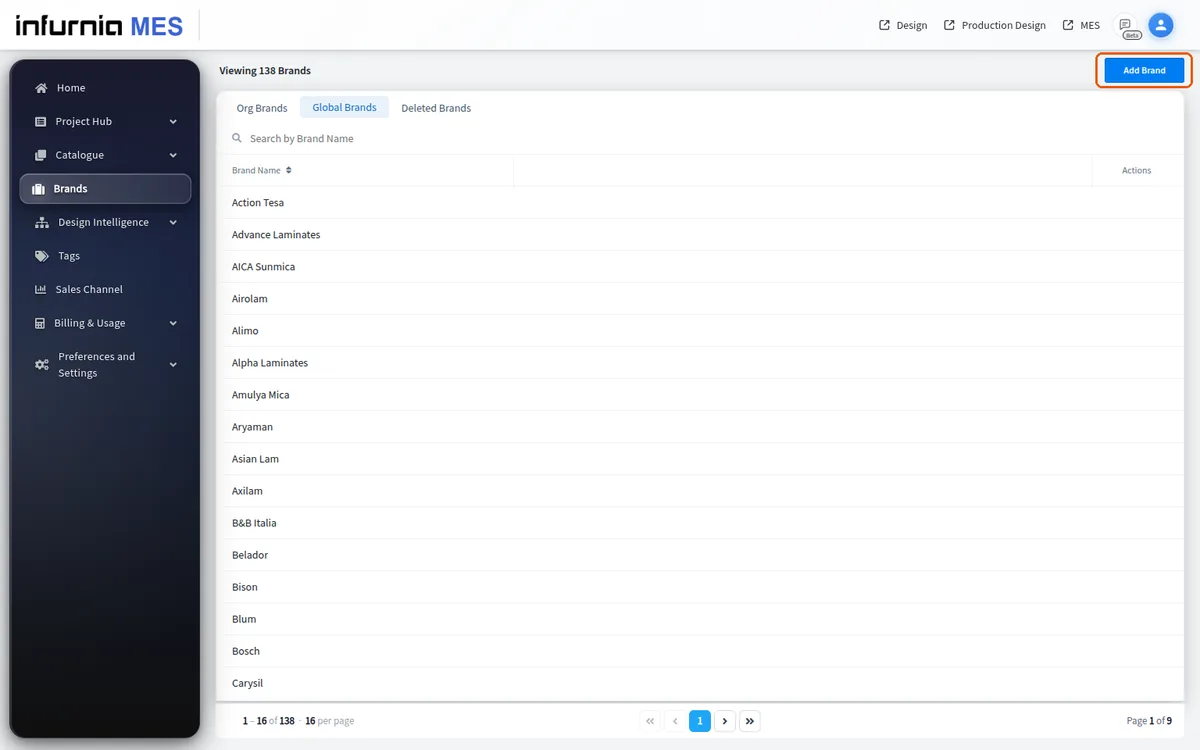
A brand added there becomes part of the organisation's own brand list and is selectable for designers.
✓ 2026年10月19日に製品で確認済み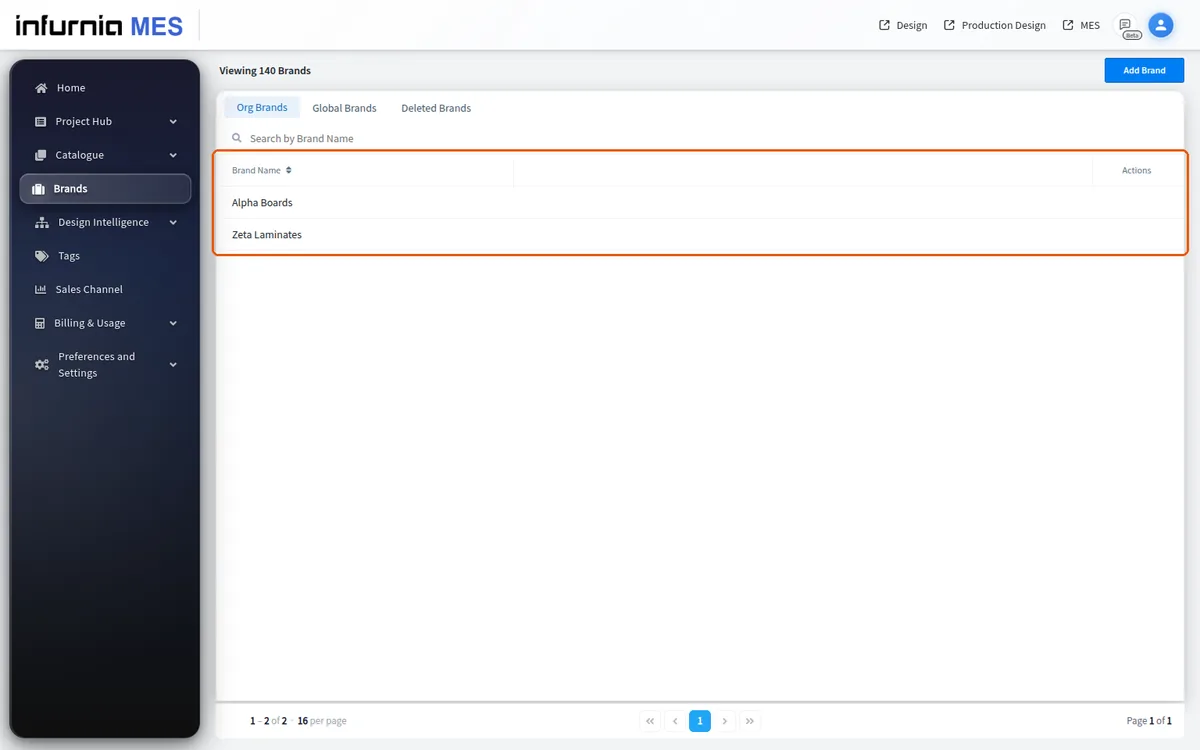
Brands that are never added (and are not Infurnia global or subscribed-catalogue brands) do not appear in the list.
✓ 2026年10月19日に製品で確認済みA brand must be created first (Brands page → Add Brand → enter the name → save) before it can be assigned to a finish.
✓ 2026年10月19日に製品で確認済み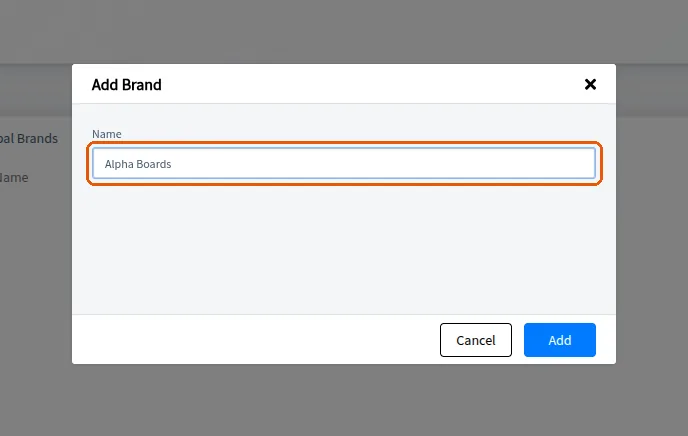
Once saved a brand becomes selectable when editing a finish's material info.
✓ 2026年10月19日に製品で確認済み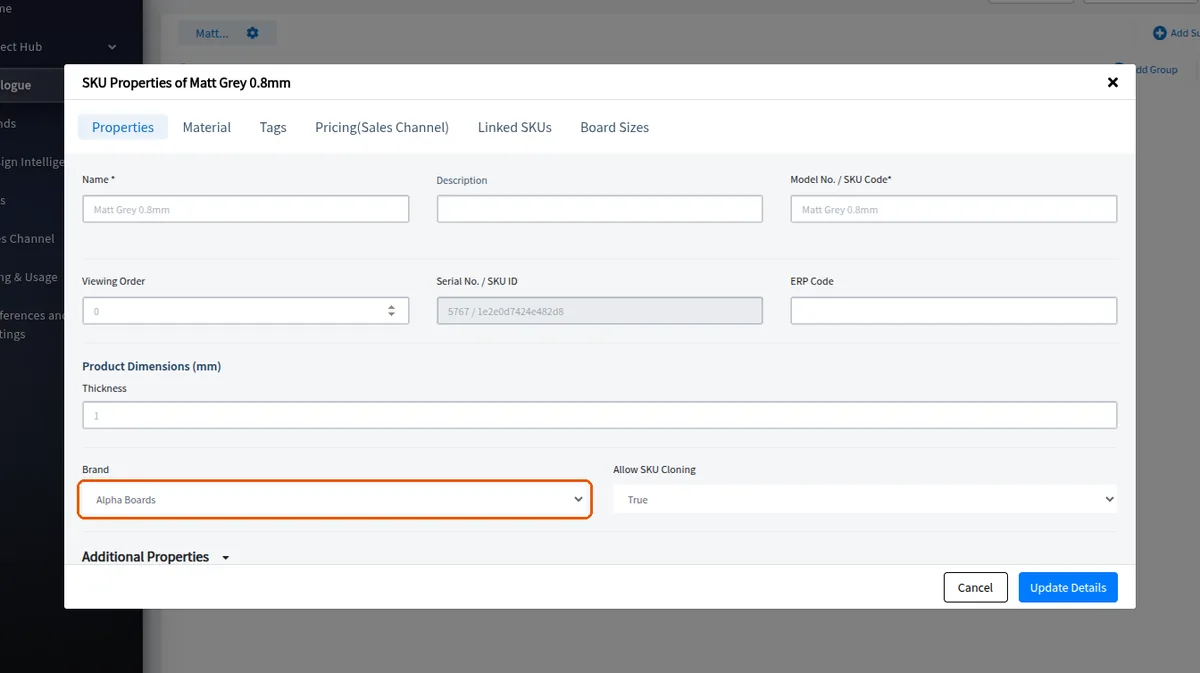
A local hardware or other brand that is not already in the list can be added as a custom brand from the Brands page, after which it becomes selectable for the organisation's items.
✓ 2026年10月19日に製品で確認済みA brand can be created for any material type, including hardware, finishes and core materials.
✓ 2026年10月19日に製品で確認済みOnce added, a brand appears in the Brands page's Org Brands tab (the organisation's own brands), in alphabetical order. The Global Brands tab lists Infurnia's brands and does not show it.
A brand can be selected when creating a material.
✓ 2026年10月19日に製品で確認済み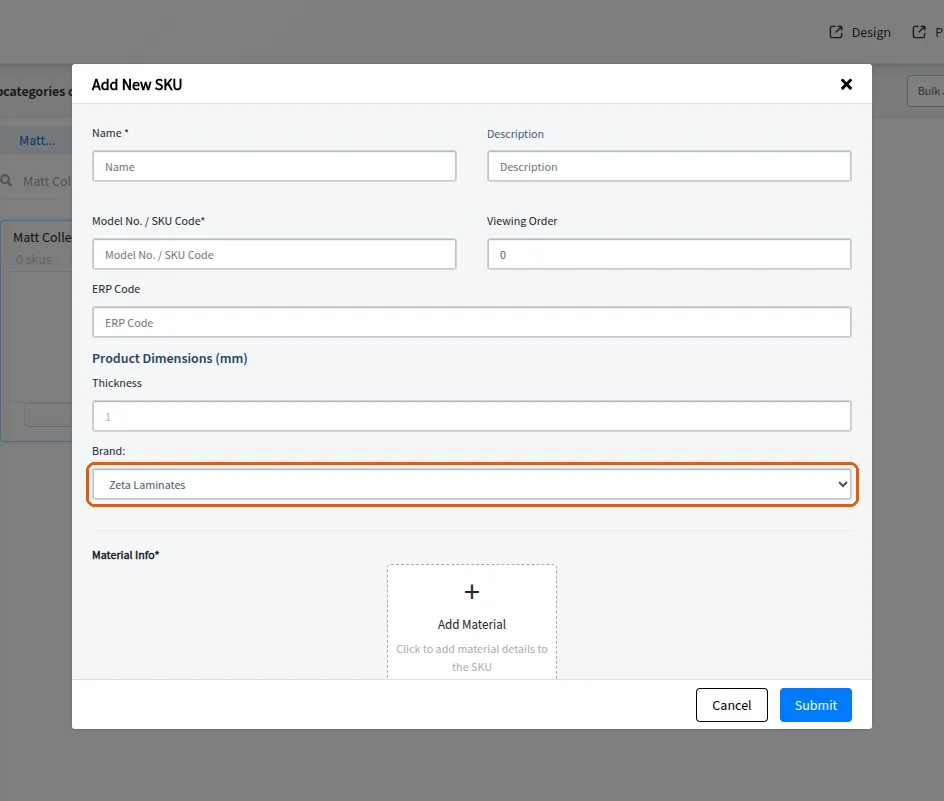
Brands > Add Brand opens a small 'Add Brand' dialog with a single Name field and Cancel / Add.
✓ 2026年10月20日に製品で確認済み