Change materials on several units at once
Apply a new core material or finish to many selected units in one go instead of editing each one.
Selecting several units in the unit list and changing the core material in the core material setting applies the new core material to all the selected units at once, so the whole design does not need to be redone.
The carcass/core material of a base cabinet can be set explicitly per cabinet from the cabinet's material settings, or applied to several selected units at once via bulk edit, so the carcass matches the shutter material.
When several cabinets and wardrobes come in with the default shutter colour, select them all together and change the shutter colour option once for the whole selection; the change is applied to every selected unit at once instead of editing them one by one.
To change the material of several cabinets or wardrobes at once, select the objects (left-to-right drag selects only items fully inside the area; right-to-left drag selects every item it touches), open the common properties / common modular actions panel, then go to Cabinets and Wardrobes and choose Change Material. The same material options as the material tab appear, including internal, core material and edgeband, and the change applies to all selected items.
✓ Checked in the product on 20 October 2026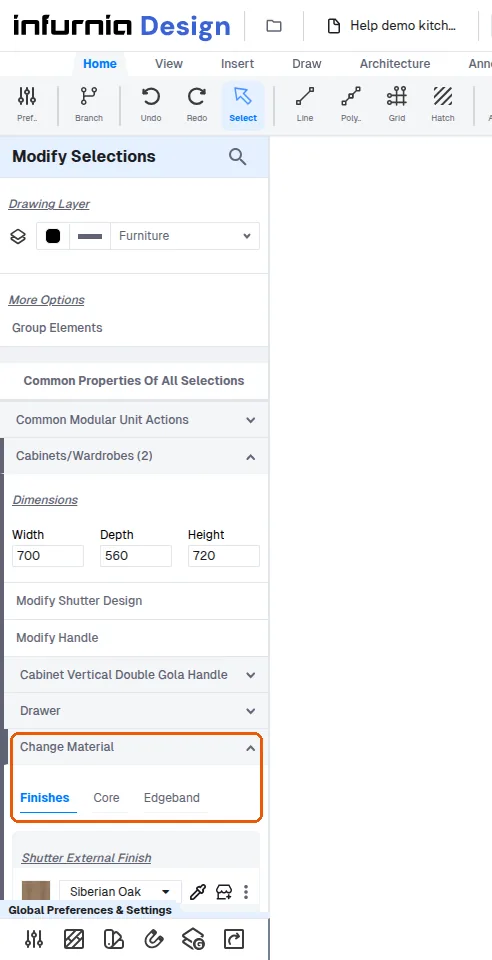
To change one cabinet inside a group, select that cabinet in the group's selection tree (Group above Cabinet) and make the finish change at the cabinet level; the change applies only to the selected cabinet while it remains in the group.