Inspect units and panels in the QC Mode tabs
Read the Units and Panels tabs to see annotations, rooms and where each material came from.
The Panels tab lists panels separately, which is why panel counts typically exceed unit counts.
✓ 2026년 10월 19일에 제품에서 확인됨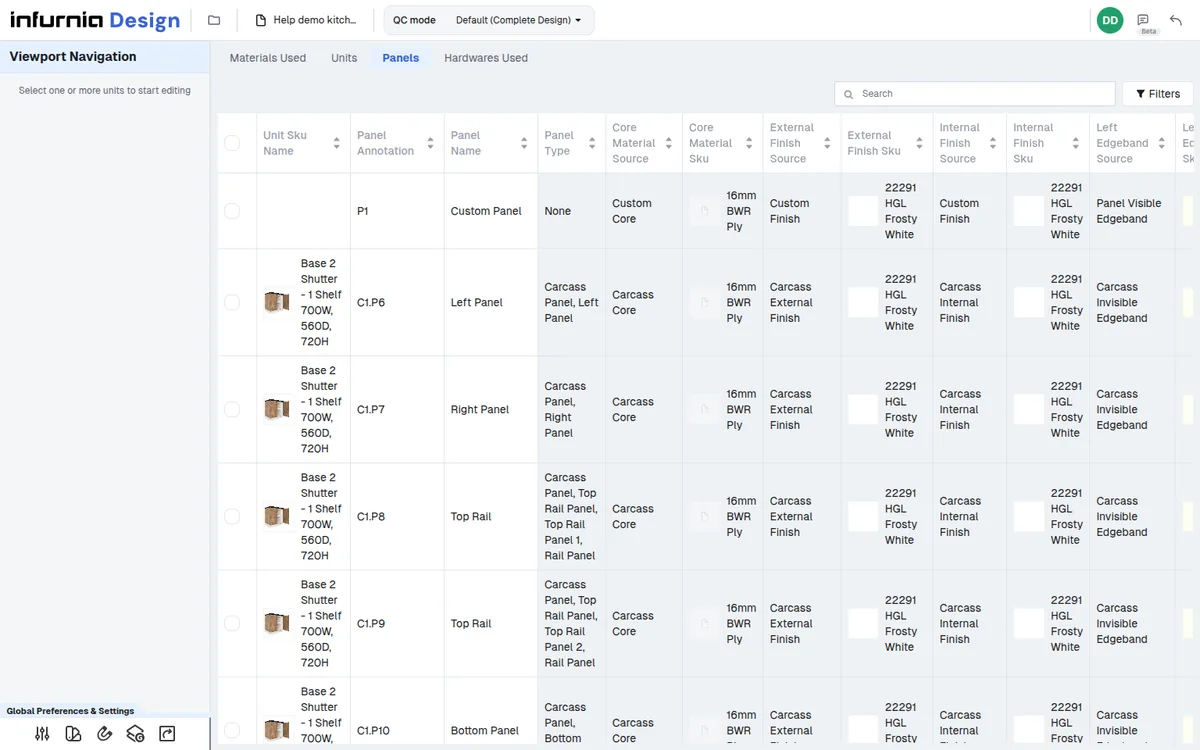
The Units tab also shows a Room column, so units can be inspected per room.
✓ 2026년 10월 19일에 제품에서 확인됨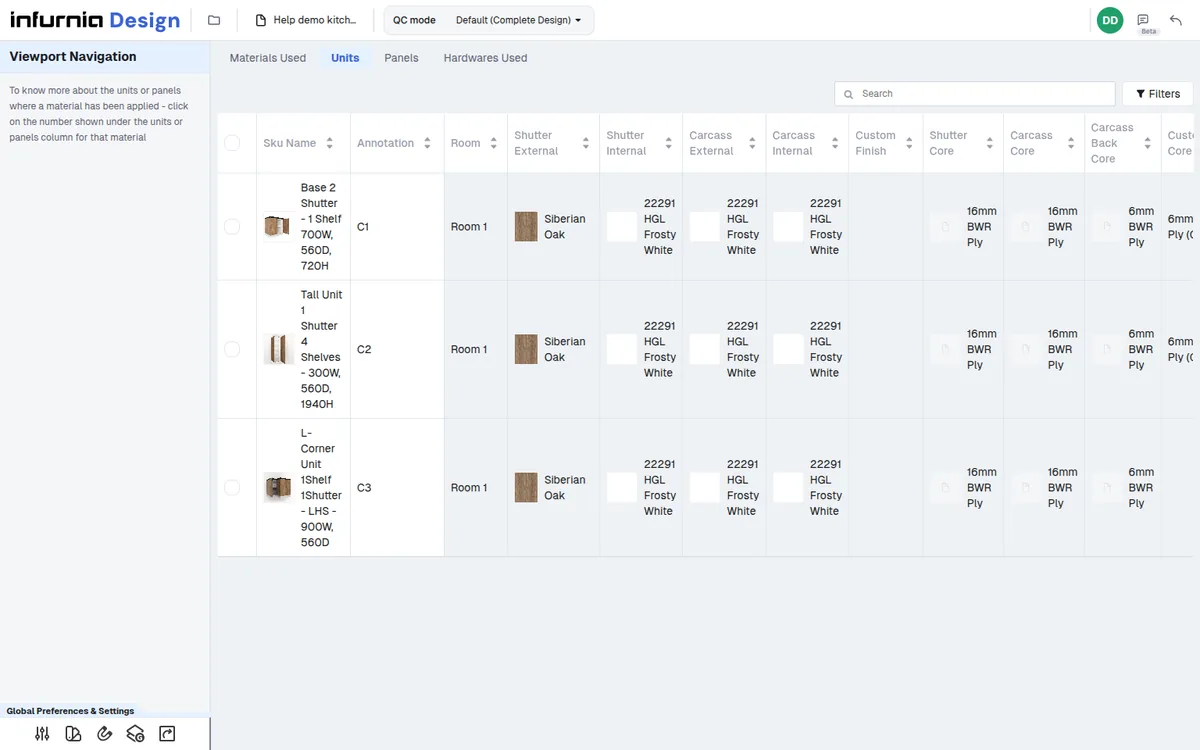
Panels that belong to a cabinet carry both the cabinet and the panel annotation (e.g. C3.P7).
✓ 2026년 10월 19일에 제품에서 확인됨Custom or independent panels show only the panel annotation (e.g. P7).
✓ 2026년 10월 21일에 제품에서 확인됨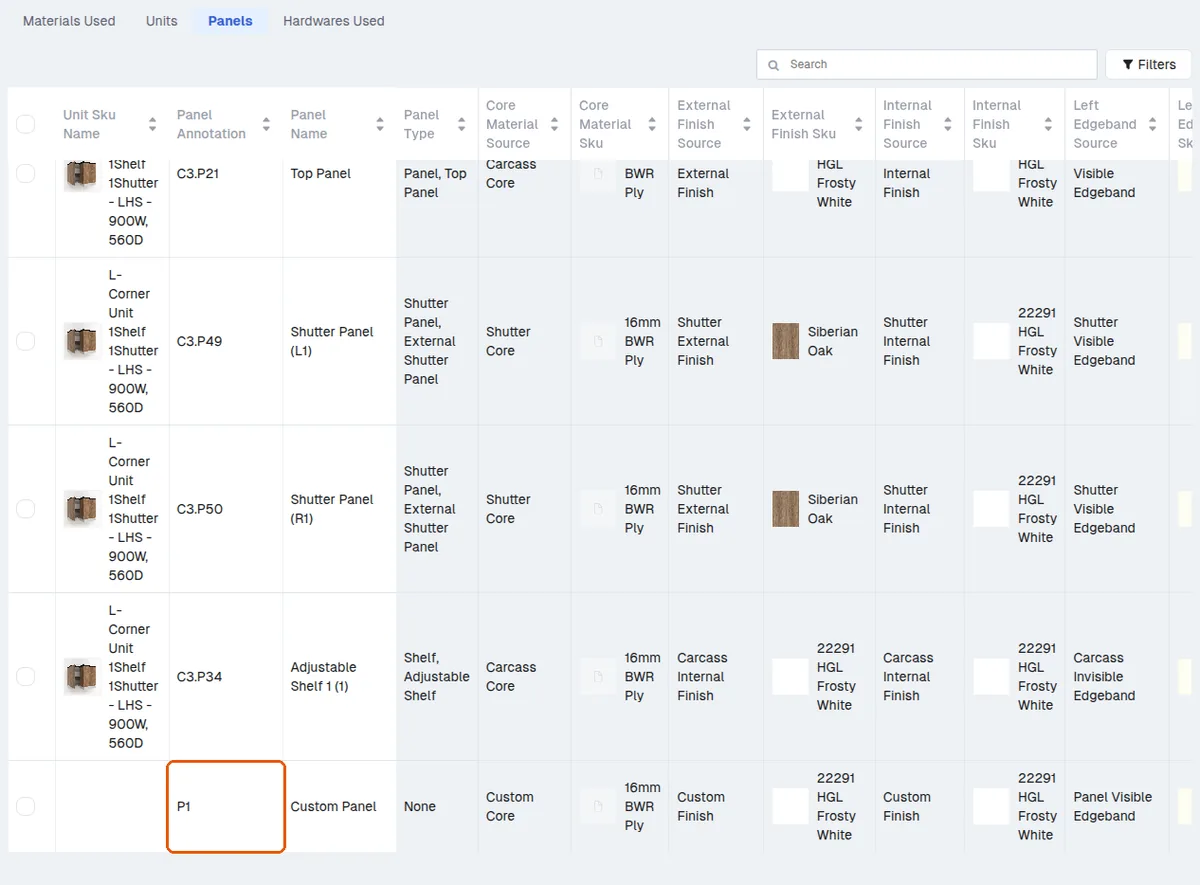
In QC mode the Panels tab can be searched and filtered by cabinet ID, panel type (e.g. shutter, back panel), laminate or edge band.
✓ 2026년 10월 19일에 제품에서 확인됨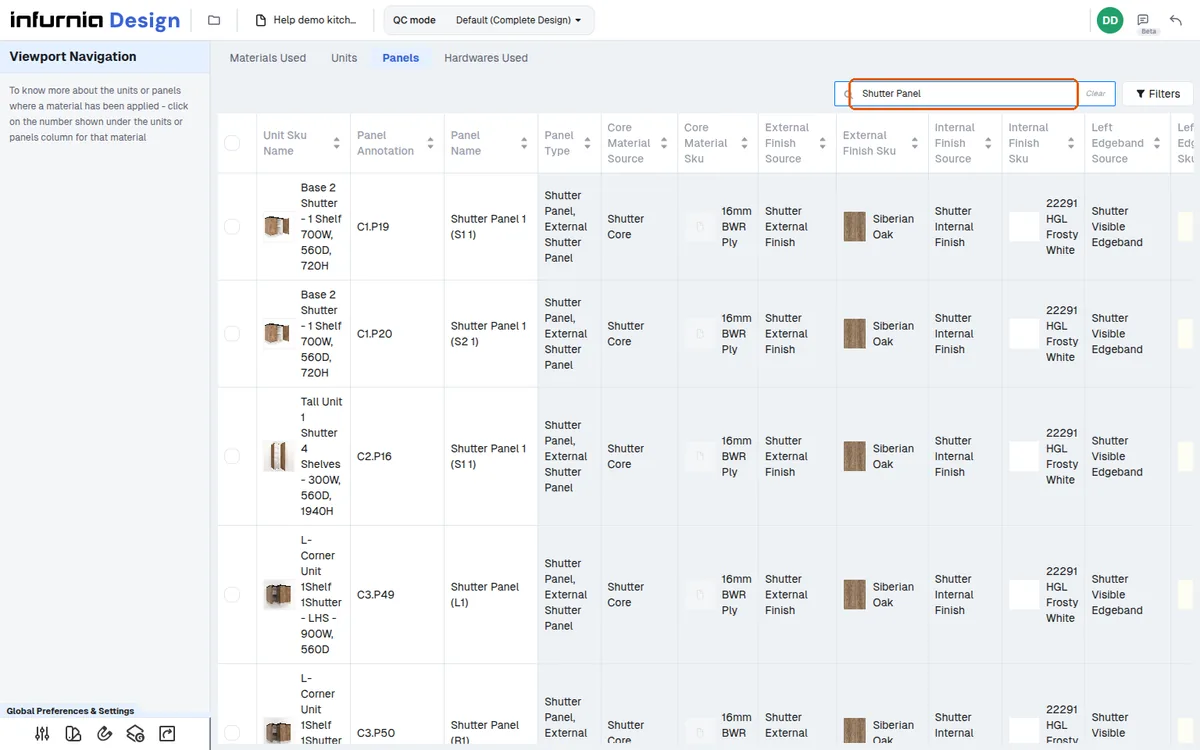
Searching the Panels tab by a panel type such as "Shutter Panel" lists all matching panels across the project; the header check box then selects them all.
✓ 2026년 10월 19일에 제품에서 확인됨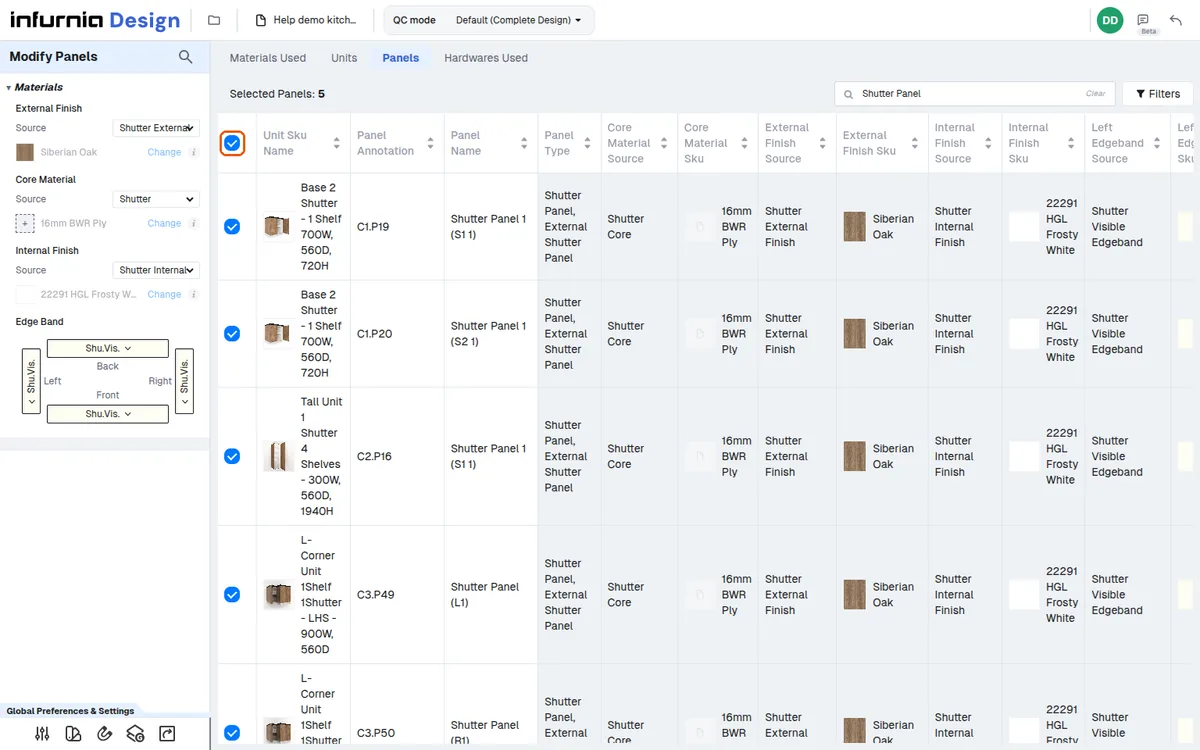
Scrolling through the matching panels shows each panel's core material so a wrongly applied ply can be spotted.
✓ 2026년 10월 19일에 제품에서 확인됨Shutters can be checked the same way by searching the shutter panel and reading its core material.
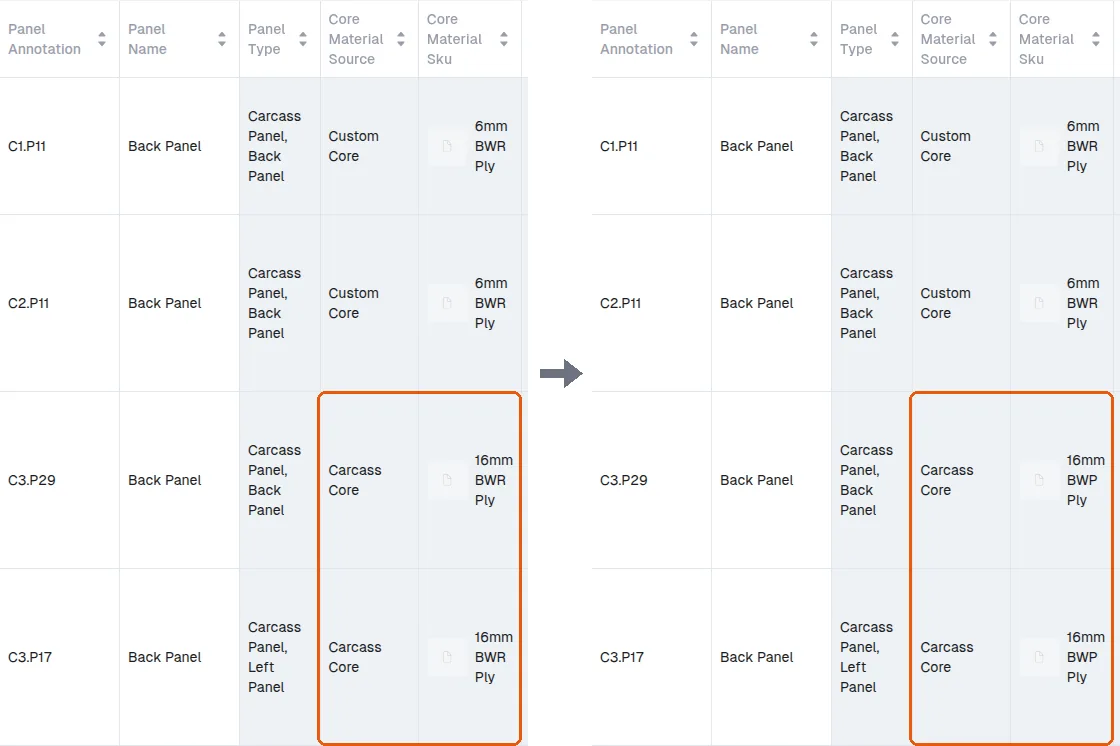
✓ 2026년 10월 19일에 제품에서 확인됨Back panels whose core source is the carcass core ('Carcass Core') follow the carcass material automatically; a back panel with its own core ('Custom Core', such as a 6 mm back) keeps it.
✓ 2026년 10월 21일에 제품에서 확인됨