Add a new SKU to the catalogue with properties, brand and finish
Create a catalogue SKU, fill in its properties, brand and finish details, and keep it as a draft or add many at once.
To add a new SKU, open the catalogue, create the SKU and fill its properties (construction, material, hardware, accessories, skirting, finishes).
✓ 2026년 10월 21일에 제품에서 확인됨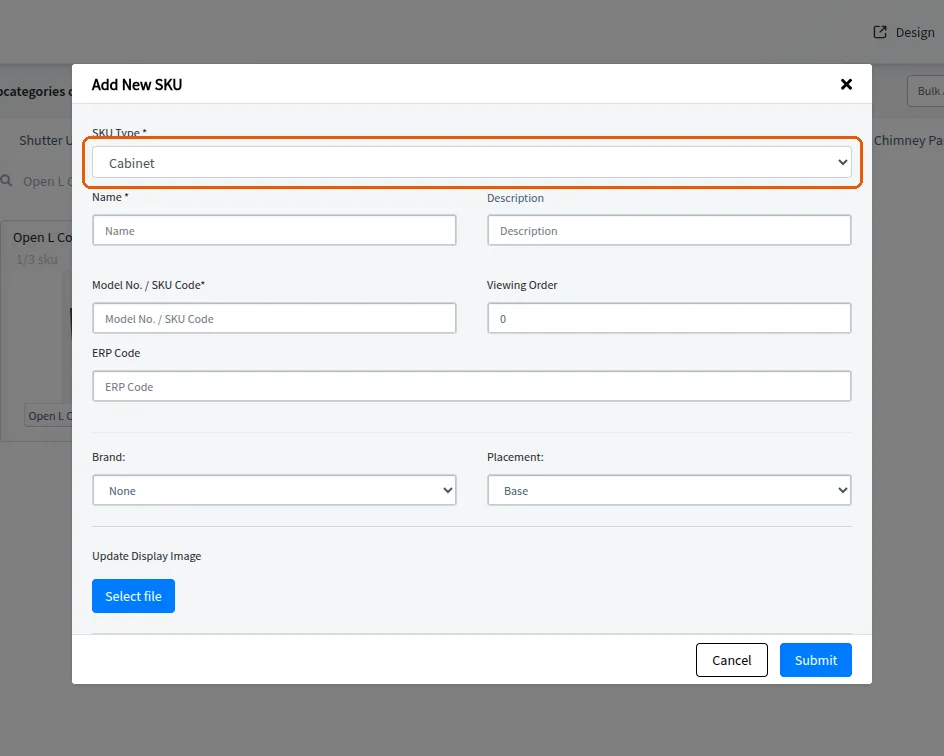
Set the top-view image.
Choose or add the brand.
✓ 2026년 10월 10일에 제품에서 확인됨Define finish details such as laminate type, thickness and colour.
The entry can be kept as a draft and edited later.
Bulk create and bulk action options are available for adding many SKUs at once.
✓ 2026년 10월 21일에 제품에서 확인됨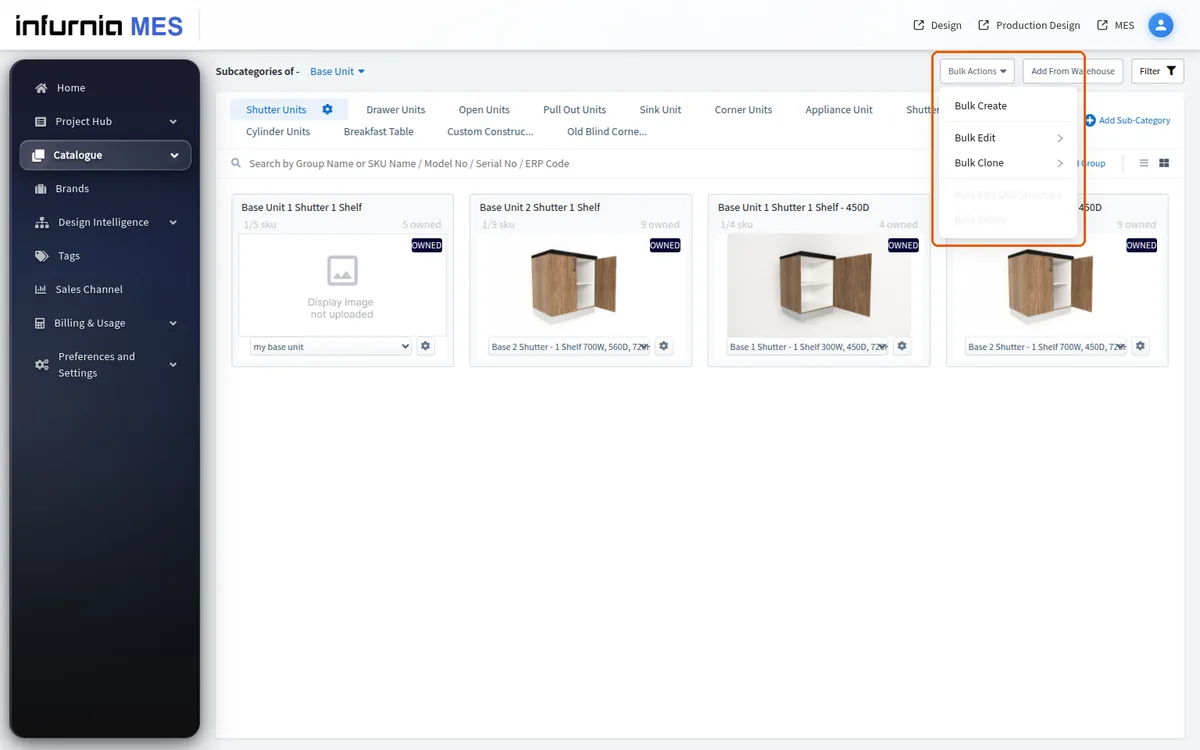
Bulk Create drafts are per-user and per-category. If a user clicks the plus icon on a category where they already have a draft, an 'Existing Draft Found' dialog appears - they must either continue editing that draft or cancel; they cannot start a parallel fresh grid for the same category until the draft is dealt with. The 'Edit Draft' action opens the 'SKUs in Draft' modal listing the latest attempts (time, division, category, owner). Only the draft's owner sees the Edit and trash actions - a teammate's draft is visible but not editable, which explains 'I can't open the draft my colleague saved'. The trash icon warns 'This action will delete all your existing drafts. click Delete to proceeed' - it removes every draft attached to that attempt, not a single row, so treat it as destructive. Saving happens via the 'save as draft' prompt when closing the create grid; drafts persist server-side (retrievable later even from another machine). If there are no drafts, the modal offers an 'Add new SKUs' shortcut that starts a fresh attempt.