Eine neue SKU mit Eigenschaften, Marke und Oberfläche zum Katalog hinzufügen
Erstellen Sie eine Katalog-SKU, füllen Sie ihre Eigenschaften, die Marke und die Angaben zur Oberfläche aus und behalten Sie sie als Entwurf oder fügen Sie viele auf einmal hinzu.
Um eine neue SKU hinzuzufügen, öffnen Sie den Katalog, erstellen Sie die SKU und füllen Sie ihre Eigenschaften aus (Konstruktion, Material, Beschläge, Zubehör, Sockel, Oberflächen).
✓ Am 21. Oktober 2026 im Produkt geprüft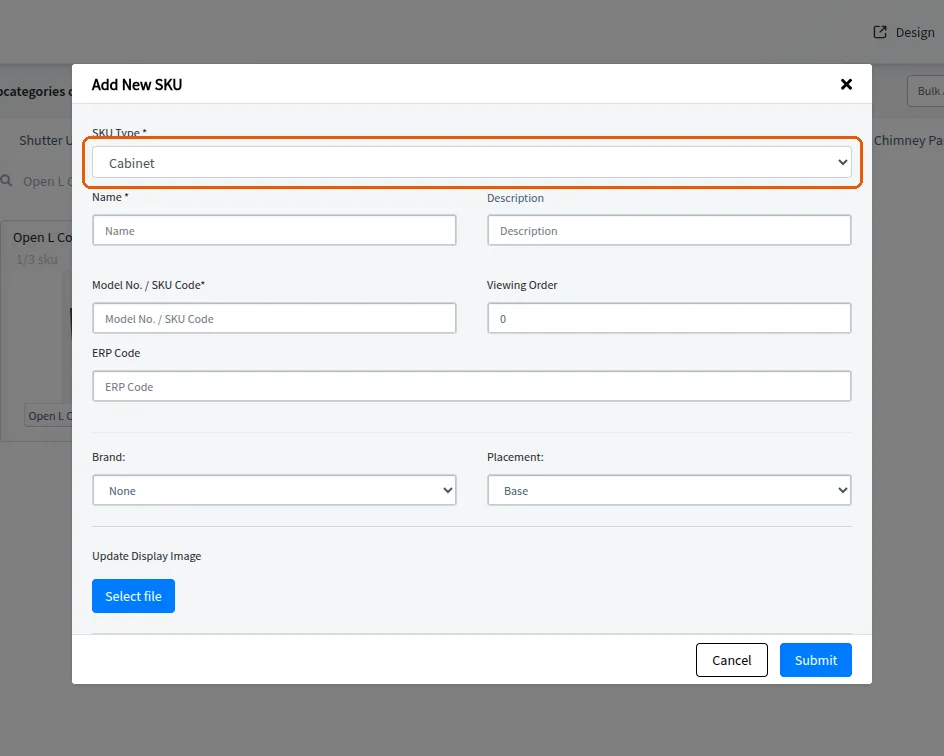
Legen Sie das Bild der Draufsicht fest.
Wählen Sie die Marke aus oder fügen Sie sie hinzu.
✓ Am 10. Oktober 2026 im Produkt geprüftLegen Sie Angaben zur Oberfläche fest, etwa Dekorschichttyp, Dicke und Farbe.
Der Eintrag kann als Entwurf behalten und später bearbeitet werden.
Für das gleichzeitige Hinzufügen vieler SKUs stehen Optionen zum Massenanlegen und für Massenaktionen zur Verfügung.
✓ Am 21. Oktober 2026 im Produkt geprüft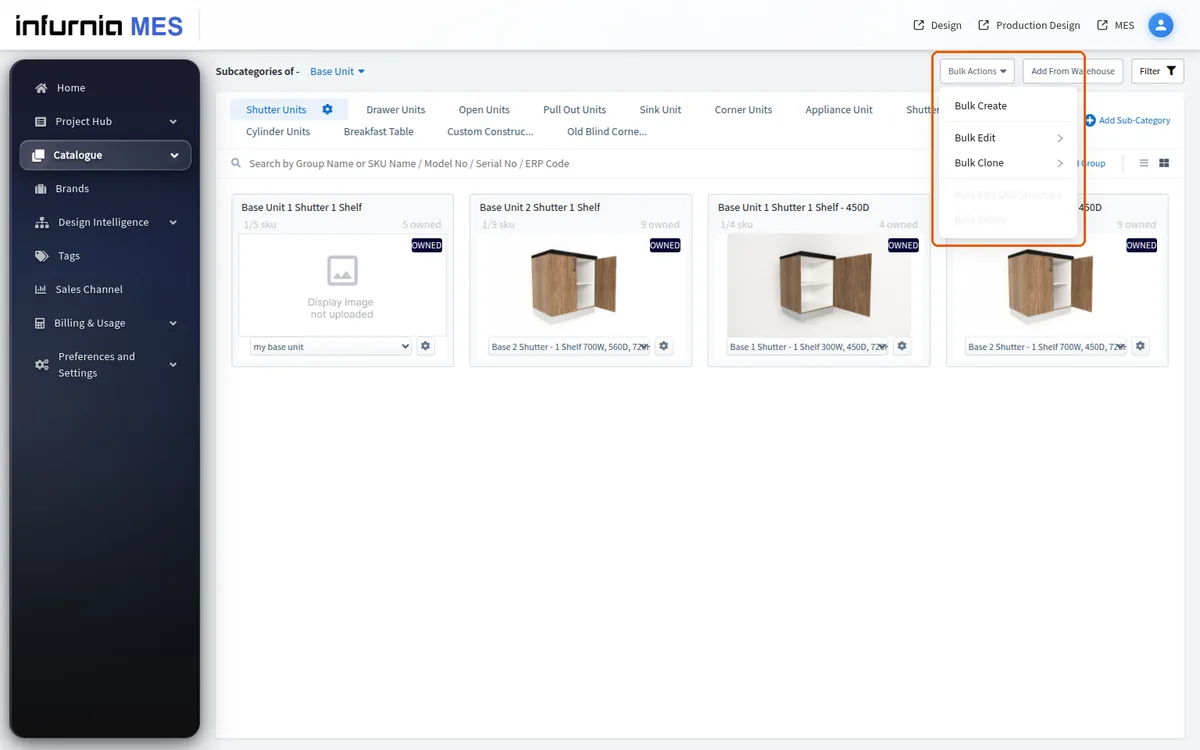
Bulk Create drafts are per-user and per-category. If a user clicks the plus icon on a category where they already have a draft, an 'Existing Draft Found' dialog appears - they must either continue editing that draft or cancel; they cannot start a parallel fresh grid for the same category until the draft is dealt with. The 'Edit Draft' action opens the 'SKUs in Draft' modal listing the latest attempts (time, division, category, owner). Only the draft's owner sees the Edit and trash actions - a teammate's draft is visible but not editable, which explains 'I can't open the draft my colleague saved'. The trash icon warns 'This action will delete all your existing drafts. click Delete to proceeed' - it removes every draft attached to that attempt, not a single row, so treat it as destructive. Saving happens via the 'save as draft' prompt when closing the create grid; drafts persist server-side (retrievable later even from another machine). If there are no drafts, the modal offers an 'Add new SKUs' shortcut that starts a fresh attempt.