Run a bulk edit on selected SKUs
Choose the editing mode in the bulk edit modal and set sales channel prices and tax per SKU or for all selected SKUs.
In the bulk edit modal you first choose the editing mode.
✓ Проверено в продукте 19 октября 2026 г.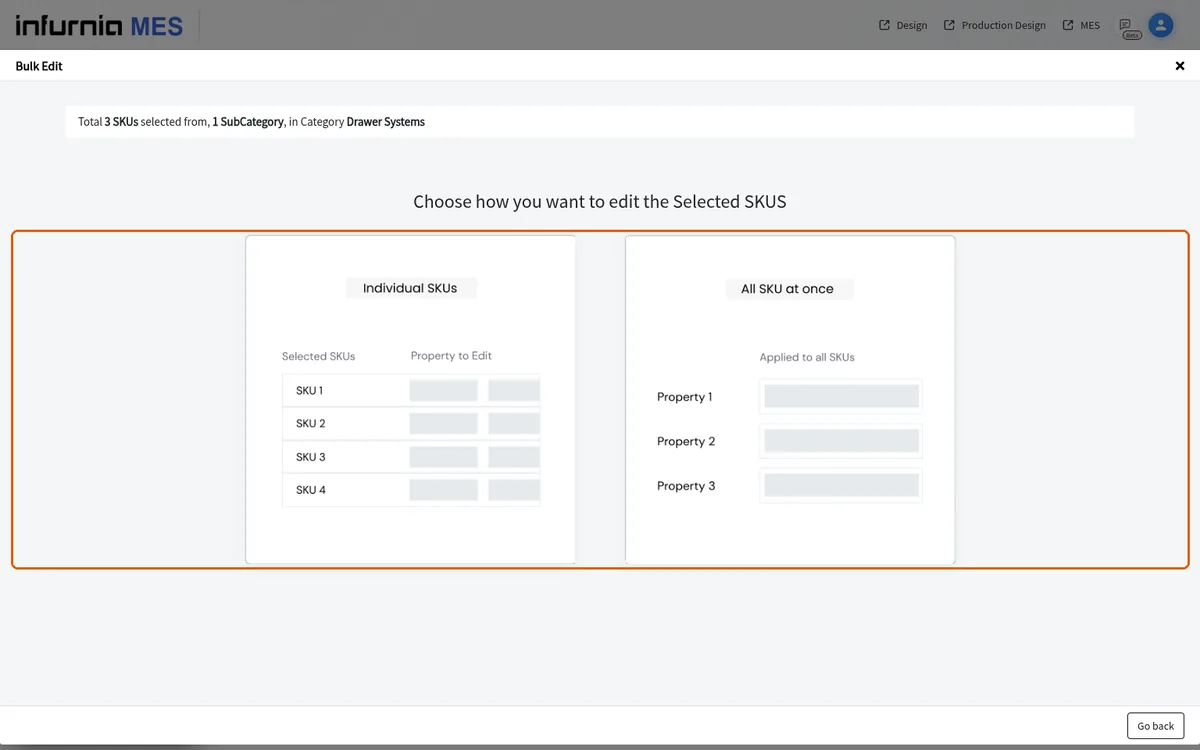
The Individual SKUs option opens a per-SKU editor.
✓ Проверено в продукте 19 октября 2026 г.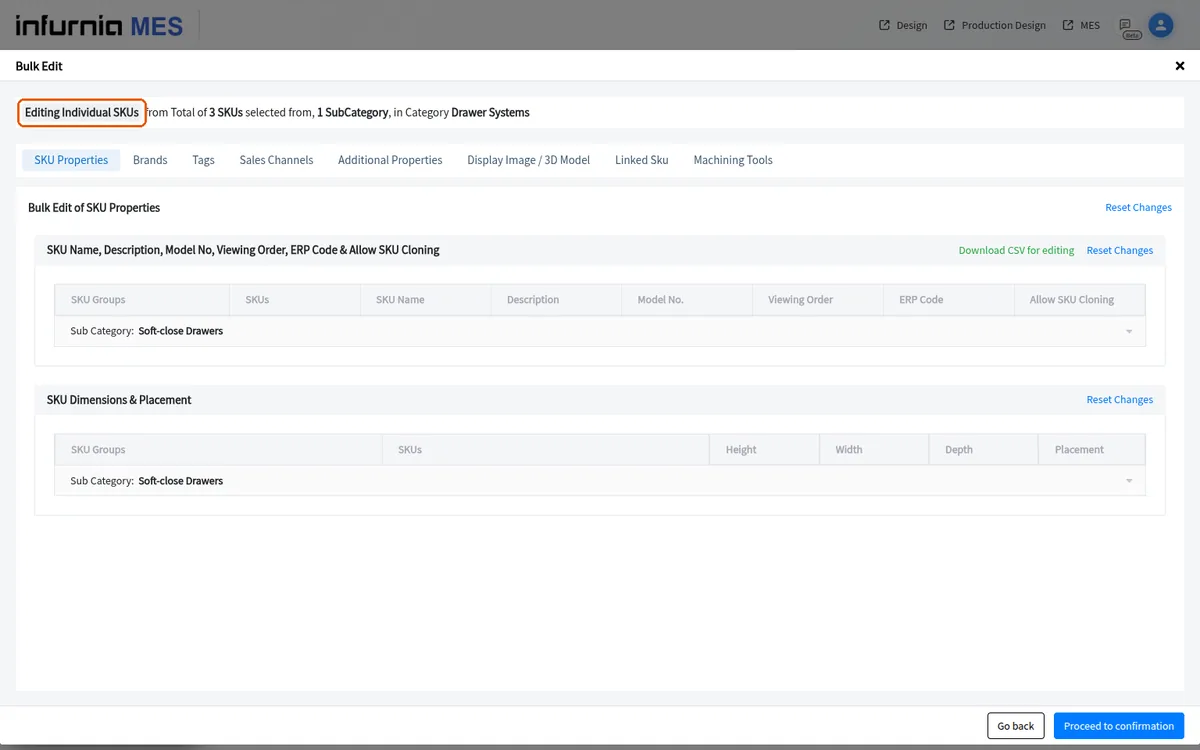
The per-SKU editor's Sales Channels tab lets you set each SKU's channel price and tax before publishing.
✓ Проверено в продукте 19 октября 2026 г.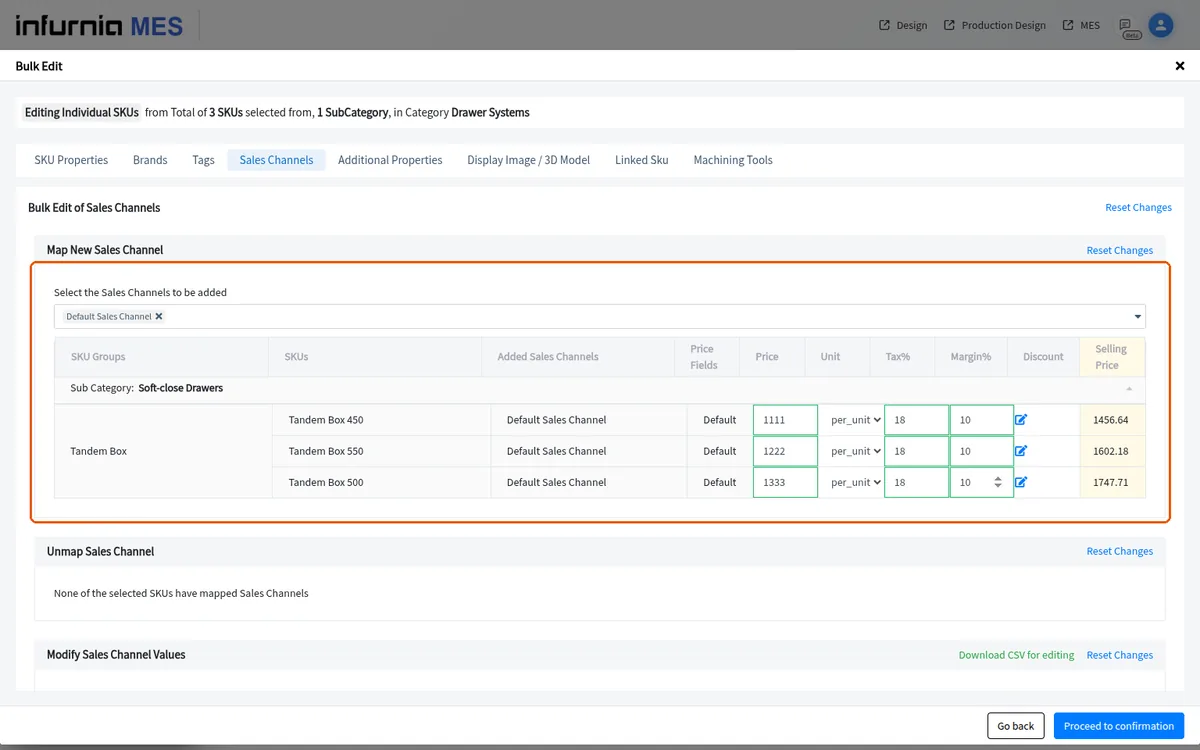
In the individual-SKU bulk edit, the sales-channel section is headed 'Modify Sales Channel Values'.
✓ Проверено в продукте 19 октября 2026 г.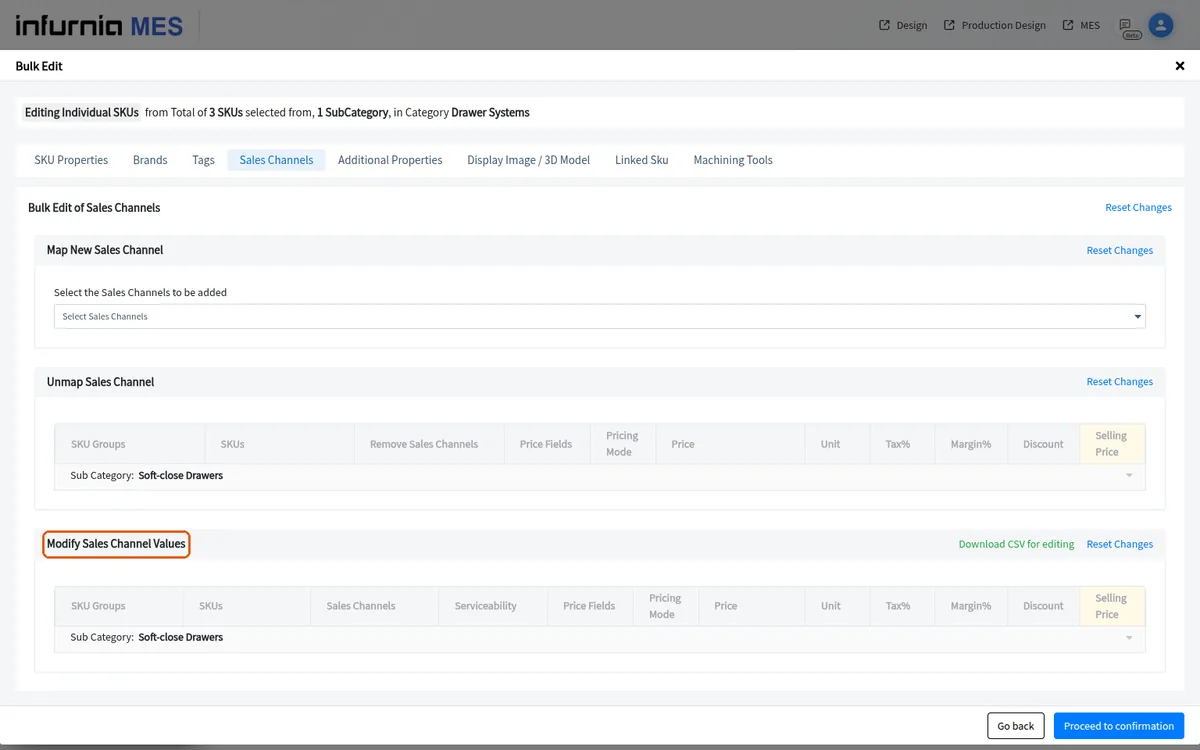
The sales-channel section offers a 'Download CSV for editing' button.
✓ Проверено в продукте 19 октября 2026 г.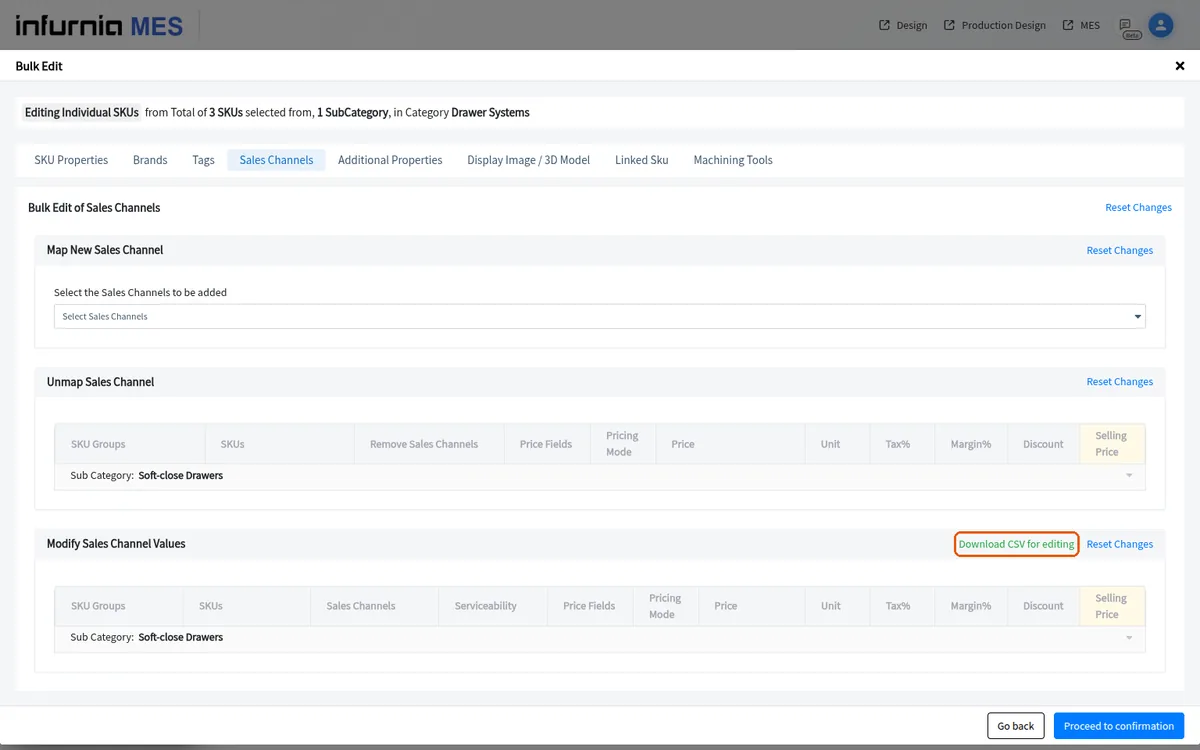
The sales-channel section offers a 'Reset Changes' link.
✓ Проверено в продукте 19 октября 2026 г.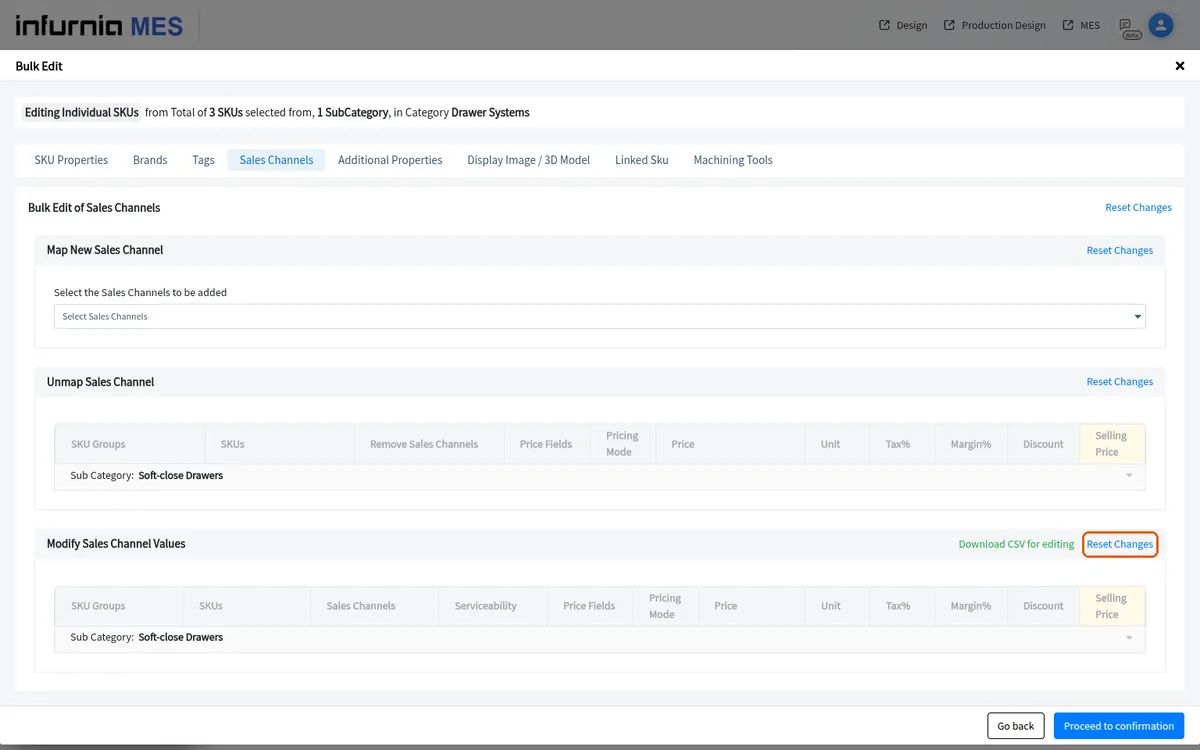
If none of the selected SKUs have a mapped sales channel, the section shows 'None of the selected SKUs have mapped Sales Channels'.
✓ Проверено в продукте 19 октября 2026 г.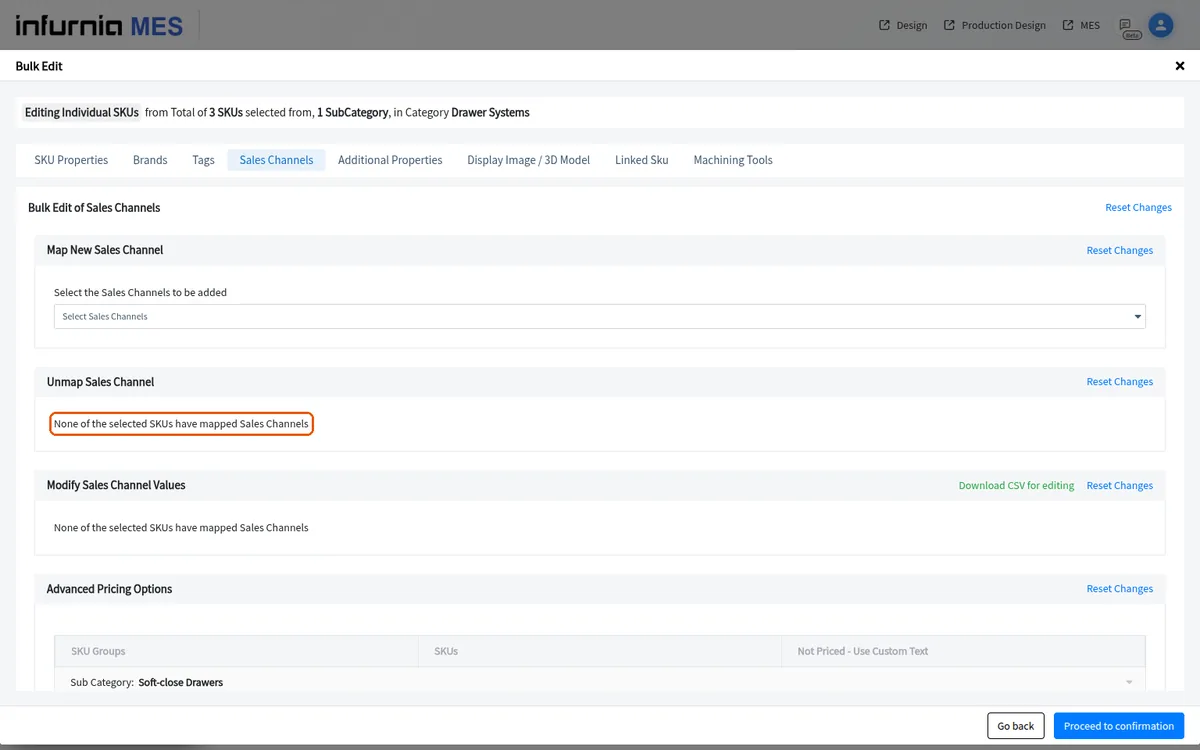
The bulk edit can be run in individual-SKU mode, where you edit each SKU's own sales channel and pricing values row by row, or in common mode, where the same sales channel mapping and price are applied to all selected SKUs at once.
✓ Проверено в продукте 19 октября 2026 г.In individual-SKU bulk edit you open each SKU, go to its sales channel section, scroll down and change the sales channel value, then set the per-unit cost for each size/drawer variant before proceeding to confirmation and publishing.
After selecting the category, open the bulk action menu and choose Bulk Edit, then pick the sales channel whose mapped pricing you want to change and enter the new price before publishing.