Draw walls in the 2D floor plan with exact dimensions
Draw walls in the 2D floor plan by entering height and thickness, then clicking and typing exact lengths.
Drawing the wall clockwise keeps the internal (inside-to-inside) dimensions on the inside of the room.
✓ ଅକ୍ଟୋବର 19, 2026 ରେ ପ୍ରଡକ୍ଟରେ ଯାଞ୍ଚ କରାଯାଇଛିWall height and thickness are entered in the wall tool settings before/while drawing (for example a height of 3000 and a thickness of 150).
✓ ଅକ୍ଟୋବର 19, 2026 ରେ ପ୍ରଡକ୍ଟରେ ଯାଞ୍ଚ କରାଯାଇଛି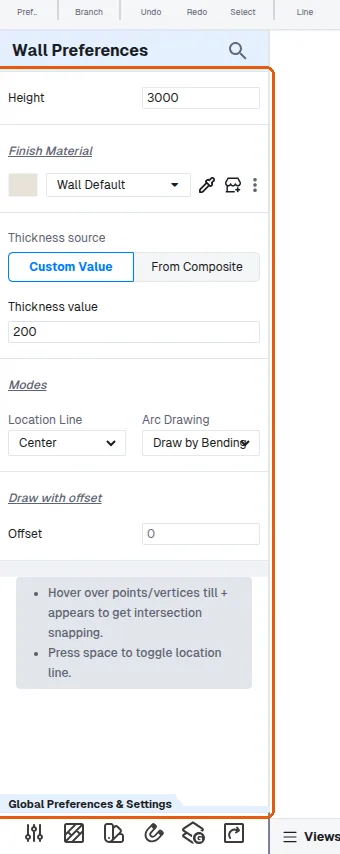
The wall thickness and location line can be set from the wall tool settings before drawing.
✓ ଅକ୍ଟୋବର 20, 2026 ରେ ପ୍ରଡକ୍ଟରେ ଯାଞ୍ଚ କରାଯାଇଛିThe wall thickness and location line can be set from the wall's properties panel (Location Line offers Center, Left or Right; Thickness accepts a custom value).
✓ ଅକ୍ଟୋବର 19, 2026 ରେ ପ୍ରଡକ୍ଟରେ ଯାଞ୍ଚ କରାଯାଇଛି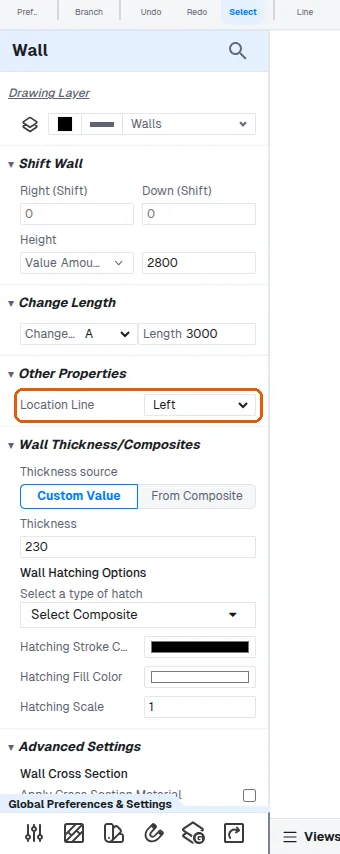
Walls are drawn in the 2D floor plan by selecting the wall tool, entering the wall height and thickness in the tool settings, then clicking on screen and typing the dimension values, pressing Enter to confirm each.
✓ ଅକ୍ଟୋବର 20, 2026 ରେ ପ୍ରଡକ୍ଟରେ ଯାଞ୍ଚ କରାଯାଇଛି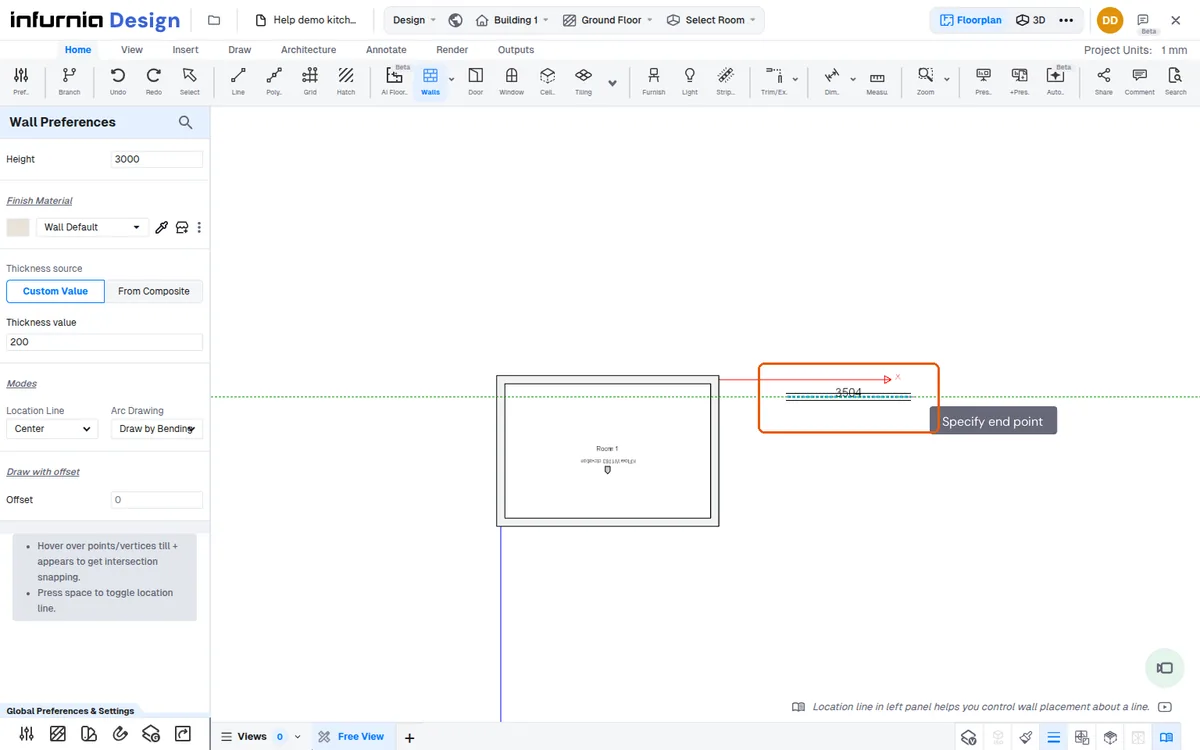
Walls can be drafted with the W-A-Enter shortcut.
✓ ଅକ୍ଟୋବର 20, 2026 ରେ ପ୍ରଡକ୍ଟରେ ଯାଞ୍ଚ କରାଯାଇଛି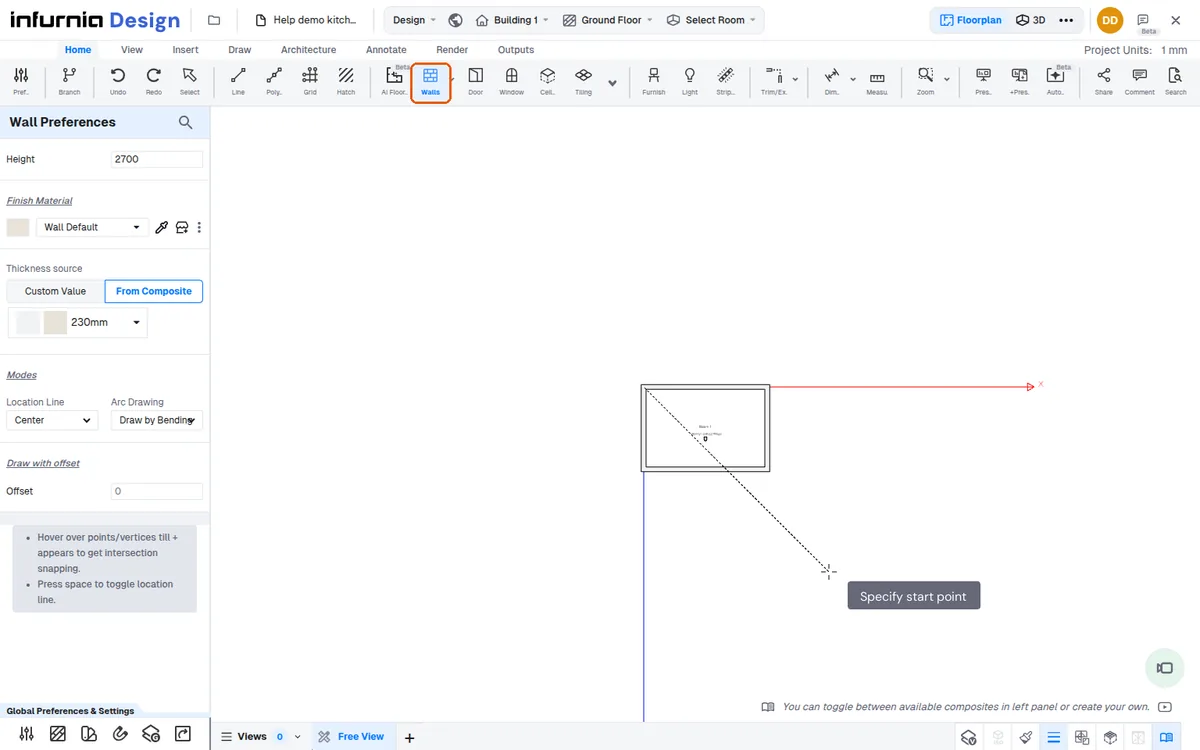
While drawing a wall, click the start point and move the mouse: the wall follows the pointer with its live length, and a second click (or a typed length) ends it. Pressing, dragging with the button held and releasing does not lay out a wall.
Then type the exact length on the keyboard to set that wall precisely.
✓ ଅକ୍ଟୋବର 20, 2026 ରେ ପ୍ରଡକ୍ଟରେ ଯାଞ୍ଚ କରାଯାଇଛି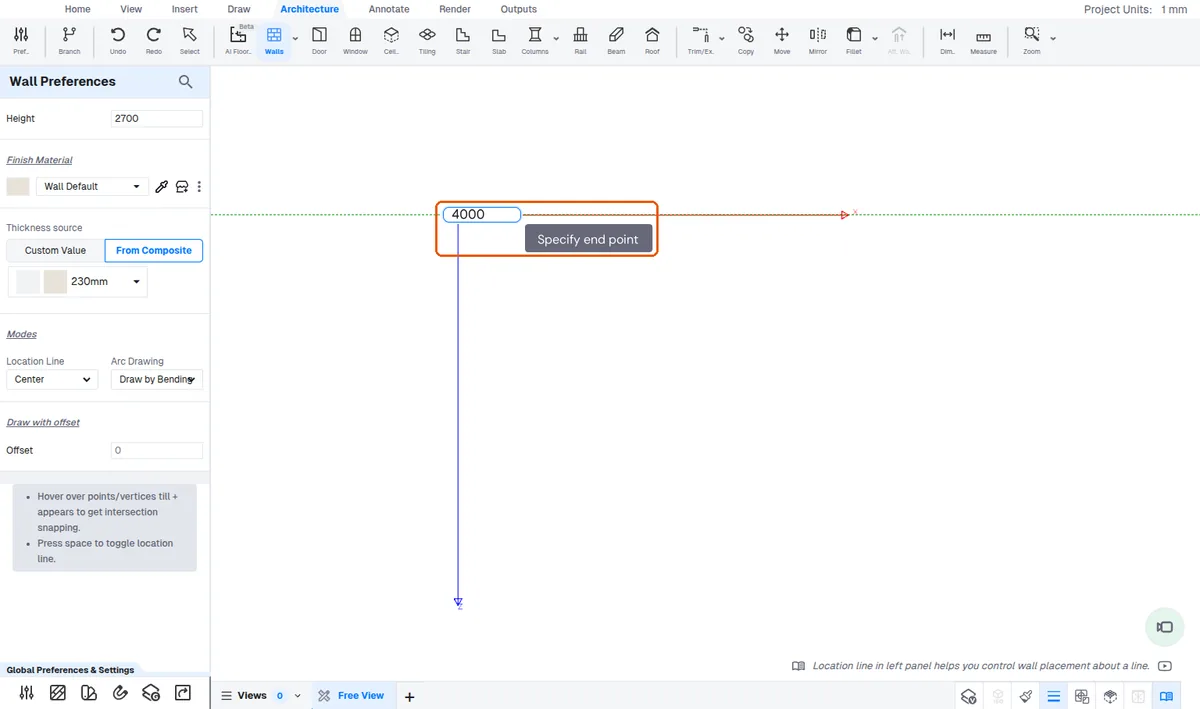
For a perpendicular wall, align the new line with the perpendicular snap guide so it is not slanted.
✓ ଅକ୍ଟୋବର 15, 2026 ରେ ପ୍ରଡକ୍ଟରେ ଯାଞ୍ଚ କରାଯାଇଛିWhen you draw back toward the start a guide shows where to end so the wall matches the opposite side and the room closes.
✓ ଅକ୍ଟୋବର 19, 2026 ରେ ପ୍ରଡକ୍ଟରେ ଯାଞ୍ଚ କରାଯାଇଛି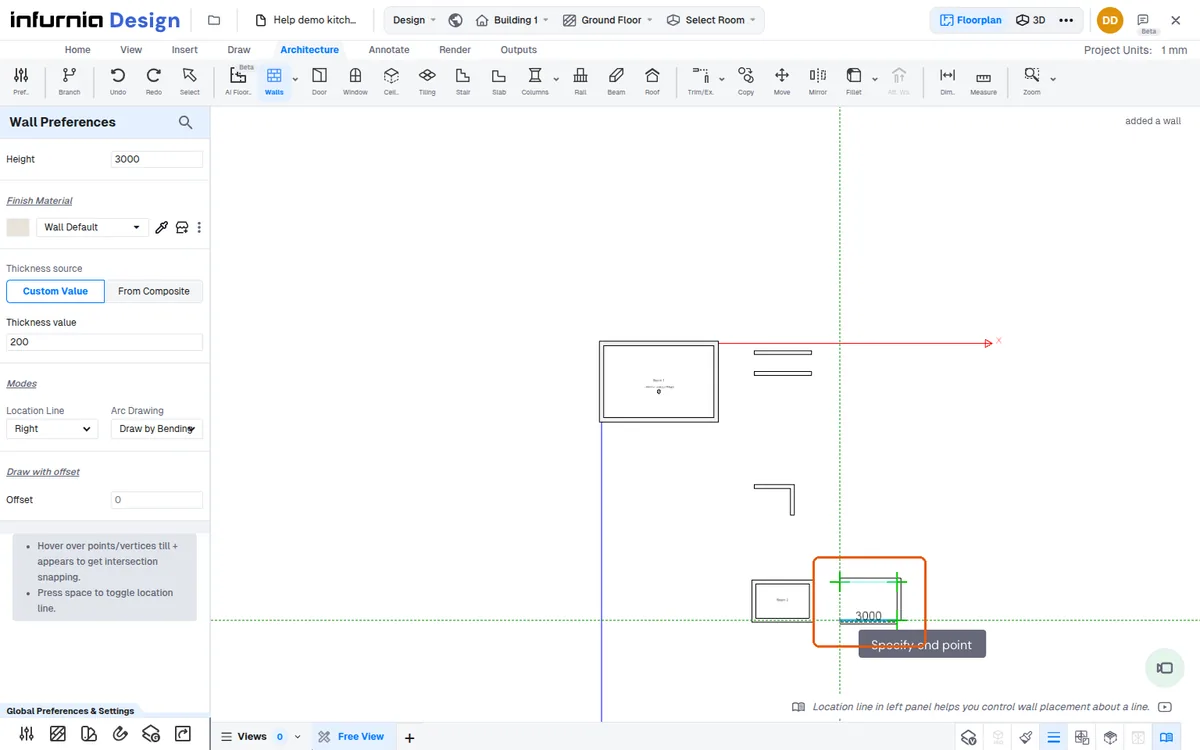
When you type a dimension for the next wall point, the point snaps to the existing wall line, so you can close a room loop without re-entering every measurement.
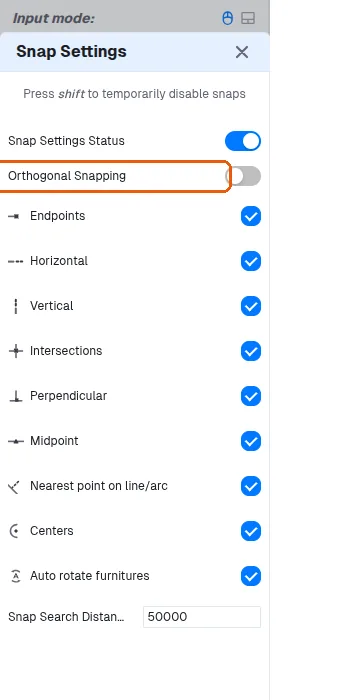
Orthogonal snapping for drawing straight walls is available as a toggle in the Snap Settings panel.
✓ ଅକ୍ଟୋବର 19, 2026 ରେ ପ୍ରଡକ୍ଟରେ ଯାଞ୍ଚ କରାଯାଇଛି