Format the header rows of a dynamic schedule
Style the title, filter and column header rows of a dynamic schedule separately from its body, and adjust columns so headings fit.
A dynamic schedule renders up to three header rows above the data.
✓ 2026년 10월 20일에 제품에서 확인됨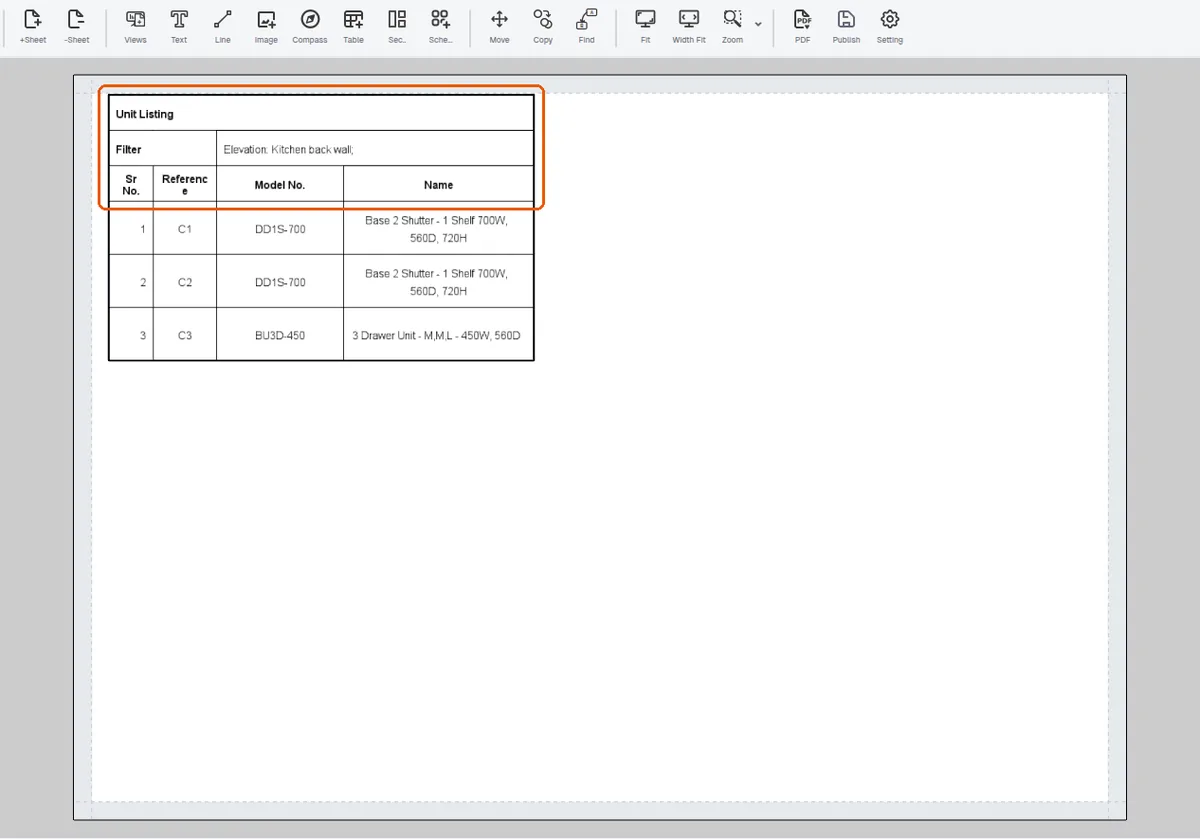
A title row showing the schedule name (toggle 'Show Schedule Title').
A filter row showing 'Filter' plus the active room/elevation/layer/level description.
✓ 2026년 10월 20일에 제품에서 확인됨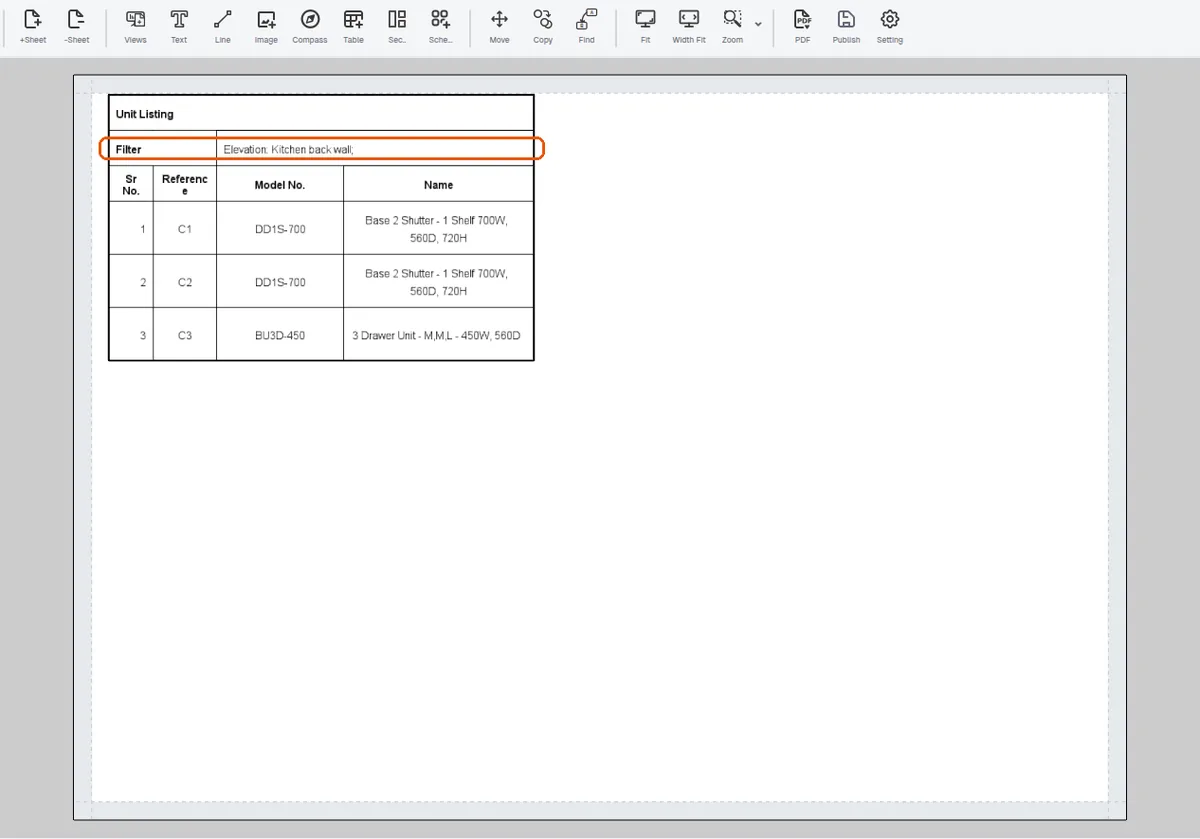
The column header row is always present.
✓ 2026년 10월 20일에 제품에서 확인됨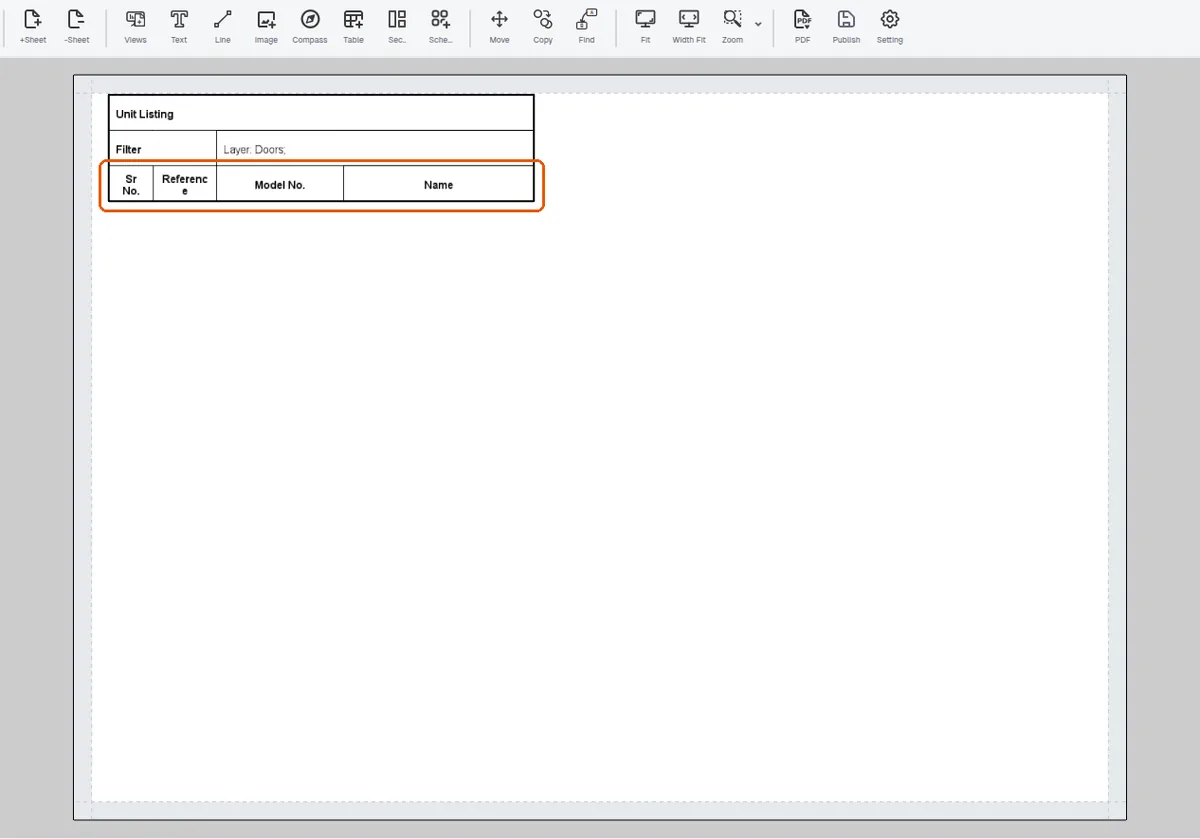
Header rows default to 10mm height.
✓ 2026년 10월 20일에 제품에서 확인됨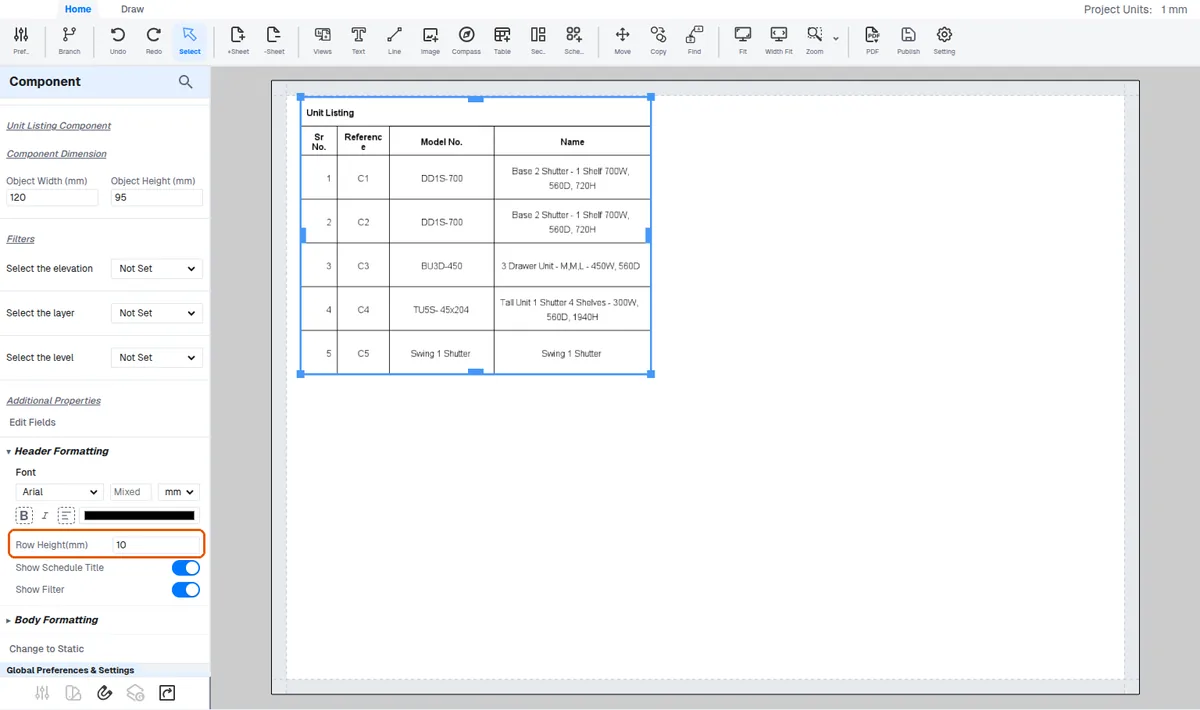
Header and body have independent formatting override sets in the panel (Header Formatting / Body Formatting): font size, units, font, bold, italic, alignment, font color, and row height.
Overrides are stored per component, so two copies of the same schedule type can be styled differently.
✓ 2026년 10월 20일에 제품에서 확인됨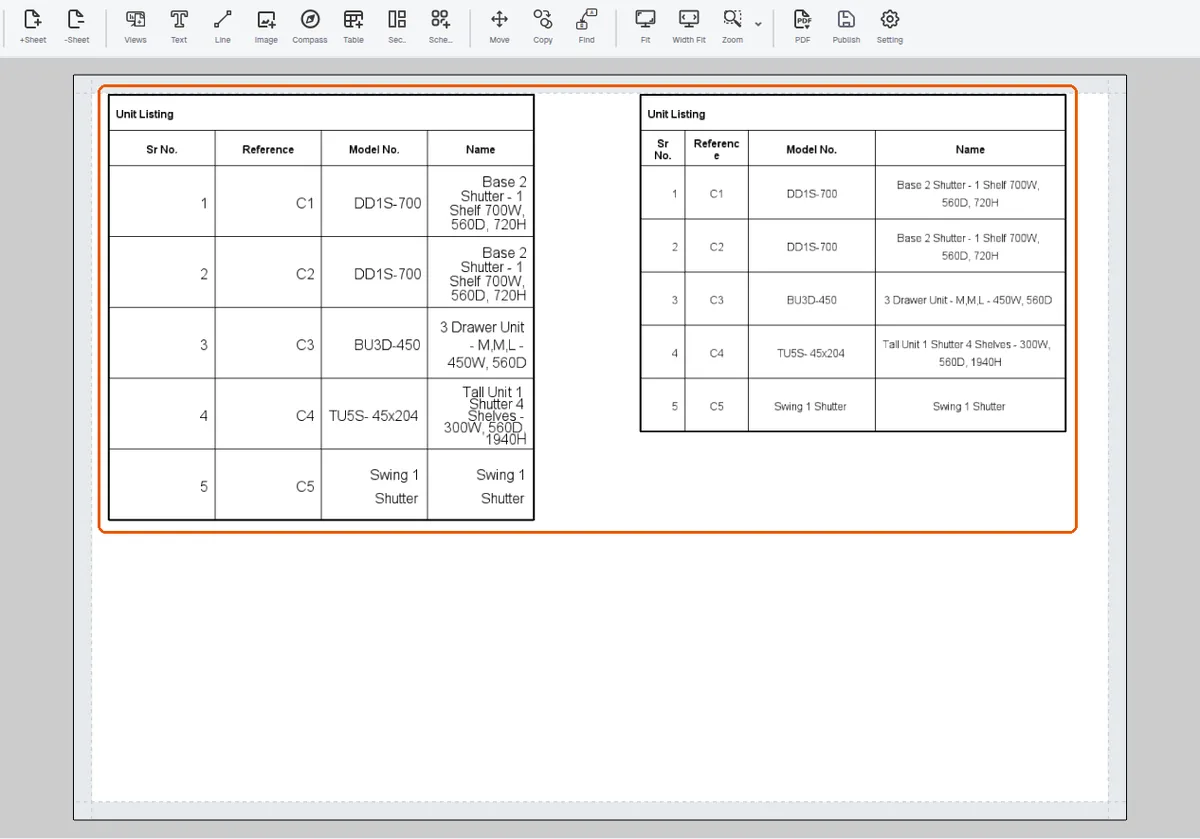
Header formatting is applied by selecting the header cells (Ctrl for multi-select) and using the Table Cells / Header Formatting options on the left panel, where you can set Bold and a Row Height value such as 120.
✓ 2026년 10월 20일에 제품에서 확인됨If a heading wraps to two lines, widen the column by dragging the boundary between the two column headers.