Move a selected object with keys and gimbal arrows
Learn the keyboard and gimbal-arrow shortcuts that move a selected object by exact distances in the floor plan and 3D view.
In the floor plan, with nothing selected, the left panel (Viewport Navigation) lists the keys that move a selected object.
✓ Checked in the product on 22 October 2026The arrow keys (Up / Down / Left / Right) move a selected object by 1 mm.
✓ Checked in the product on 22 October 2026Shift + an arrow key moves a selected object by 10 mm.
✓ Checked in the product on 22 October 2026With a cabinet selected in the floor plan, Shift + Right moved it by 10 mm.
✓ Checked in the product on 22 October 2026In the 3D view a selected unit shows move arrows (green up, red and blue along the floor) and a green ring; dragging the up arrow's head moves the unit straight up (40 px moved a loft 755 mm, its x / z unchanged).
✓ Checked in the product on 19 October 2026In the 3D view, while a gimbal arrow is held after a short drag, typing a digit (or '-') opens a length box at the cursor; Enter moves the item exactly the typed distance along that arrow, measured from where the drag started (+150 on the green arrow raised a base unit 150 mm, -150 lowered it 150 mm).
✓ Checked in the product on 19 October 2026In 3D, the left panel's Viewport Navigation adds Orbit (middle mouse), Move Camera (Shift + W / A / S / D for front / left / back / right, Shift + Q / E for up / down) and Rotate Camera (Shift + the arrow keys) to Pan (Shift + middle mouse) and the zoom options (mouse scroll, Shift + X to the selection, Shift + Z to fit all).
✓ Checked in the product on 20 October 2026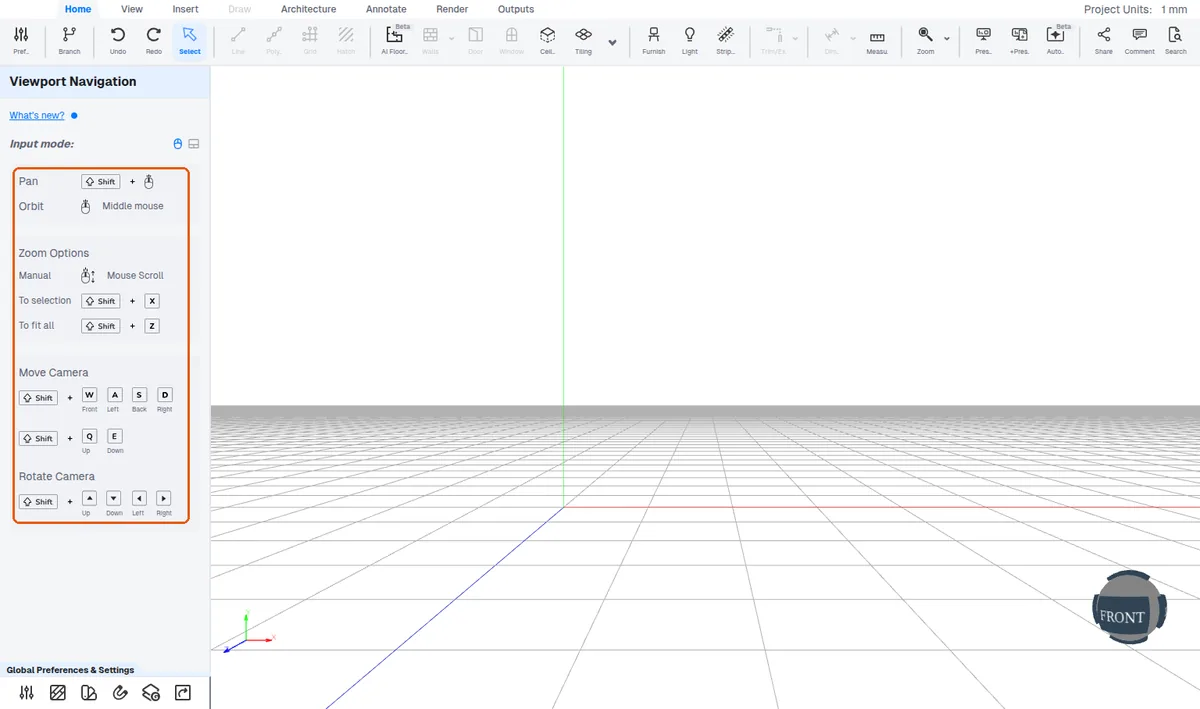
Esc clears the selection: with a unit selected, one Escape empties the panel.
✓ Checked in the product on 20 October 2026