Fix a hardware depth that does not apply
Change the depth on the hardware entry, reload and re-add it, then check the drawer-level setting if it still does not take.
Hardware depth is changed from the hardware entry's Edit SKU Properties form: expand Additional Properties, adjust the depth value and save with Update Details, then reload and add the hardware again.
✓ Diperiksa di produk pada 21 Oktober 2026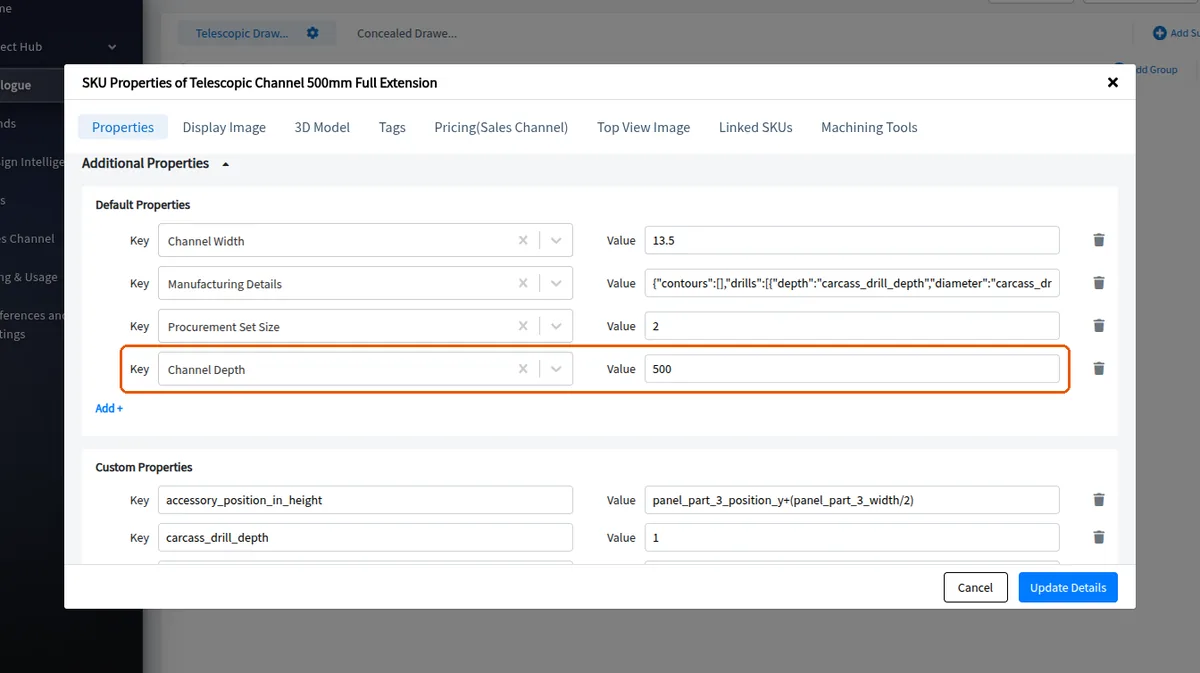
If the new depth still does not apply, check the depth setting at the drawer level instead.
In the bulk edit of several selected SKUs, the board sizes section has a "Mode:" that reads either "Add or delete sizes" or "Replace all sizes".
To add or delete sizes: in "Add or delete sizes" mode, enter each size under "Length (mm) × Width (mm)" using the "Length in mm" and "Width in mm" fields. The "Adds To" column tells you how many selected SKUs will get that size. To drop a size, use "Remove row". A summary shows what is "Adding:" and what is "Deleting:".
To replace all sizes on the selected SKUs with the same list: switch to "Replace all sizes" and enter the list of sizes; every selected SKU ends up with exactly those sizes. The list cannot be empty in this mode.
Length and width must be whole numbers above 0. A size already in the list, or one also marked for deletion, is flagged; a size every selected SKU already has is only a warning.