Bulk-create catalogue SKUs with the CSV template wizard
Download the Excel template from the Bulk Create via CSV wizard, fill it in category by category, and upload it to create SKUs in bulk.
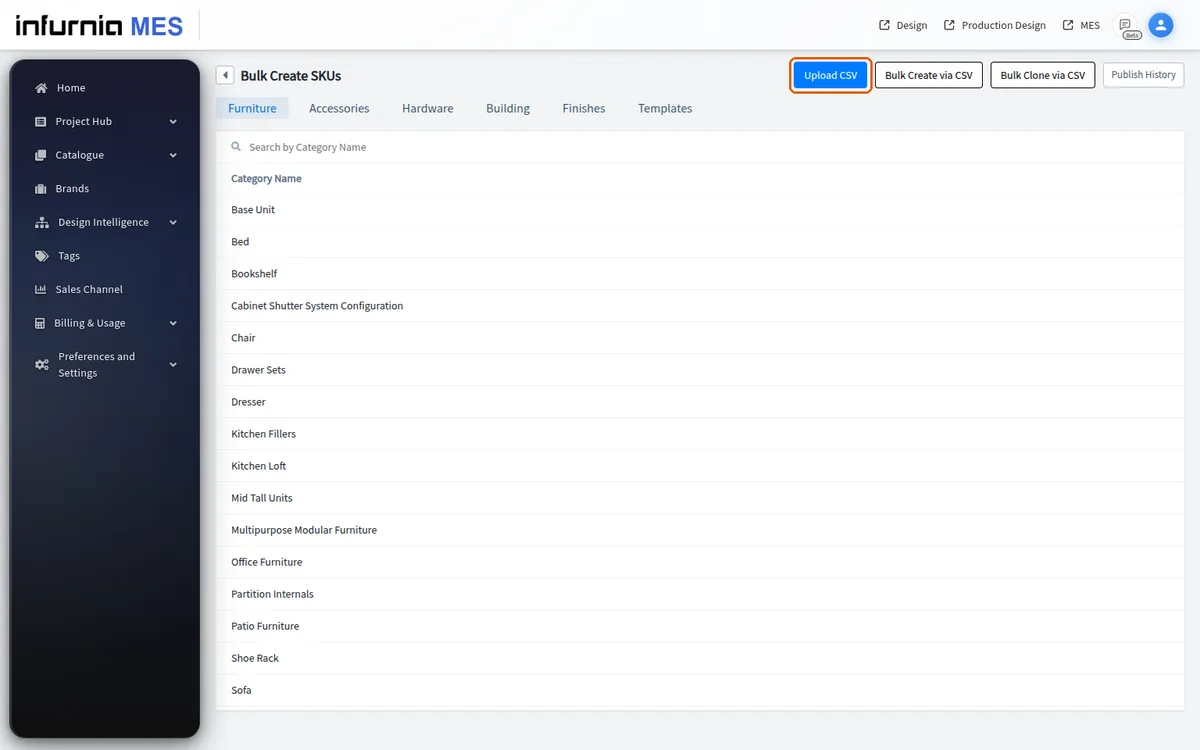
The 'Bulk Create via CSV' wizard (on the Bulk Create SKUs page) walks through Division, Category Type, optional Linking steps, and Confirm/Download. Important scope limitation: although the catalog has six divisions, the wizard currently offers only Hardware and Finish (the other divisions are not listed at all), and under Hardware only the 'panel core hardware' and 'edge band hardware' category types are listed. Tell users asking to bulk-create Furniture/Accessory via CSV that this path does not support it yet - use the Bulk Create grid instead. The Linking step appears only for Finish division or panel_core_hardware; choosing 'With Linked SKUs' on panel_core_hardware adds a Link Types step (Core SKUs / Finish SKUs - at least one required). The download is a single .xlsx workbook, not a ZIP of CSVs (older docs mention a ZIP): tab 'To be Filled' is the editable template, plus reference tabs for Category, Subcategory, Group, Brand, Additional Property Keys, Default Pricing, Material Templates (Finish/panel_core_hardware only) and Linking SKU Reference (when linking enabled). Finish/panel_core templates add material_template_id, texture, color, thickness, texture_height columns; edge_band adds thickness and tape_width columns; default pricing columns (default price, default unit, tax, margin, discount) are always included - the default unit cell offers a dropdown of the units allowed for the chosen category type, and leaving it empty prices per the category type's default unit - and five additional_property key/value column pairs are always included.
Bulk upload is the recommended route for large finish catalogues, where a single finish category can hold well over a thousand SKUs and adding them one at a time is impractical.
The upload sheet works by IDs: it carries a category_id and sub_category_id for each row, so the categories and sub-categories must already exist in the catalogue before the sheet is filled — otherwise the IDs cannot be fetched and the system has nowhere to place the items.
✓ Vérifié dans le produit le 19 octobre 2026The template sheet is filled in with the category and subcategory IDs that already exist in the catalogue, so those must be created before the sheet can resolve where each SKU belongs.
For finish bulk creation, prepare the finish listing (the CSV/Excel template downloaded from the wizard) first and share it before uploading, since the listing determines which finish SKUs and materials are created.
When bulk-creating catalogue items via CSV, use the downloaded template exactly as provided and do not change its columns or layout; to bring in data from another source, keep the original template intact and paste your values into it rather than restructuring the file.
The template includes an erp_code column, so each item can be uploaded with the client's own item code from the sheet.
✓ Vérifié dans le produit le 19 octobre 2026The names entered in the Excel sheet's sku_name column are the names designers will see in the front end, so the sheet's naming should match what designers should see.
The template is filled in category by category.
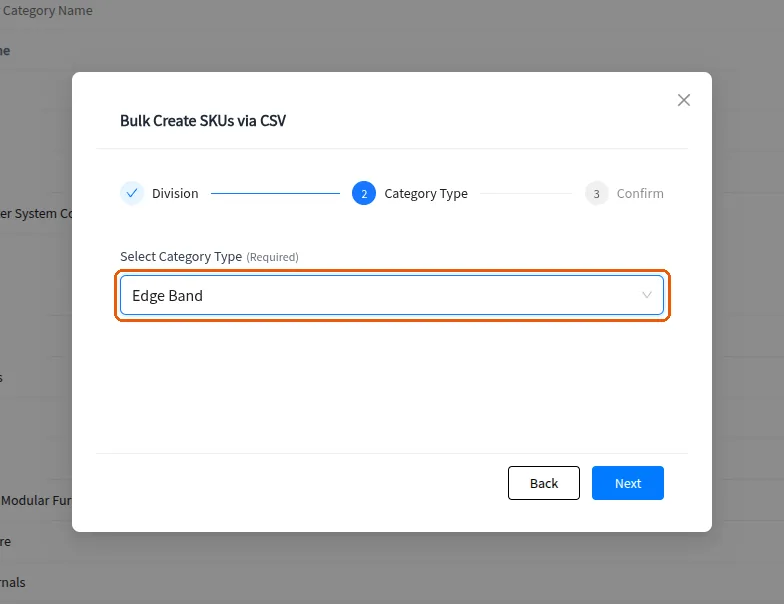
For hardware bulk creation with linked SKUs, the downloaded template is filled with one row per hardware item and then uploaded back to create the items in bulk.
The completed file is uploaded back through the separate 'Upload CSV' action on the Bulk Create menu page.
✓ Vérifié dans le produit le 19 octobre 2026