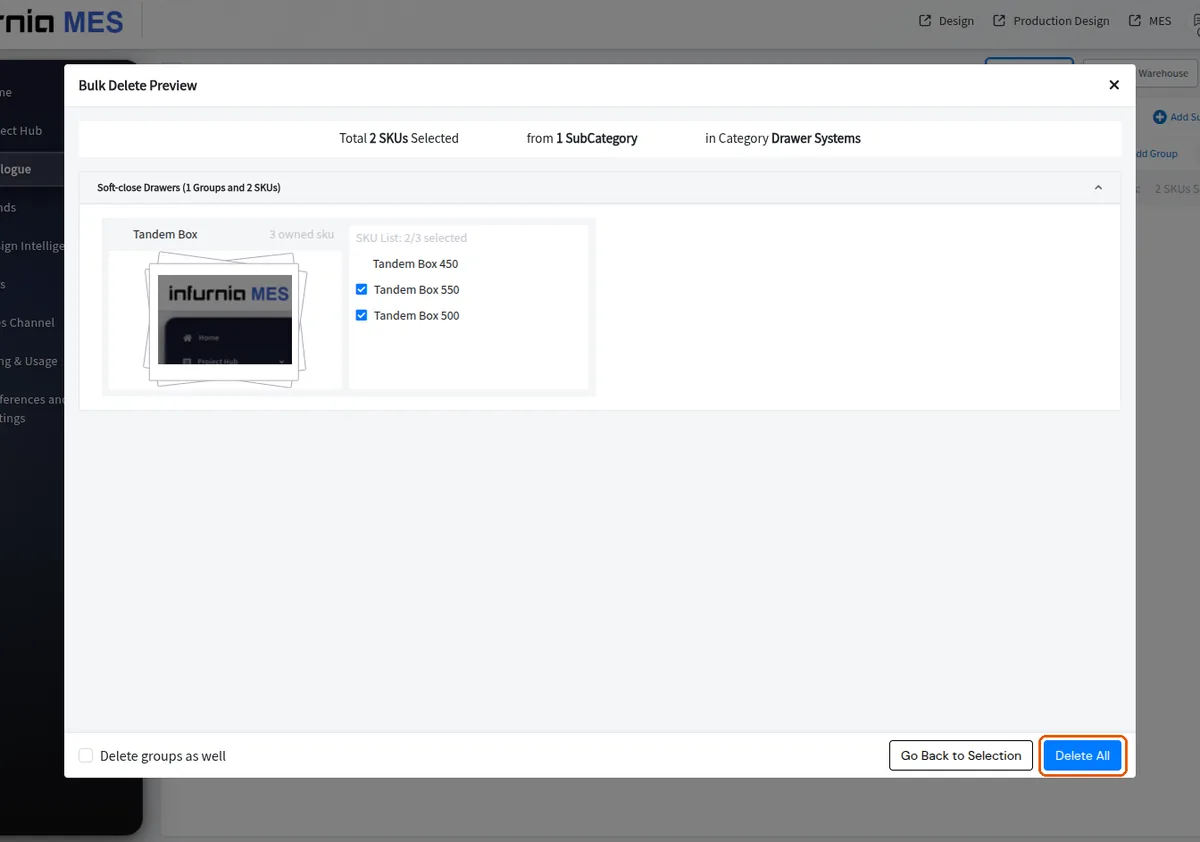
Delete many SKUs in bulk
Select the SKUs to remove, untick the ones to keep and run Bulk Delete from the Bulk Actions menu.
To delete many units at once, select the whole group so every unit inside it is ticked, then untick the single unit you want to keep and delete the rest — only the ticked units are removed.
✓ ১৯ অক্টোবৰ, ২০২৬ তাৰিখে প্ৰডাক্টত পৰীক্ষা কৰা হৈছে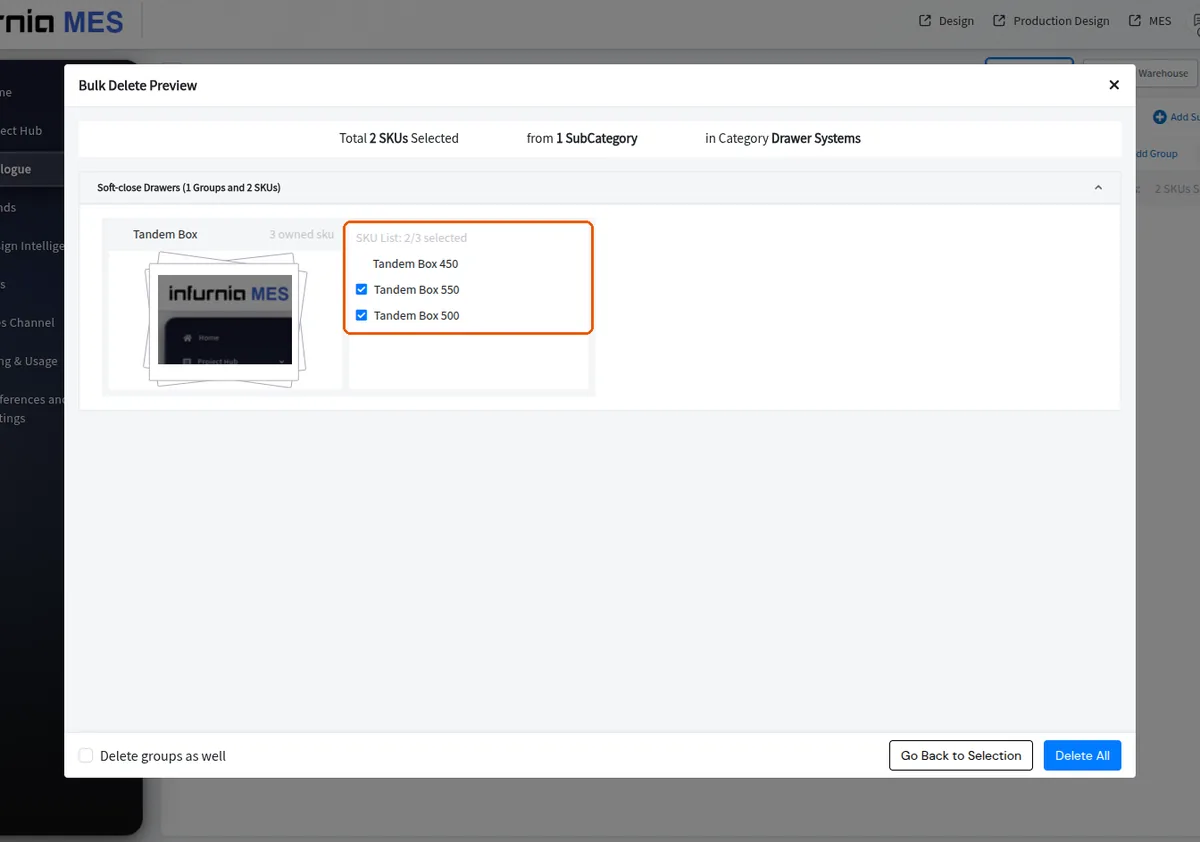
To clear out generic (unbranded) laminates, open the laminates category, tick the category-level select-all, untick the laminates you want to keep, then choose Bulk Delete from the bulk-action menu.
If you have narrowed the list with a filter or the search box, the category-level select-all only picks up the SKUs currently shown (the checkbox is labelled 'Select Category (filtered)'), so you can clear out a filtered subset in one go. Note that changing a filter or the search clears your current selection — set up your filters first, then select and delete.
Brand laminates can afterwards be brought in with Add From Warehouse.
✓ ১৯ অক্টোবৰ, ২০২৬ তাৰিখে প্ৰডাক্টত পৰীক্ষা কৰা হৈছে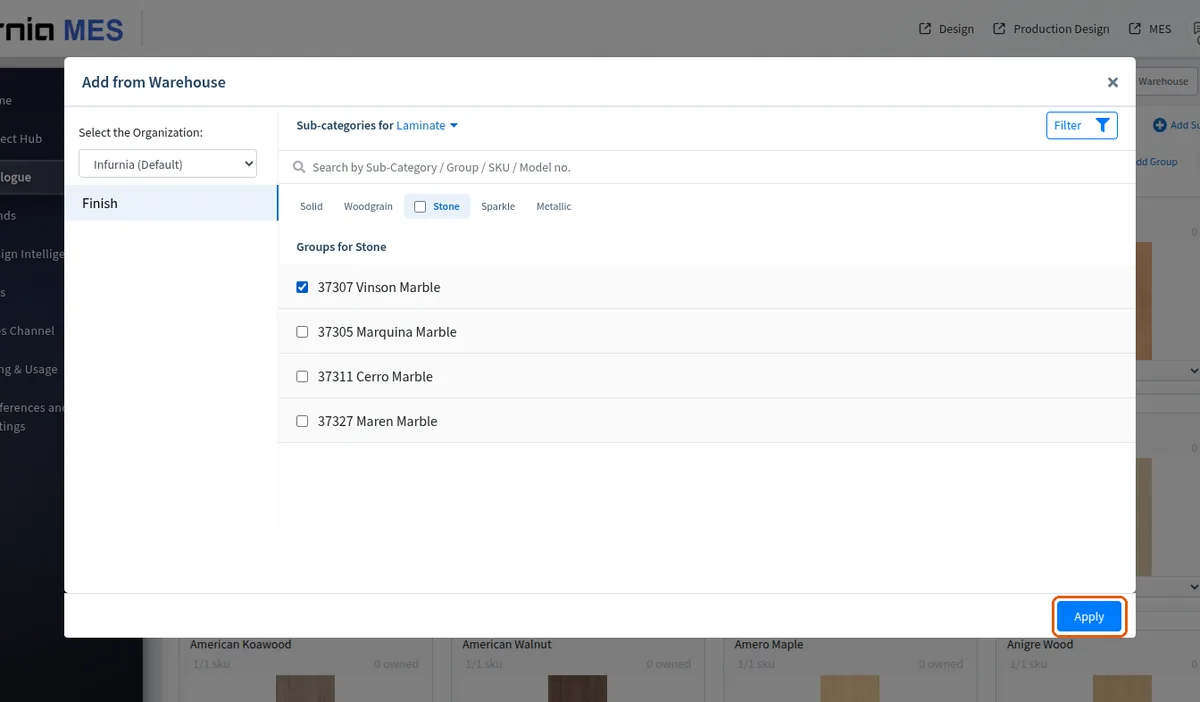
Unused materials, finishes or other catalogue items can be cleared in bulk: tick their checkboxes (or use select-all), open the Bulk Actions menu and choose Bulk Delete, then confirm with Delete All.
✓ ২০ অক্টোবৰ, ২০২৬ তাৰিখে প্ৰডাক্টত পৰীক্ষা কৰা হৈছে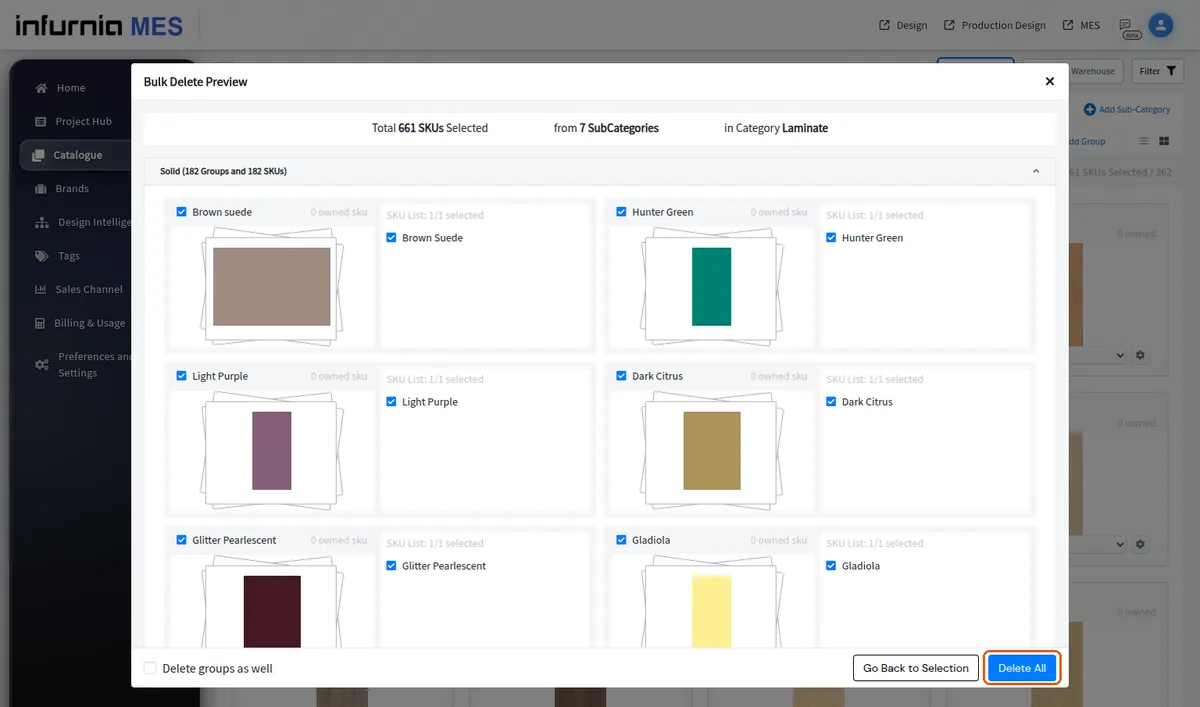
The same select-all plus Bulk Actions → Bulk Delete flow can be used to clear out an entire category of SKUs, such as edgebands, in one pass instead of deleting them one by one.
Duplicate or unwanted catalogue modules can be reviewed in the admin portal and removed with the bulk delete action after selecting them.
✓ ১৯ অক্টোবৰ, ২০২৬ তাৰিখে প্ৰডাক্টত পৰীক্ষা কৰা হৈছে