Choose which box label template a work order prints
Set the default box label template for one work order so its labels print in the layout that client or project needs.
The Packaging page has a 'Box Label Setting' button (top right).
✓ 已于 2026年10月19日 在产品中核实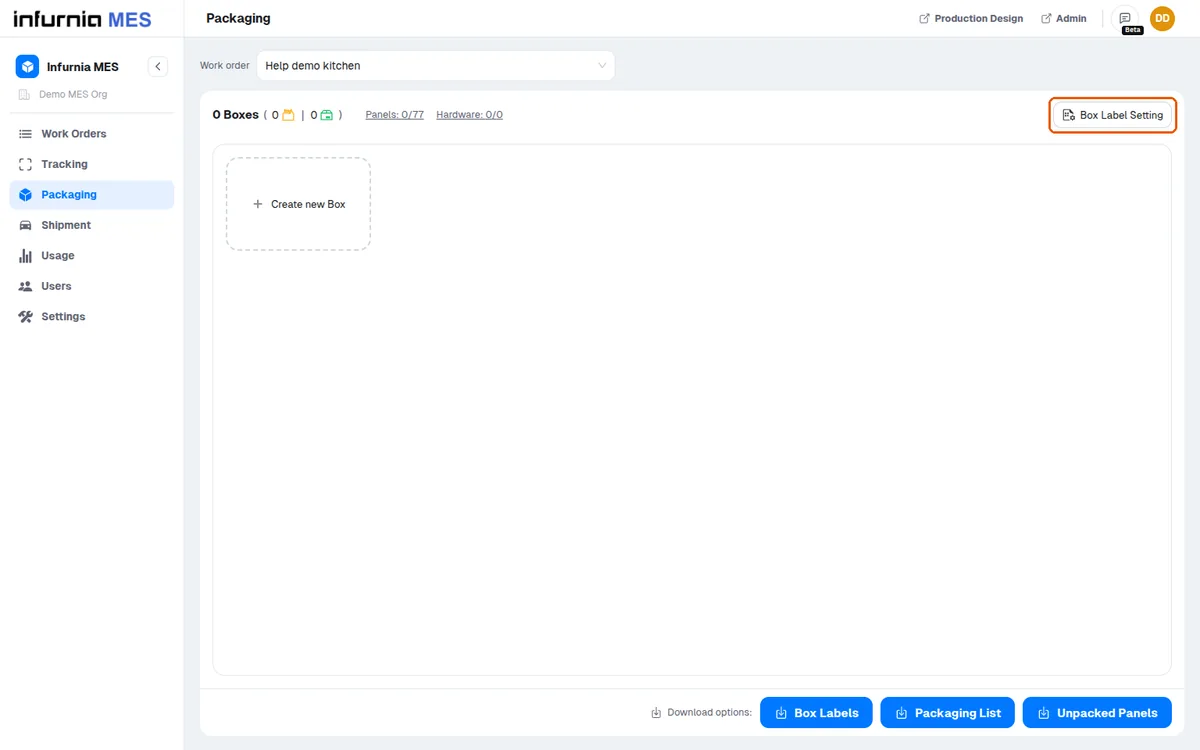
'Box Label Setting' sets the default box label template for that specific work order — useful when different clients or projects need different label layouts.
✓ 已于 2026年10月19日 在产品中核实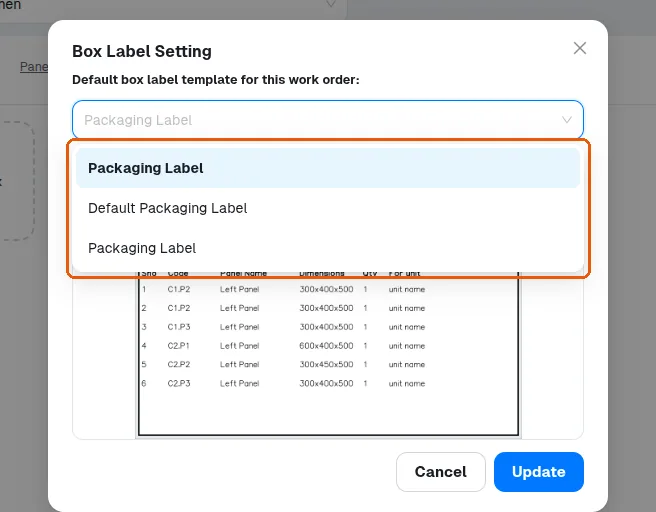
The dialog lists the available templates; pick one and confirm to set it for this work order.
✓ 已于 2026年10月19日 在产品中核实From then on, 'Print label & close the box' and the bulk 'Box Labels' download for that work order use the selected template.
✓ 已于 2026年10月19日 在产品中核实If a work order has no template set, its box labels use the organisation's default box label template (set in Settings > Box Labels) instead. On a freshly loaded Packaging page, open 'Box Label Setting' once before printing such a work order's labels: until then they print at 148 x 105 mm instead of the default template's size.
The selection lives on the work order, so other work orders are unaffected.
✓ 已于 2026年10月19日 在产品中核实Printed labels always use the template's saved styling — unsaved experiments in the Settings > Box Labels editor do not change what prints until the template is saved there.
✓ 已于 2026年10月19日 在产品中核实