How the quotation header rows and Quotation ID work
Learn what the quotation header and sub-header rows contain and why the Quotation ID and Price Expiry Date change on every export.
The top of the quotation table has two special rows. The header row holds the logo cell (organization logo, store logo, or — when both are enabled — a single stitched image with both logos), an optional custom quotation title ('Quotation Name' preference), and, when 'Store Details' display is on, the store name, address, and GST number. The sub-header row lists Project ID, Customer, optional Client Details, Design ID, Designer, optional Scope (active work scope name), optional Quotation ID, and optional Company Name on the left; on the right it shows Quotation Date, Price Expiry Date, Total No. of Items, and Total Amount. Two silent behaviors cause tickets: (1) the Quotation ID is NOT a stored identifier — on screen the quotation table keeps a placeholder, and the real ID is substituted only in its sub-header slot when the quotation is downloaded, so the ID on a downloaded quotation is generated at that point and two exports of the same design can show different Quotation IDs; (2) the Price Expiry Date is simply quotation date plus the design's expiry-days setting (default 30 days) and recomputes on every export. Date formatting follows the design's date-format preference. All of these fields can be toggled in the pricing quotation preferences, which is the first place to look when a client asks to hide or show one of them.
The validity period is the design's expiry-days setting.
✓ 已于 2026年10月20日 在产品中核实The quotation shows the validity period as the Price Expiry Date (quotation date plus that many days).
The same preferences area also controls the tax rate and whether prices are shown tax-inclusive, and it is where column ordering, serial numbers and reference display are configured.
The store logo shown on the quotation is taken from the selected Sales Channel's store logo, so each Sales Channel can carry its own logo.
The store-logo display toggle is in the pricing quotation preferences.
✓ 已于 2026年10月20日 在产品中核实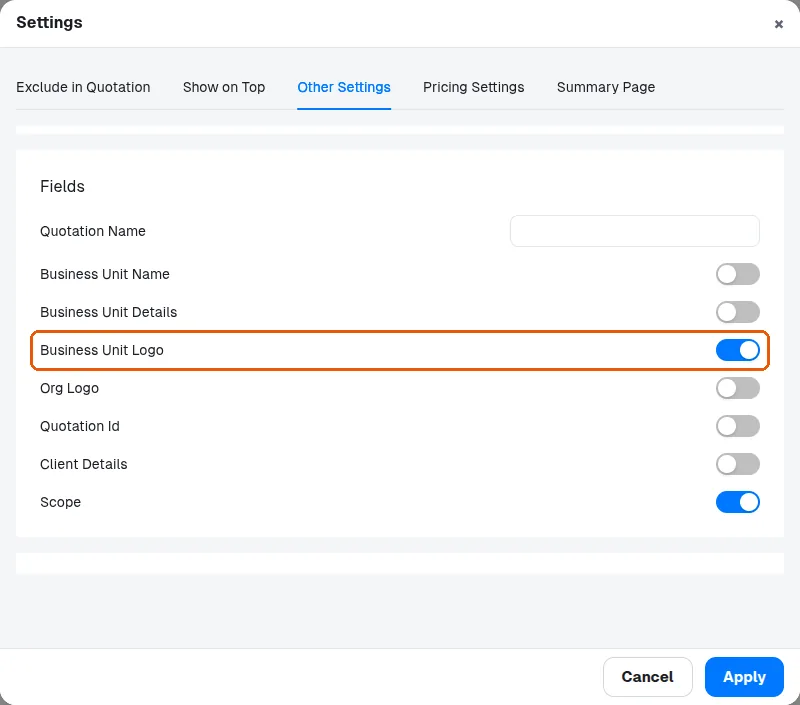
The CSV export ('pricing_quotation.csv') is a cell-for-cell dump of the on-canvas table: the logo/header row first, then the project-details sub-header row, then column names, then every data row including section headers, footers, payment schedule, remarks, and terms. Three silent rules explain most tickets. (1) Picture columns are removed entirely: any column headed 'Display Picture', 'Display Pic', or with a blank header (the Finish Pic column intentionally has a blank header) is skipped, and image cells are skipped — CSV cannot carry images, so clients wanting pictures must use the XLSX export instead. (2) Every field is wrapped in double quotes with embedded quotes doubled, and cells that show multiple lines on canvas keep their line breaks inside the quoted field — correct per CSV standard, but a client opening the file in a tool that splits on raw newlines will see 'broken rows'; Excel/Sheets open it fine. (3) Values are exported exactly as displayed, meaning prices include the currency-comma formatting from the 'Comma Placement in Prices' preference (Indian 1,00,000 vs international 100,000), so spreadsheets may treat them as text rather than numbers. There is no template-specific CSV: it follows whichever template is active.
✓ 已于 2026年10月10日 在产品中核实Two quotation images are synthesized rather than stored. (1) The Finish Pic column stitches the carcass finish picture and the shutter finish picture into one small composite: each source is resized to a 70x50-pixel thumbnail, shutter on top, a white divider, carcass below, saved as a JPG. Because of the fixed thumbnail size these images are intentionally low-resolution — clients asking for sharper finish pictures cannot get them from this column. If EITHER the carcass or shutter picture is missing the stitcher returns nothing and the cell renders blank. (2) When both the organization logo and store logo display preferences are enabled, they are stitched the same way into one image. The same either-empty-means-blank rule applies: with both logo toggles on but only one logo actually uploaded, NO logo appears at all — the fix is to either upload the missing logo or disable the toggle for the logo that does not exist. Stitched files are cached by a name derived from the two source URLs, so replacing a finish image with a same-named file may show the stale composite until the session is reloaded. These generated files ride along with XLSX exports so pictures appear in the spreadsheet too.