Open QC Mode and understand its tabs and work scope
Enter QC Mode, see which work scope it opens on, and learn what each of the four tabs shows.
QC Mode (design portal toolbar; not available in the MES portal) is a design-wide audit with four tabs. Materials Used has Core / Finish / Edge-bands sub-tabs listing every SKU with counts of the units and panels using it; clicking a row's unit or panel count jumps to the Units or Panels tab with the units or panels using that SKU ticked, and from there you can swap that material for another SKU across the design (some finishes can't be changed where the core is Prelam). Units lists each cabinet/corner unit with its annotation, shutter/carcass core and finish SKUs, cut and custom edgeband, parent and room; rows are selectable to drive bulk edits. Panels lists every manufacturable panel with its core, finishes and all five edgeband SKUs plus where each material came from (inheritance source); also selectable. Hardwares Used shows the design-wide hardware list with Source and Details columns, searchable and filterable; it is read-only: hardware cannot be swapped in QC mode. On entry an 'Entering QC mode, please wait...' loader runs (no level is asked for) and QC opens on the active work scope, shown at the top ('Default (Complete Design)' or a work scope; its drop-down lists the Workscopes and '+ Create Work Scope') — first entry can take a while because connector-driven hardware is recalculated. If the view is locked you get 'Unlock the view to switch modes'. Note the Panels tab only lists panels that go to the cutlist/board layout, so helper or excluded panels won't appear there even though they exist in the design.
✓ 21 అక్టోబర్, 2026న ప్రోడక్ట్లో తనిఖీ చేయబడింది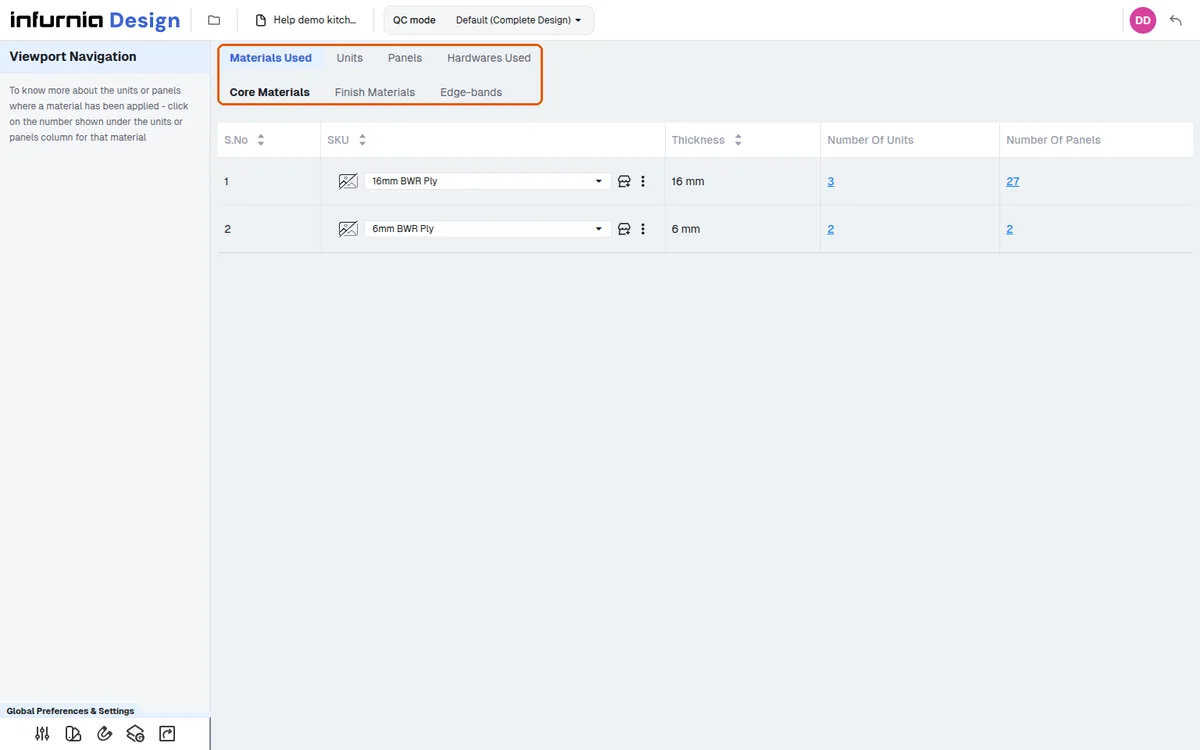
The QC check is done before the product output stage — once the applied core and finished materials are verified as correct, you proceed to product output.
The QC verification of materials is done by the designer before the design is sent to production design; once the materials check out, the design is sent on to production.
QC mode is also used for material QC before production.
✓ 19 అక్టోబర్, 2026న ప్రోడక్ట్లో తనిఖీ చేయబడింది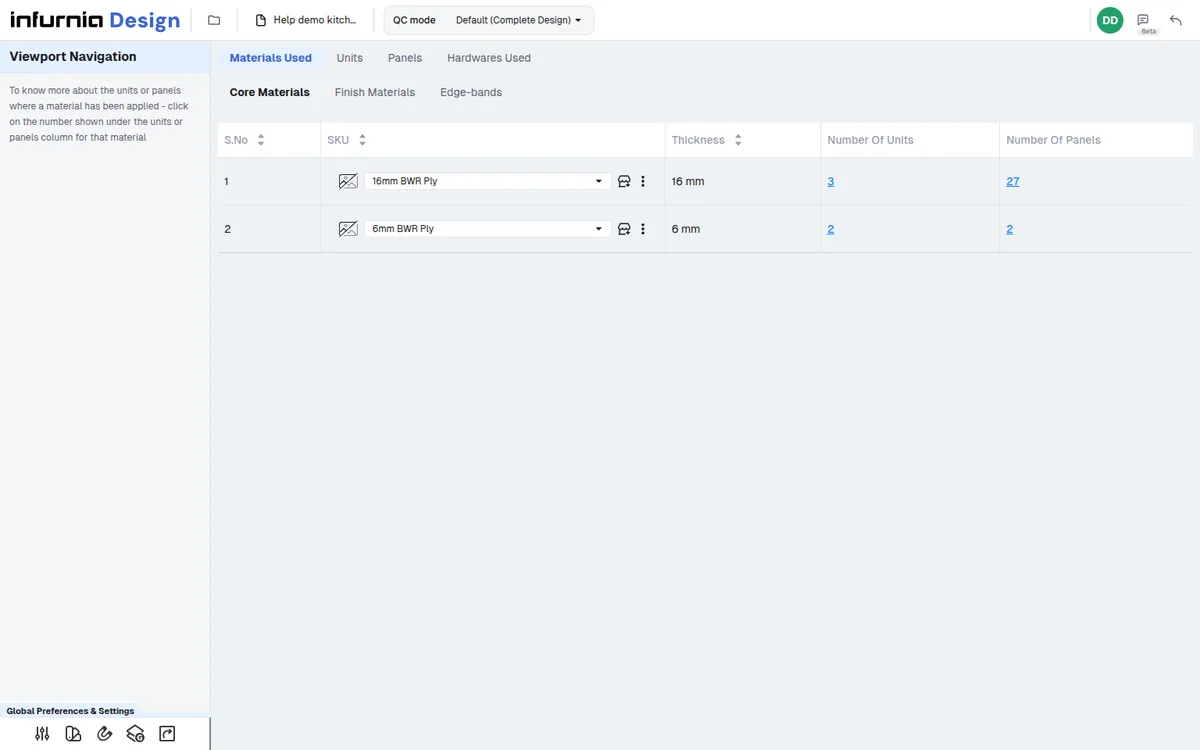
QC mode is also where a production designer verifies that all materials, finishes and edge bands are correct before checking connectors and scenarios.
✓ 21 అక్టోబర్, 2026న ప్రోడక్ట్లో తనిఖీ చేయబడింది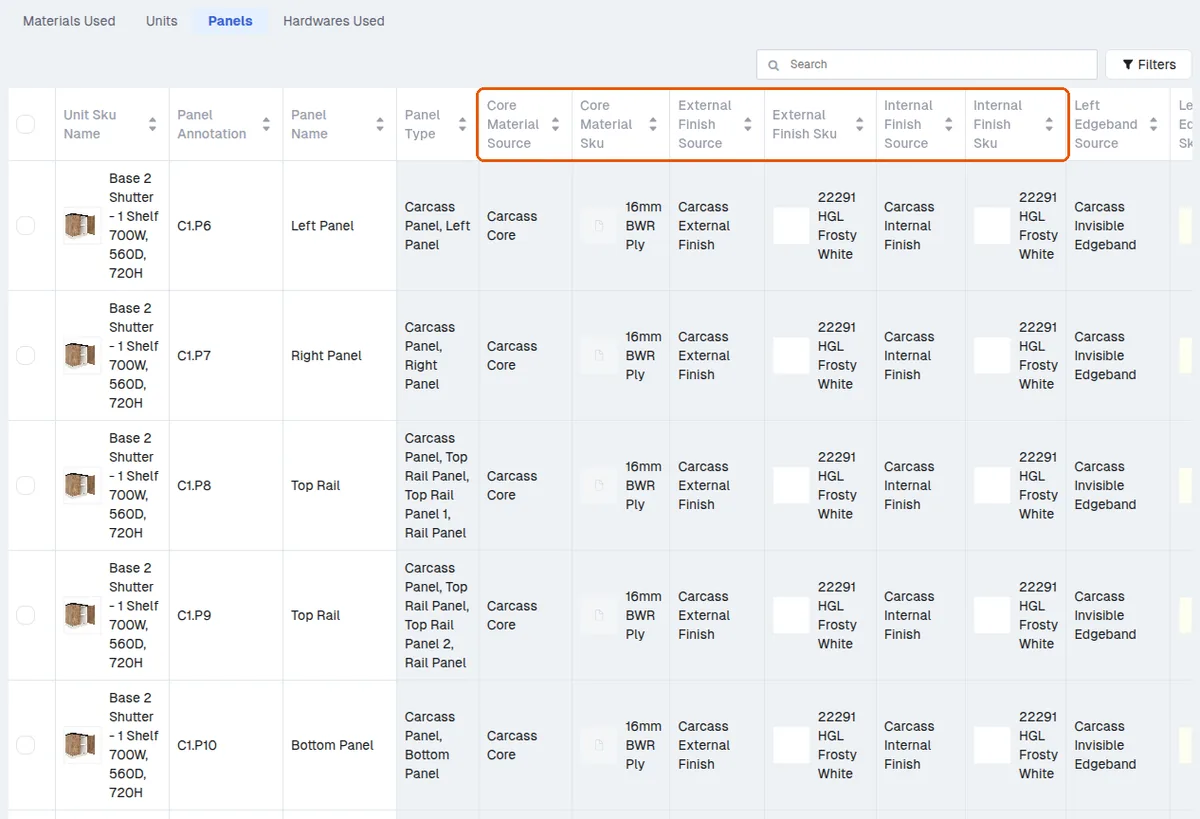
After materials, finishes and edge bands are confirmed in QC mode, the next step is connectors and scenarios, where the drilling and connector placement are checked.
QC mode opens on the active work scope (no scope is asked for on entry); the scope drop-down at the top ('+ Create Work Scope') lets you pick a single room, an entire floor, or the whole building (all floors at once).
✓ 19 అక్టోబర్, 2026న ప్రోడక్ట్లో తనిఖీ చేయబడింది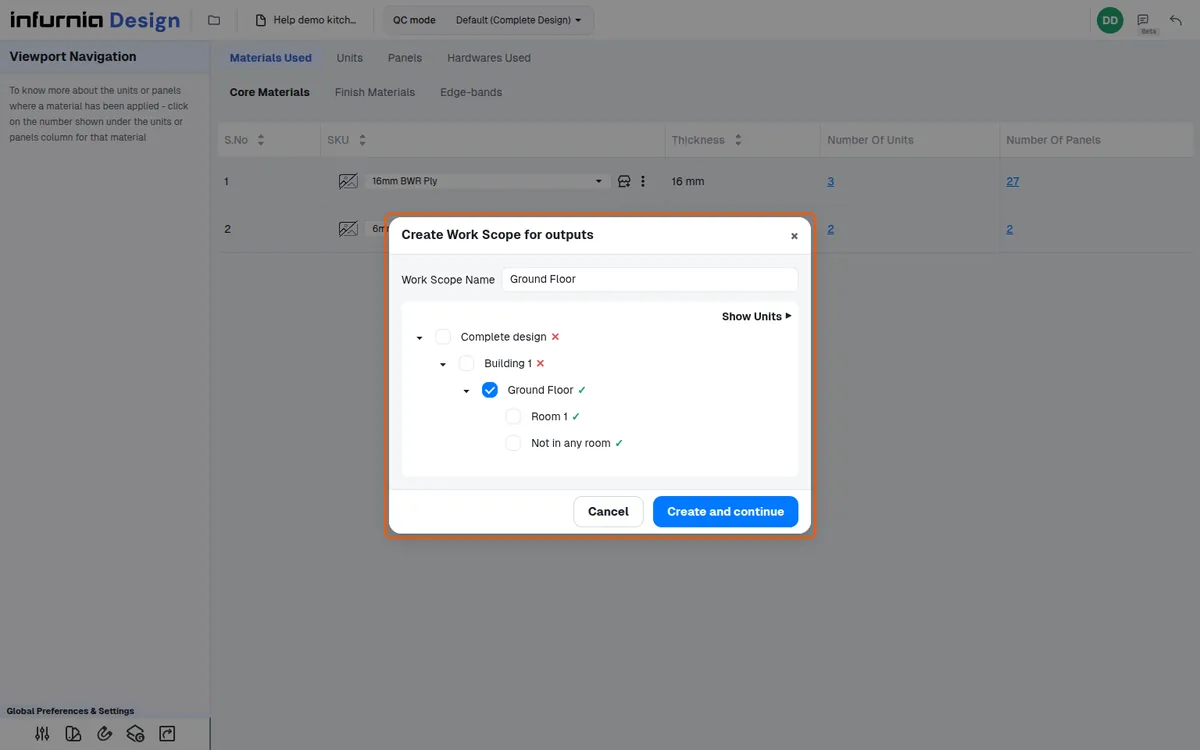
The same QC mode is available in production, so if the designer's QC was not done correctly the production designer can open the project there and re-check that everything is correct; the work scope defaults to the area the designer marked ready (for example the kitchen only), and connectors and scenarios are handled later in the flow.