Understand the Modular Units Hardware tab
See what the Hardware tab lists for each cabinet, how rows are grouped, and how to check panel drilling details.
In a work order's Modular Units page, each unit has two tabs: Panels (default) and Hardware, with the tab label showing the live count, e.g. 'Hardware (12)'. The Hardware table columns are Sno, Sku Name, Serial Number, Model Number, Dimension, Qty, Unit, Source and Details. Rows are grouped: the same SKU with the same dimension and the same source becomes one row, and the Details column concatenates every distinct reference that contributed (for example all connector applicators or panels using that SKU, comma-separated; long values are truncated with a hover tooltip). Length-based hardware such as skirting or profiles shows total consumed length rather than piece count, so it matches the Raw Materials output. Hardware sold in sets (per-set SKUs) is counted in sets rather than pieces, so the per-unit figures add up to the Raw Materials totals. Only units marked for production appear on the page at all — a 'missing cabinet' here usually just isn't marked for production. An empty tab shows a 'No hardware' placeholder with the message 'This unit has no hardware items.' The 3D viewer pane is not rendered at all while the Hardware tab is active. The list also respects the work scope: hardware on out-of-scope elements is not counted. Serial Number is the SKU's ERP code from the catalog.
In the work order's Modular Units page, each cabinet's Panels tab lists its individual panels (left, right, bottom, back, top rail, etc.).
✓ Verificato nel prodotto il 19 ottobre 2026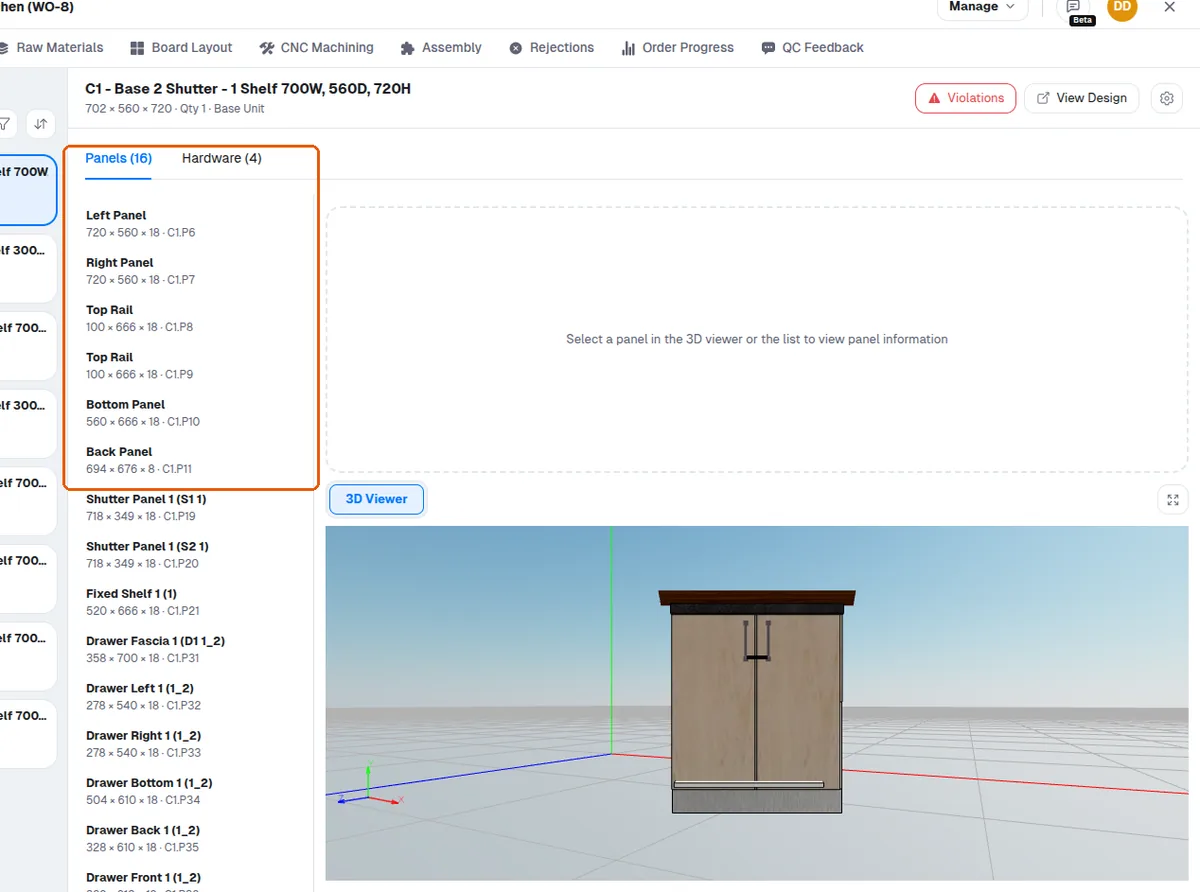
Selecting a panel from the list or the 3D view shows its details (edge bands, dimensions, materials, grain) and highlights it in the 3D model.
✓ Verificato nel prodotto il 19 ottobre 2026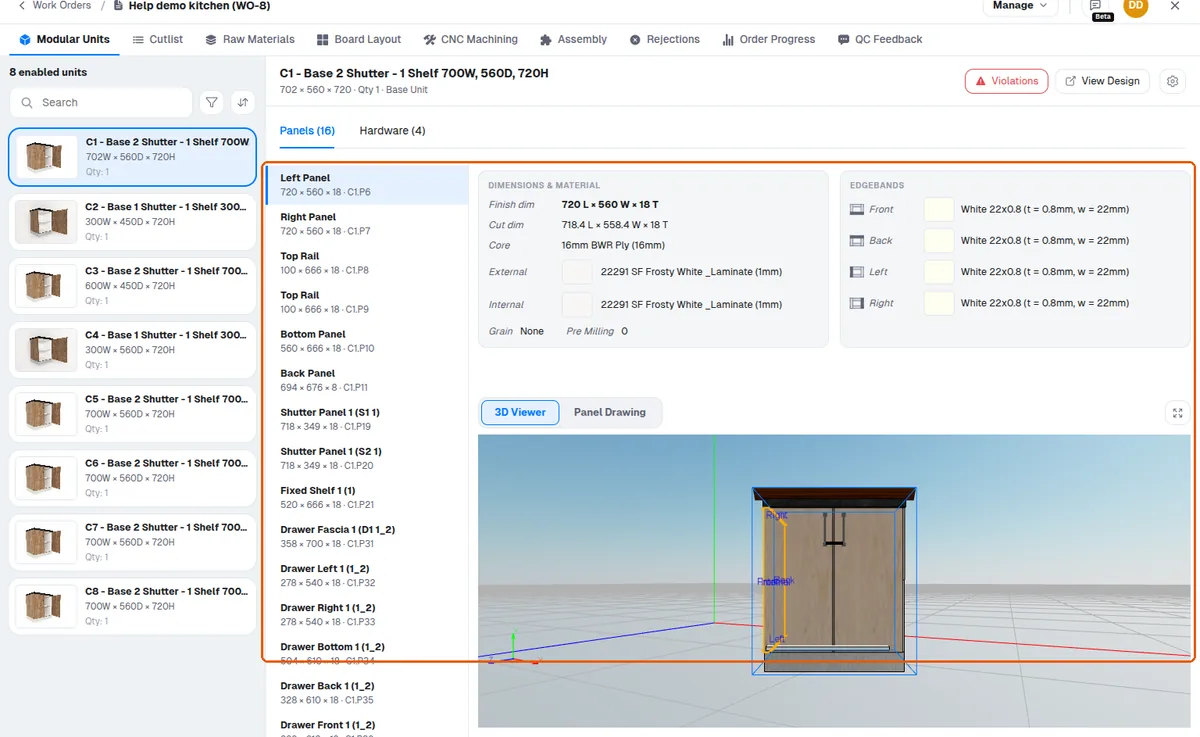
When a panel is selected in the Modular Units view, the panel is highlighted and a 2D drawing of its drilling is shown so the operator can verify it.
In the MES portal's work order Modular Units page, the panel drawing is the view used to check how a cabinet is put together.
In the work order's Modular Units page, with the viewer's 'Panel Drawing' tab open, selecting a panel shows its drawing, which the operator can zoom in with the mouse wheel to verify details such as grooves before cutting.
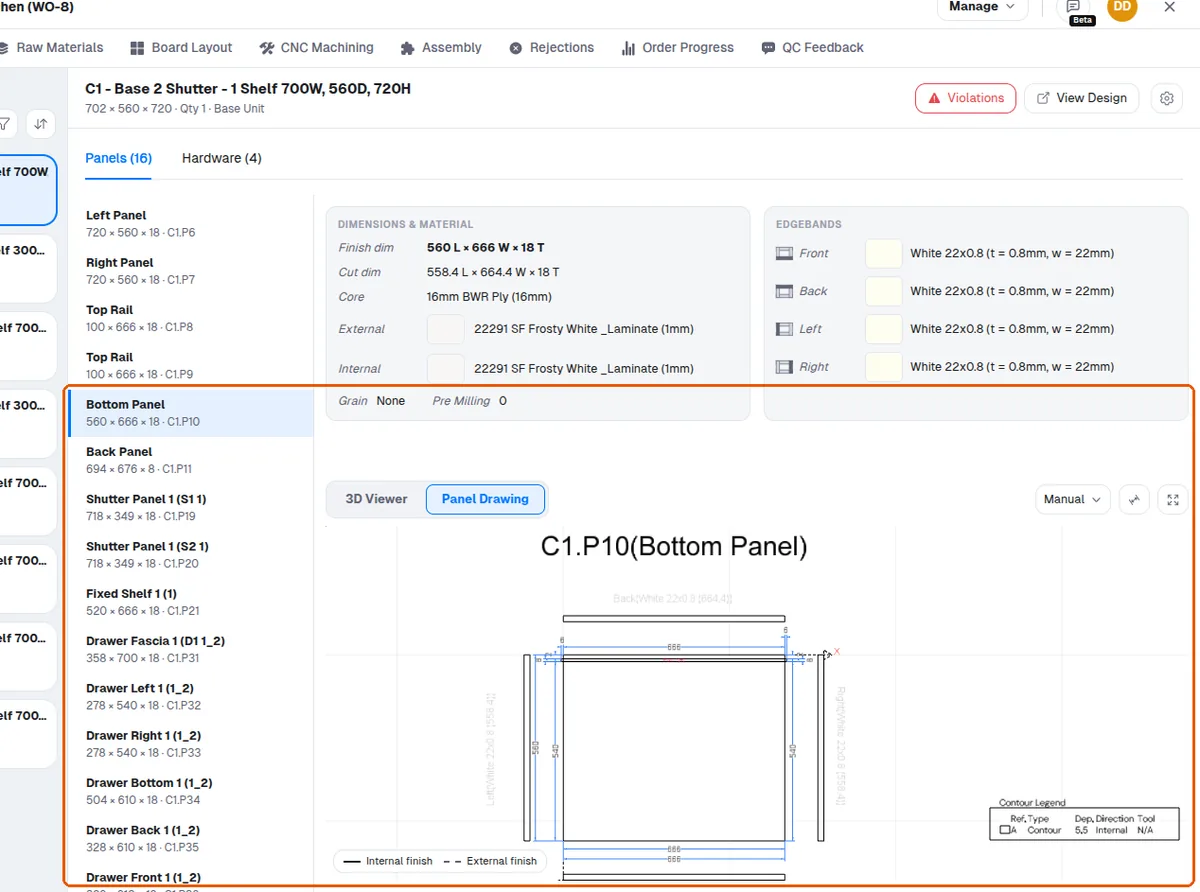
The panel drawing can be opened to check drilling details.
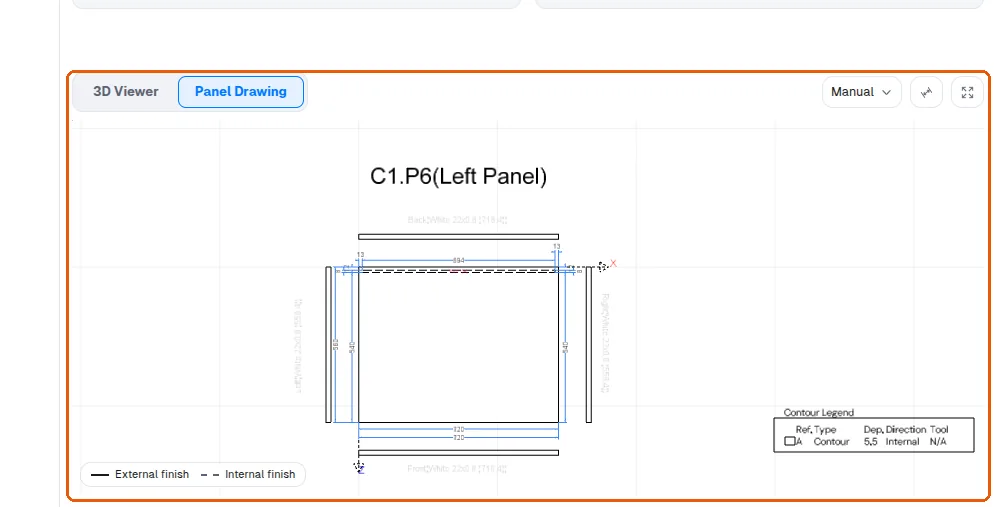
The operating machine can be selected from the panel drawing toolbar in the hardware/panel view. Once picked, the chosen machine is remembered and re-applied to every panel you work on. The machine selector is only available when MES Pro is enabled.