Show the org logo on box labels and choose its position
Turn on the organisation logo on a box label template and pick where it sits, knowing which logo is used and how it behaves across pages.
Box labels can print your organisation's logo.
✓ Checked in the product on 18 October 2026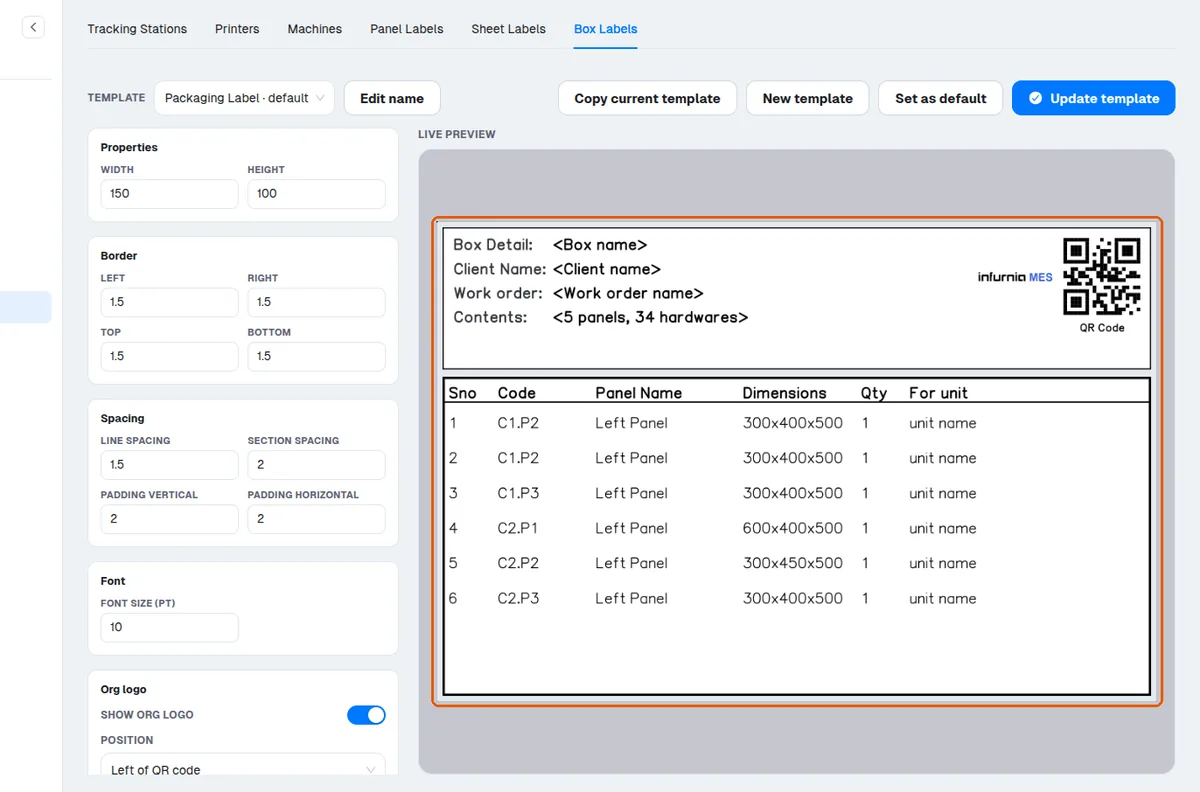
In MES Settings > Box Labels each template has a 'Show org logo' toggle.
✓ Checked in the product on 18 October 2026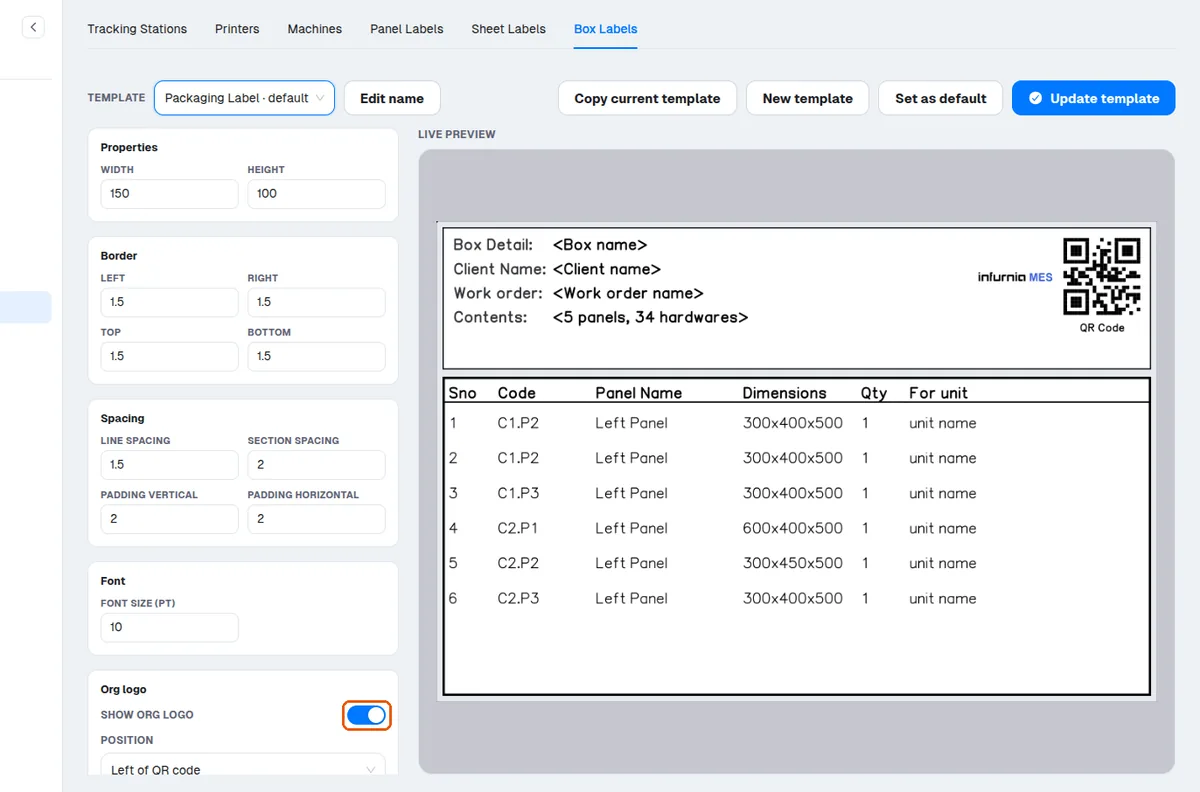
When 'Show org logo' is on, a 'Position' dropdown appears with two placements: 'Left of QR code' (the default) or 'Top left of header'.
✓ Checked in the product on 18 October 2026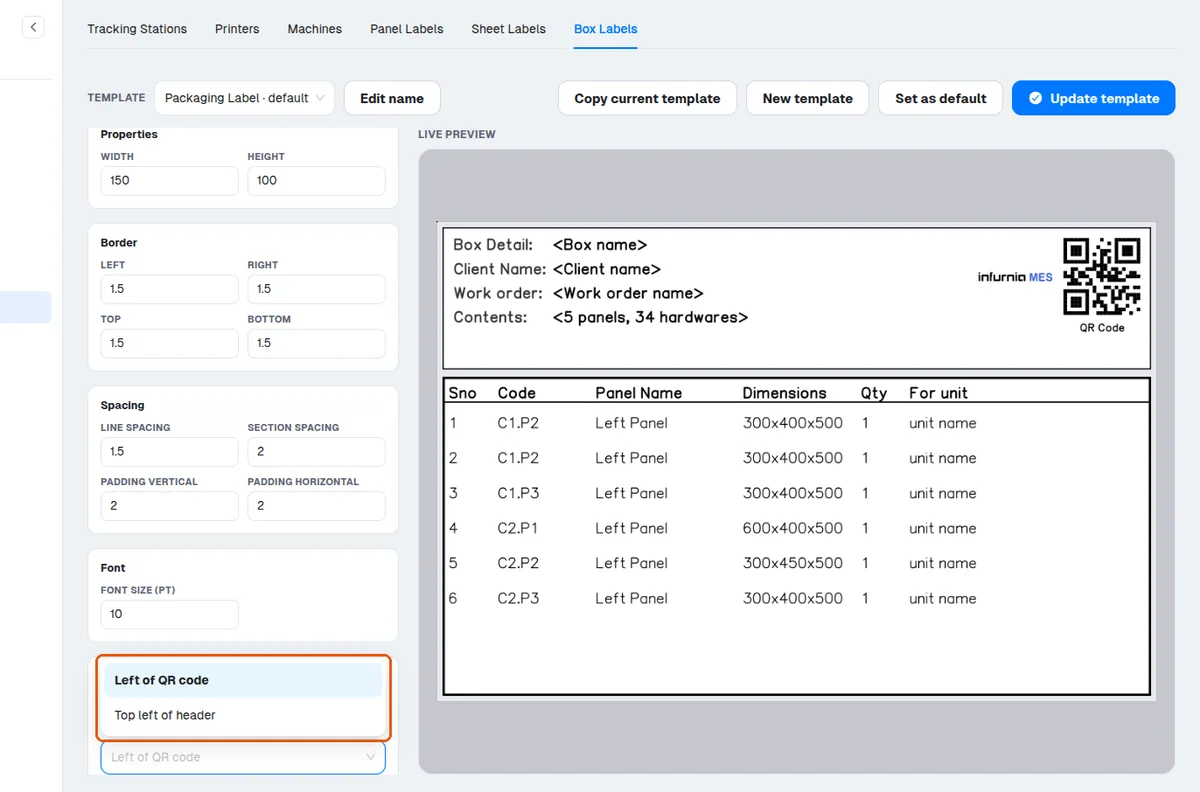
When placed top-left, the header's key/value fields automatically shift right to make room.
✓ Checked in the product on 18 October 2026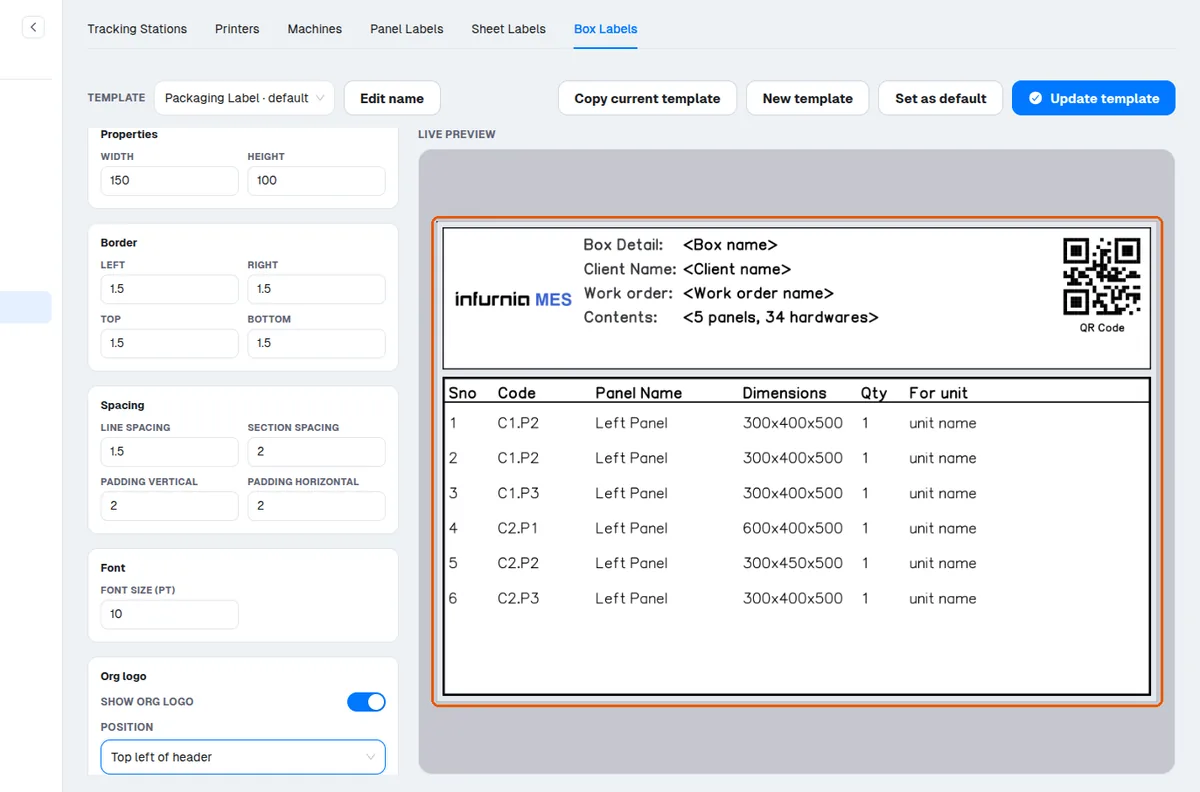
The logo is not uploaded per template — it is the logo configured on the account (the business-unit logo if one is set, otherwise the organisation logo).
So if the wrong logo prints, fix the logo in account/business-unit settings, not in the label template.
The logo is scaled to fit its box while preserving aspect ratio, so a very wide logo will render small; spacing around it follows the template's padding values.
✓ Checked in the product on 18 October 2026Turning 'Show org logo' off turns it off for that template, and the position last picked is remembered and restored when it is turned back on.
✓ Checked in the product on 18 October 2026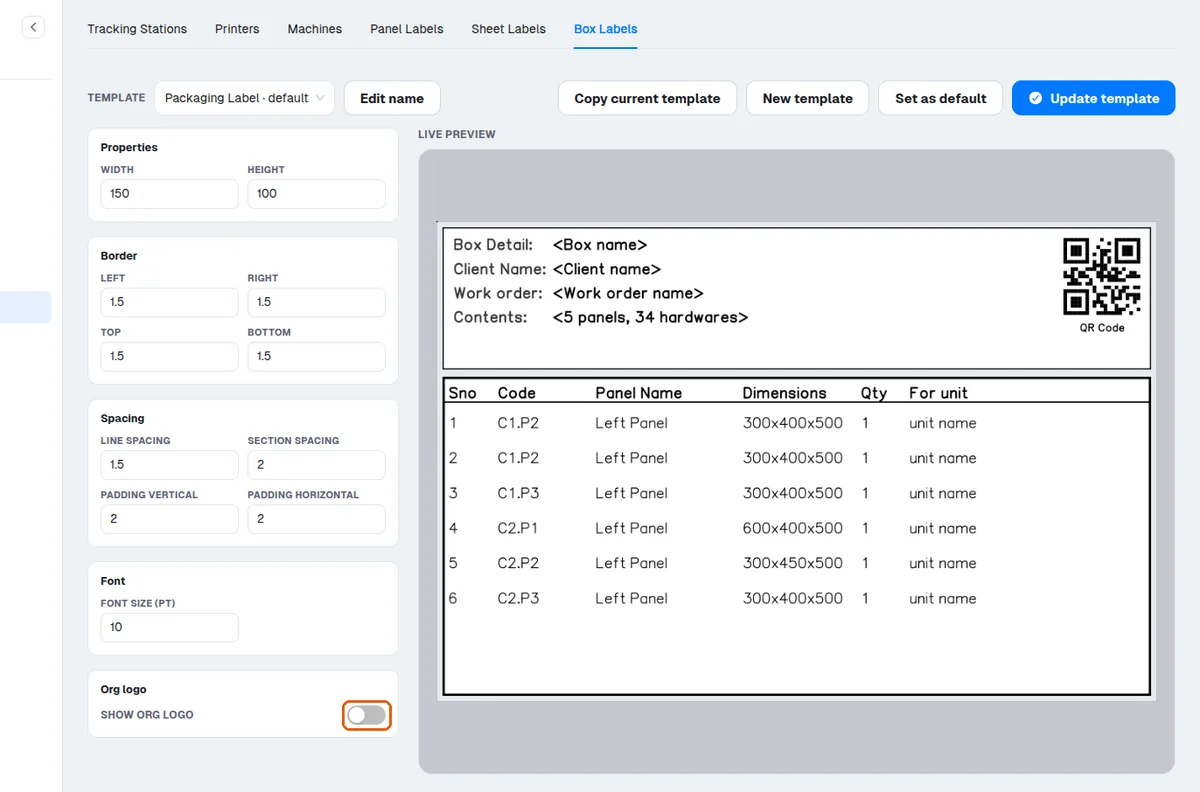
On labels that run to more than one page, the logo and QR code print on the first page; later pages use a compact one-line header (box name and work order) so the table gets more room.
✓ Checked in the product on 18 October 2026The same account-level logo (business-unit logo if set, otherwise the organisation logo) is also what appears on panel labels, so a logo change made in the admin portal flows through to both panel and packing labels without any separate update in the MES portal.