Turn sheet entries on or off in the presentation template
Switch the key plan, ceiling plan, room schedule, 3D view, plans and elevations on or off to match the project.
The auto-generate wizard's settings (cover page, key plan, ceiling plan, room schedule, loft detection) live in the presentation template.
✓ 已于 2026年10月20日 在产品中核实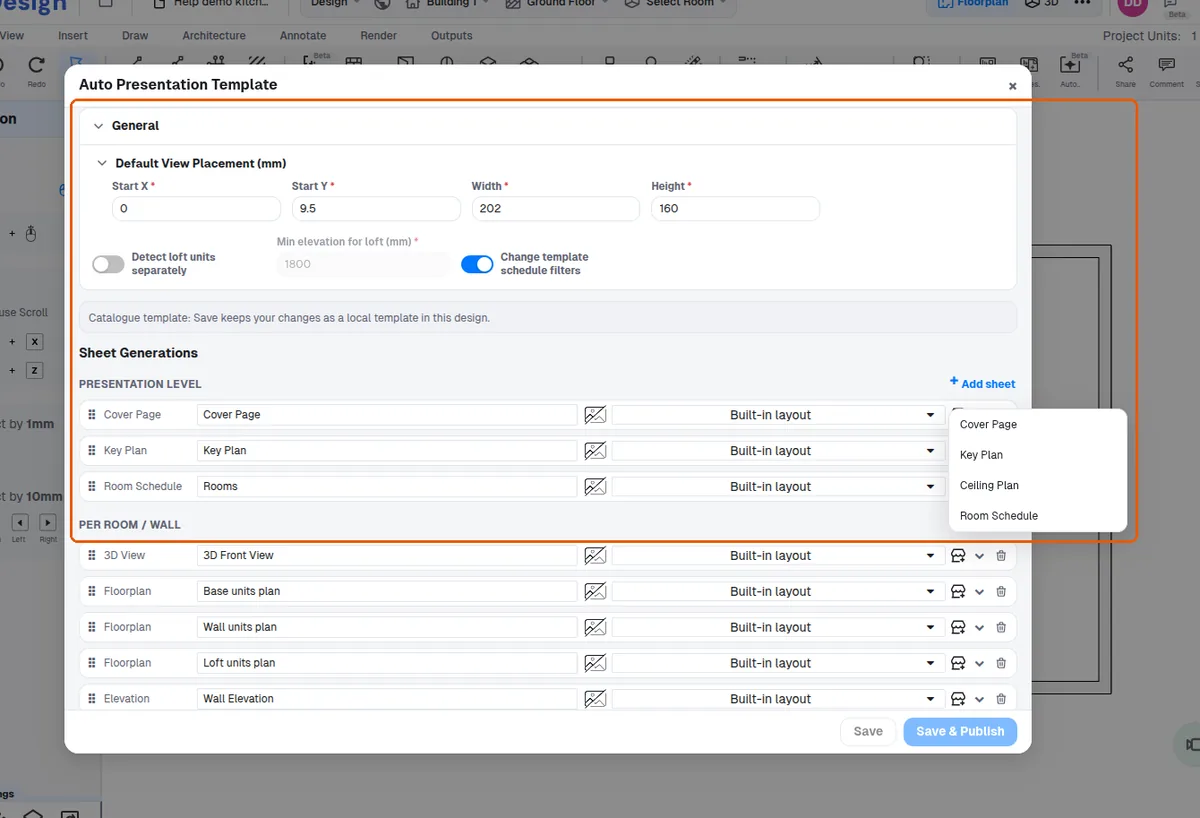
The sheet entries that can be switched on or off include the key plan, ceiling plan, room schedule, 3D view, base wall loft plan, wall elevation and wall elevation skeleton.
✓ 已于 2026年10月20日 在产品中核实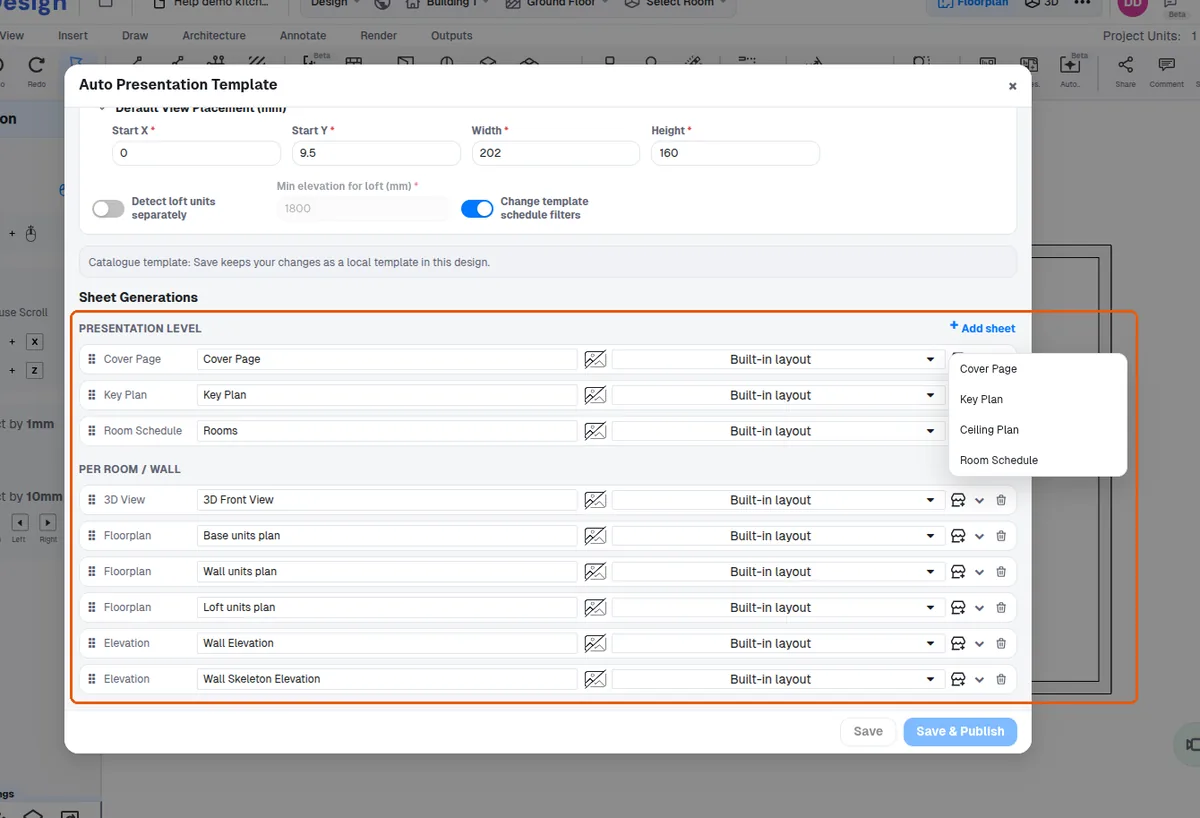
A ceiling plan can be disabled when there is no false ceiling.
✓ 已于 2026年10月20日 在产品中核实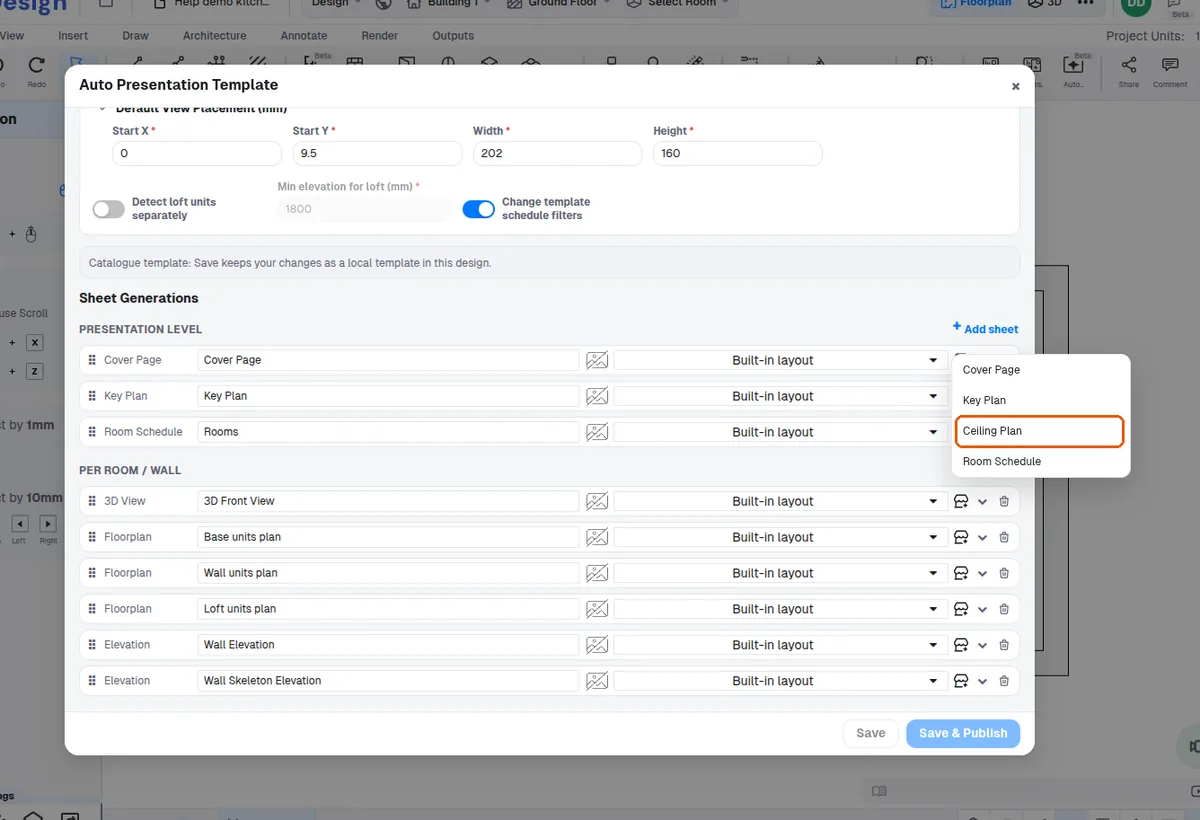
Loft plans additionally require the template's 'detect loft separately' setting (also off by default).
✓ 已于 2026年10月20日 在产品中核实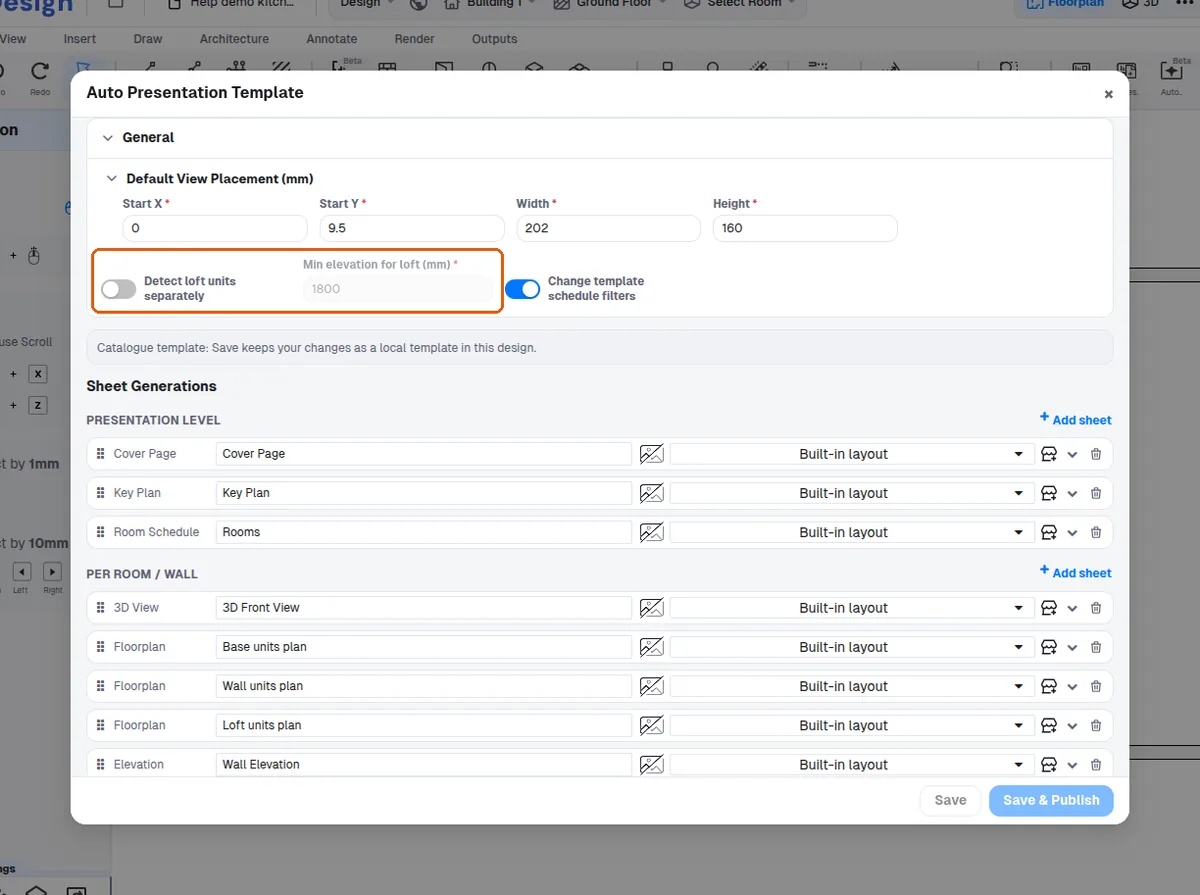
The 'Detect loft units separately' option is turned on in the presentation template editor, opened from Design → Preferences → Presentation → Auto Presentation → Manage Templates (or the auto-presentation wizard's Manage Templates button).