Change drawer channels and drawer sets across several units
Learn where a wardrobe partition's Quick Access sections sit, how to edit partition drawer settings in bulk, and how to swap drawer channels on several units at once.
A wardrobe partition's Quick Access tab draws its sections in this order: Add Additional Drawers, Drawer Set (with a blue Add button that opens the Drawer Sets carousel: Internal Drawer Sets 1 / 2 drawers, External Drawer 1 / 2 / 3 drawers), Add Vertical Partitions, Add Shelves, Partition Dimensions, Shelf reveal.
Bulk Edit SKU Structure (several units selected > Common Modular Unit Actions) has Cabinet, Partition and Panel tabs; a Partition entry is addressed by its Partition ID (partition_1 the outermost, all_partitions, all_child_partitions) and offers Additional Number of Drawers, Drawer Set SKU and a Drawer System section (Construction Type, Placement, Tandem Box / Basket Collection SKU, Drawer Depth Reduction, Internal Drawer Offset From Front, filler settings); nothing applies before 'Proceed to confirmation'.
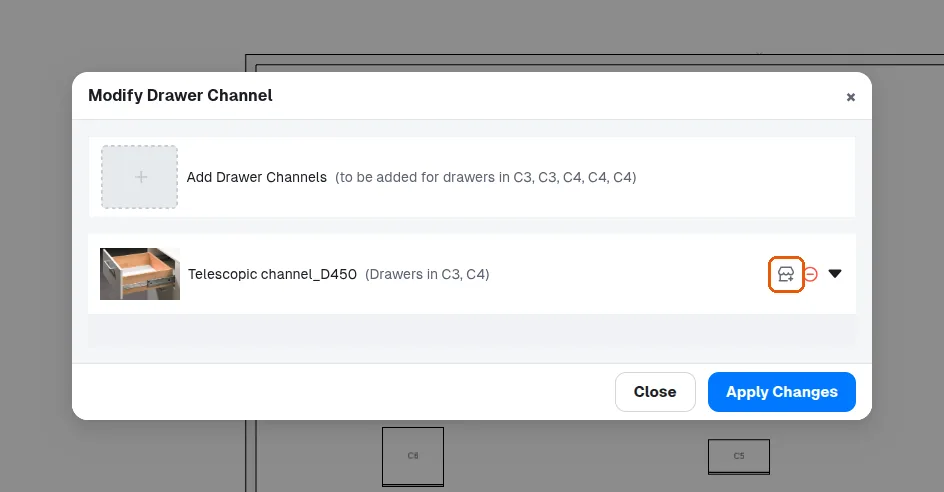
✓ ଅକ୍ଟୋବର 19, 2026 ରେ ପ୍ରଡକ୍ଟରେ ଯାଞ୍ଚ କରାଯାଇଛିSelecting several units > Drawer > Change Drawer Channels opens 'Modify Drawer Channel': an 'Add Drawer Channels' section plus one section per channel in use (e.g. 'Telescopic channel_D450 (Drawers in C3)') with a change and a remove icon; the change icon opens the Drawer Channels carousel and Apply Changes swaps the channel on those drawers.
✓ ଅକ୍ଟୋବର 21, 2026 ରେ ପ୍ରଡକ୍ଟରେ ଯାଞ୍ଚ କରାଯାଇଛି