Bulk edit SKUs: preview, modes and deleted SKUs
Select SKUs, choose individual or common editing, and publish the bulk edit while knowing which SKUs may drop out.
After selecting SKUs and opening Bulk Edit, the user first sees a 'Selection Preview for Bulk Edit' (SKUs grouped by subcategory/group) with 'Go back to selection' and 'Proceed to editing'. Proceeding shows a choice between two modes: edit Individual SKUs (a per-SKU grid) or edit all SKUs at once (common properties). Choosing all SKUs at once when some selected SKUs belong to another business unit opens a prompt: edit only the owned SKUs (all properties) or edit all selected SKUs (only Tags and Sales Channels). Gotcha: when the modal loads it re-fetches every selected SKU; any SKU no longer added to the org (deprecated/deleted) triggers a Warning modal listing those SKUs - 'The following SKU from your selection have been deleted from your Organization. You can continue to edit rest of the SKU.' - and they are silently excluded from the edit set after the user clicks Proceed. So the number of SKUs actually edited can be smaller than what was selected. On confirmation, the edit is submitted as a background bulk-operation attempt; a persistent success toast shows 'Bulk Edit Successfull - task id: <id>, timestamp: <ts>'. Ask users for that task id when investigating a bulk edit. The 'Bulk Edit SKU Structure' menu entry uses the same preview but skips the mode choice and goes straight to common-property structure editing; its publish returns a request_batch_id in the toast instead. SKU Structure is edited only for owned SKUs: the preview notes how many selected SKUs are not owned, and Proceed is disabled when none of the selection is owned.
In the individual-SKU grid (Bulk Edit > edit Individual SKUs) the SKU Properties tab edits SKU Name, Description, Model No, Viewing Order, ERP Code and Allow SKU Cloning, with Thickness under SKU Dimensions; the grid's other tabs edit Brands, Tags, Sales Channels, Additional Properties, Material and Linked SKUs.
You type the value directly in each SKU's row before publishing to save the changes.
✓ 2026년 10월 19일에 제품에서 확인됨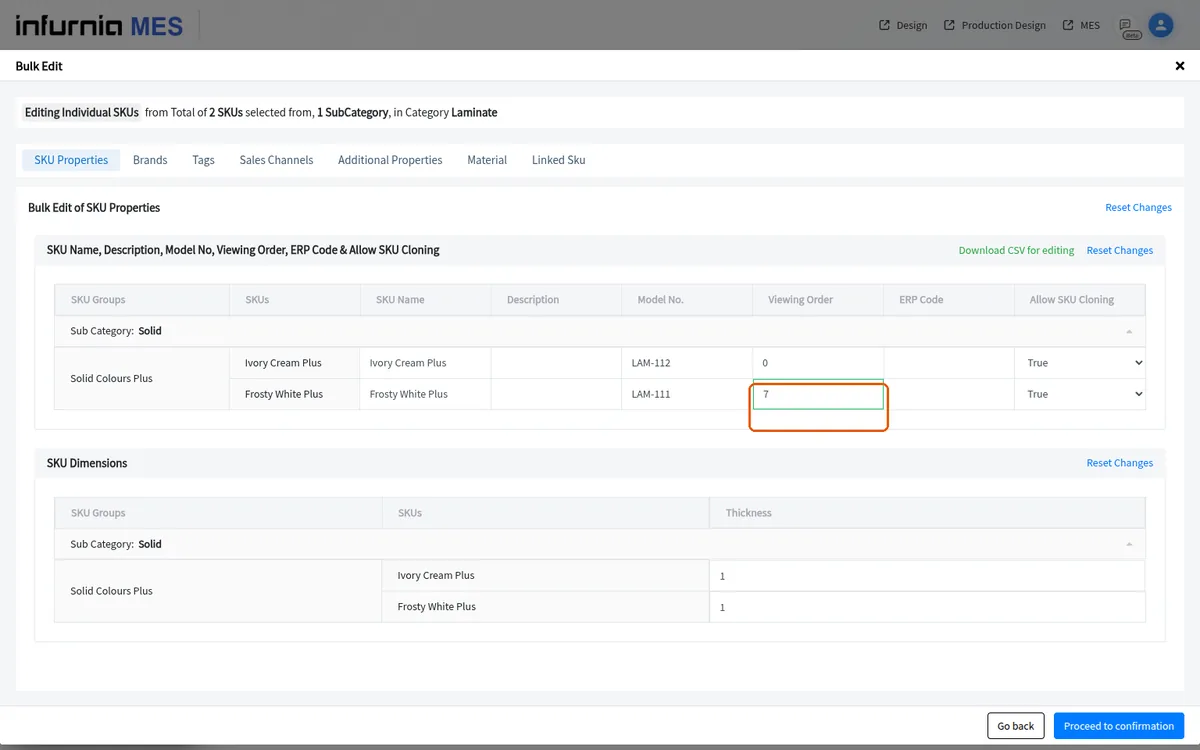
The order number you type in the individual-SKU grid is the SKU's Viewing Order.
✓ 2026년 10월 19일에 제품에서 확인됨The new group order is only saved once you confirm and publish the bulk edit.
✓ 2026년 10월 19일에 제품에서 확인됨The procurement unit (for example Metre or Millimetre) is one of the additional properties that can be changed for many SKUs at once through the bulk-edit panel, not only per SKU.
✓ 2026년 10월 19일에 제품에서 확인됨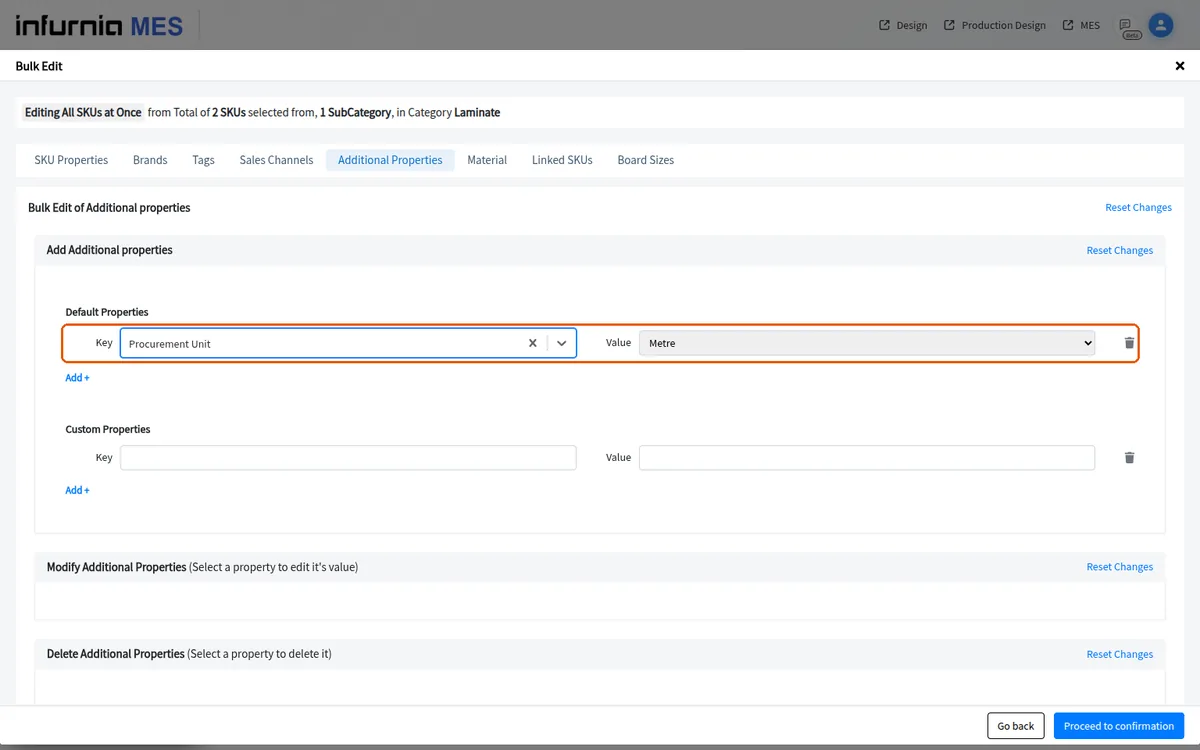
In the common 'Editing All SKUs at Once' mode you can set a single tax and margin percentage that is applied to every selected SKU, instead of entering the same values SKU by SKU.
✓ 2026년 10월 19일에 제품에서 확인됨In the common 'edit all SKUs at once' mode, the sales-channel section is headed 'Modify all mapped sales channel values'.
The sales-channel section lists only the sales channels common to all selected SKUs.
✓ 2026년 10월 19일에 제품에서 확인됨You tick the channels to be modified and set the price there before publishing.
✓ 2026년 10월 19일에 제품에서 확인됨