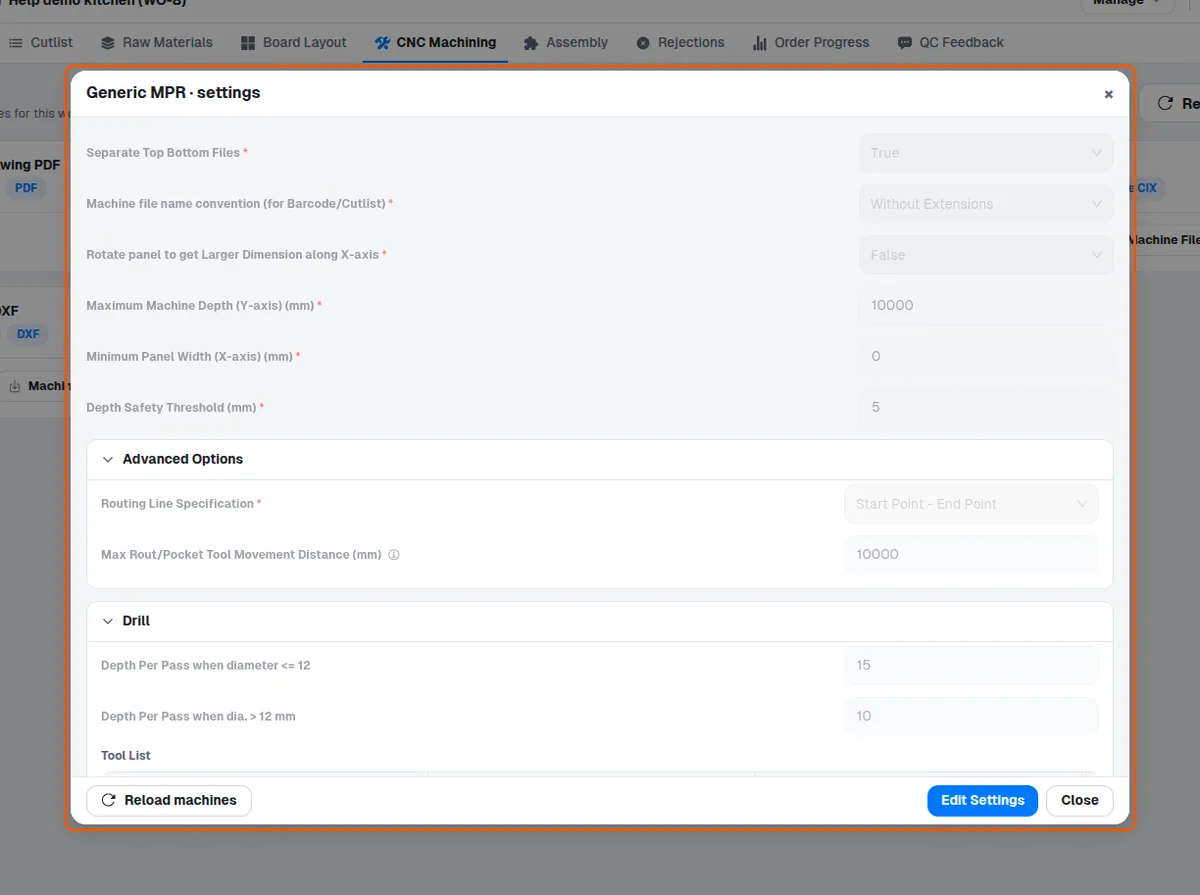
Find the download buttons on a work order's CNC Machining tab
Locate the Drawing and Machine Files buttons on each machine card and know which formats each machine offers.
On a work order's CNC Machining tab in MES, every machine card shows a Drawing button; a CNC machine's card also shows a download button (Machine Files), with a dropdown when the machine has several outputs (for example a DXF machine), while a manual (PDF) machine's card shows only Drawing.
The Drawing button opens a format dialog: 'Single consolidated PDF' (all workpiece drawings in one PDF) or 'Separate files (ZIP)' (individual PDFs packaged in a ZIP).
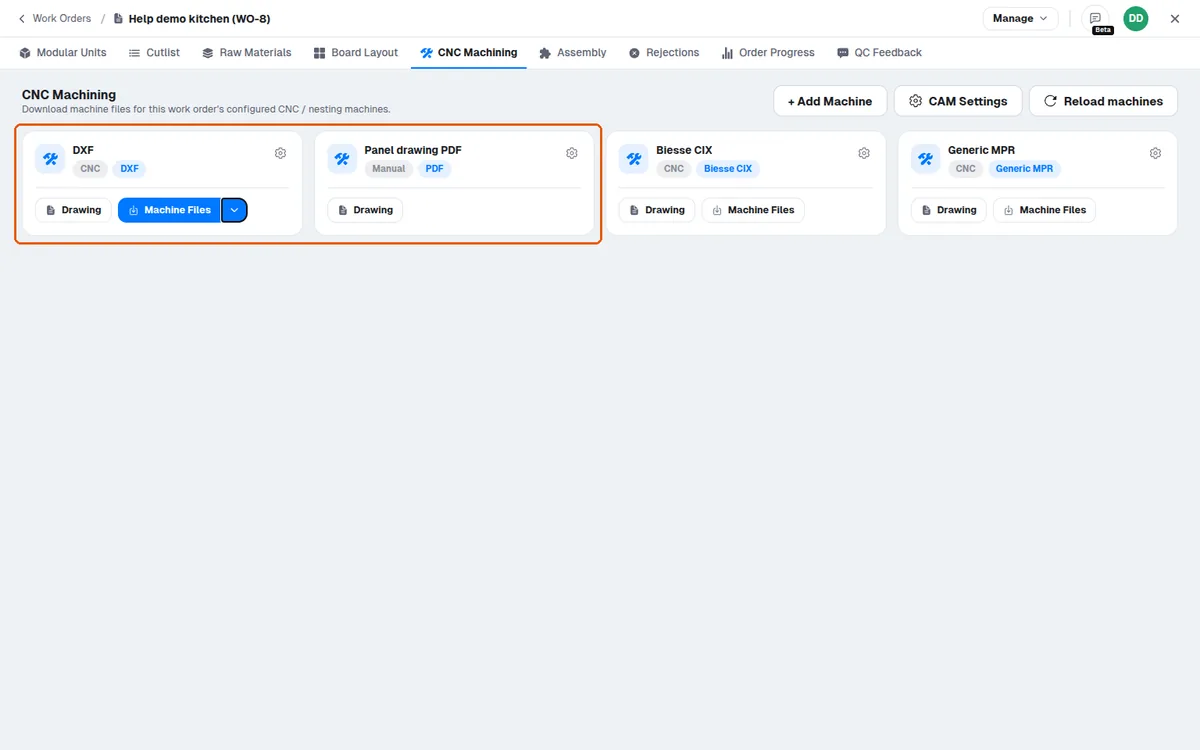
✓ Comprobado en el producto el 19 de octubre de 2026CNC machines offer 'Machine Files'; a CNC machine with DXF output additionally offers 'Machine Files Without Side View' and 'Download Cutlist' in the menu beside its Machine Files button. A nesting machine with DXF output offers 'Machine Files' only.
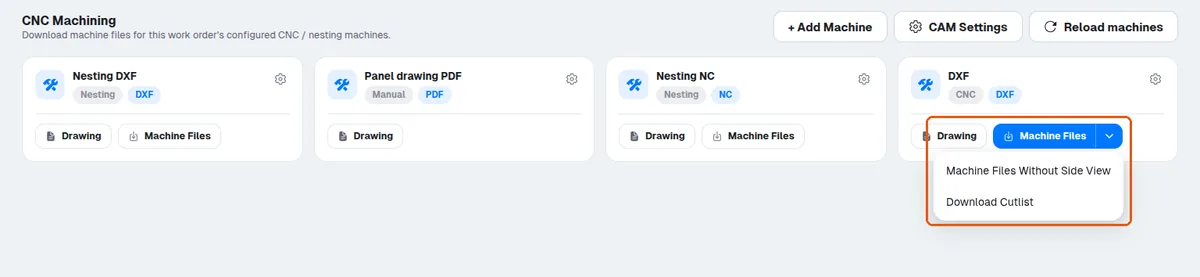
Biesse nesting (CIX) machines additionally offer a 'Biesse Setup Bundle' - a one-time ZIP of bNest ImportRule (.bnimp) template files the client extracts into their bNest ImportRules folder on the machine PC; it is machine setup, not per-job production data, so it only needs to be downloaded once (or again after Biesse software reinstall).
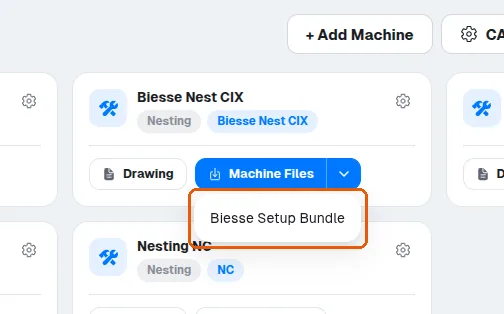
The gear icon on each card opens that machine's settings in view mode; the CAM Settings button in the header opens the design-level CAM settings modal.
✓ Comprobado en el producto el 20 de octubre de 2026