Bulk clone SKUs into the same, an existing or a new group
Clone selected catalogue SKUs into the same group, an existing group or a new group, choosing per SKU whether to copy prices and delete the originals.
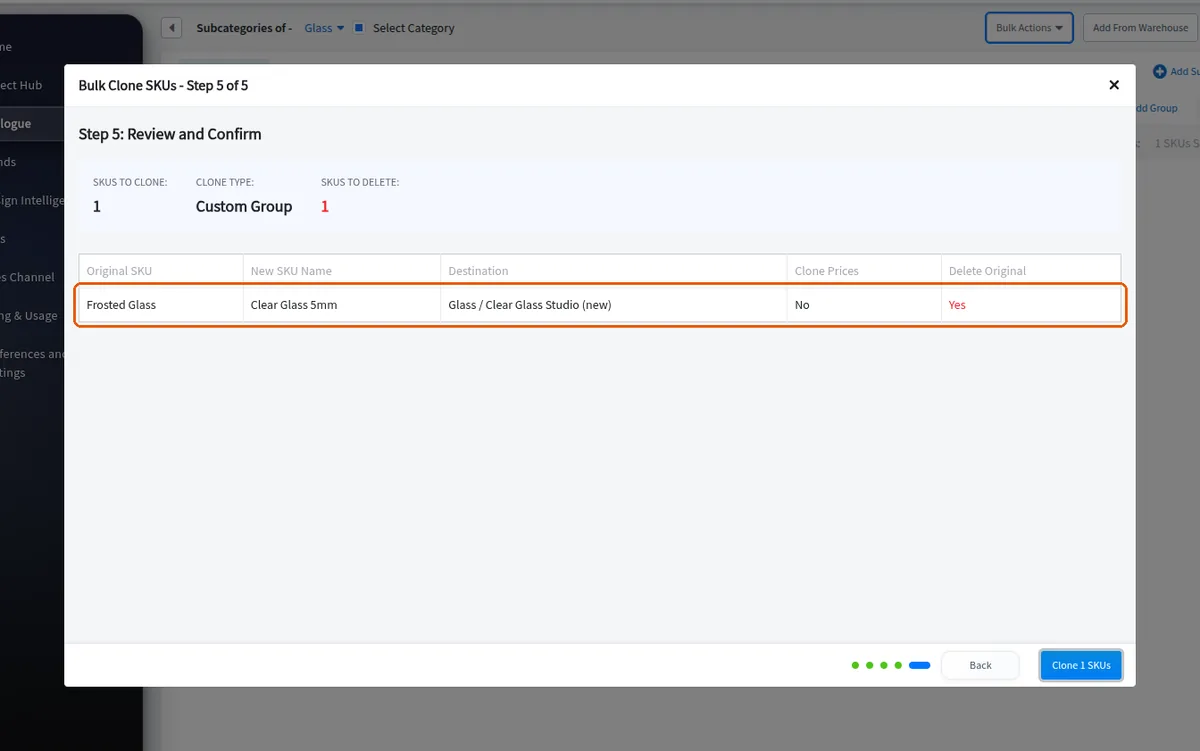
Bulk Clone (from catalog bulk selection) offers three destination modes: clone into the same group, clone into an existing group chosen per SKU (pick subcategory then group), or clone into a new group (per-SKU subcategory + new group name). For every SKU the user must fill a new SKU name and model number - validation blocks with 'SKU name and model number are required for all SKUs'; names are capped at 200 characters and ERP codes at 100. A per-SKU (and select-all) checkbox 'clone sales channels and prices' controls whether pricing is copied; by default prices are NOT cloned, which explains 'my cloned SKUs have no price'. There is also a per-SKU delete-original option that removes the source SKU after cloning. The modal's 'Download CSV Template' button generates an Excel (.xlsx) pre-filled with the current selection and reference sheets, whose columns depend on the chosen mode (destination_group_id for existing-group vs destination_sub_category_id + new_group_name for new-group); that file feeds the Bulk Clone via CSV page. On submit the app reports 'Successfully cloned N SKUs' and refreshes the catalog.
✓ Comprobado en el producto el 19 de octubre de 2026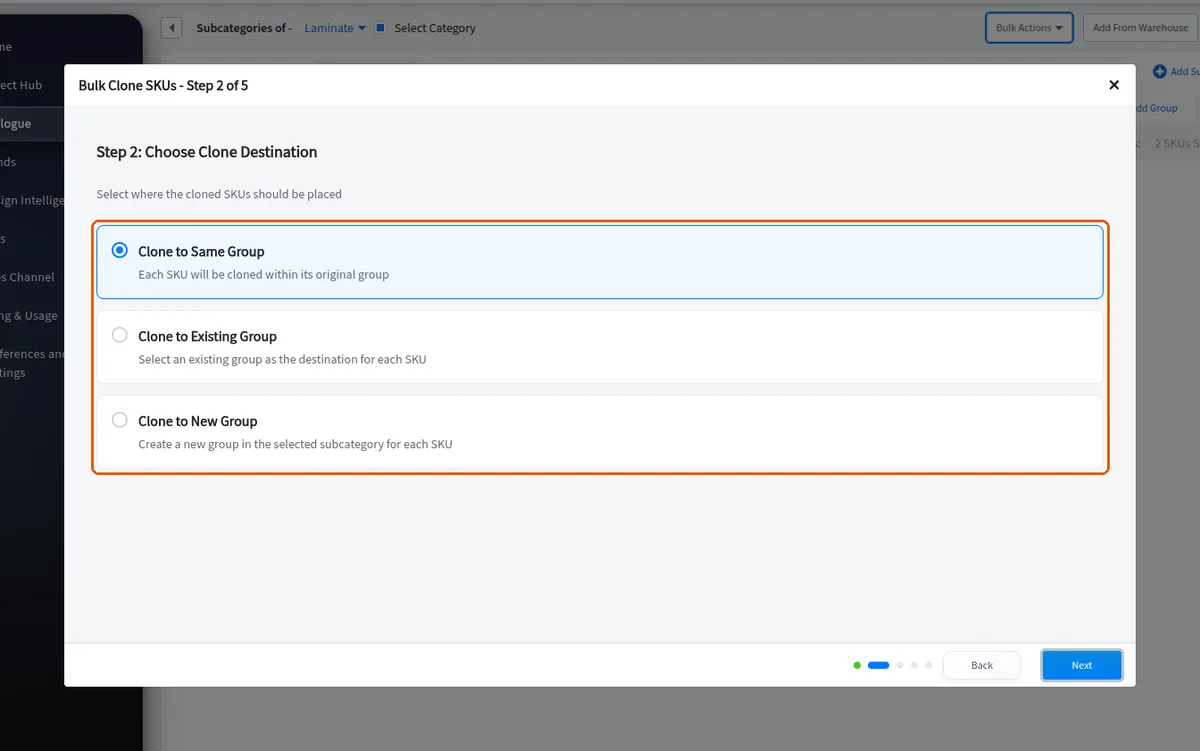
If the same new group name is entered for all cloned items they are placed in a single group; different names create separate groups.
✓ Comprobado en el producto el 19 de octubre de 2026The bulk clone modal's delete-original option is presented as a per-SKU checkbox labelled 'Delete After Clone'.
✓ Comprobado en el producto el 19 de octubre de 2026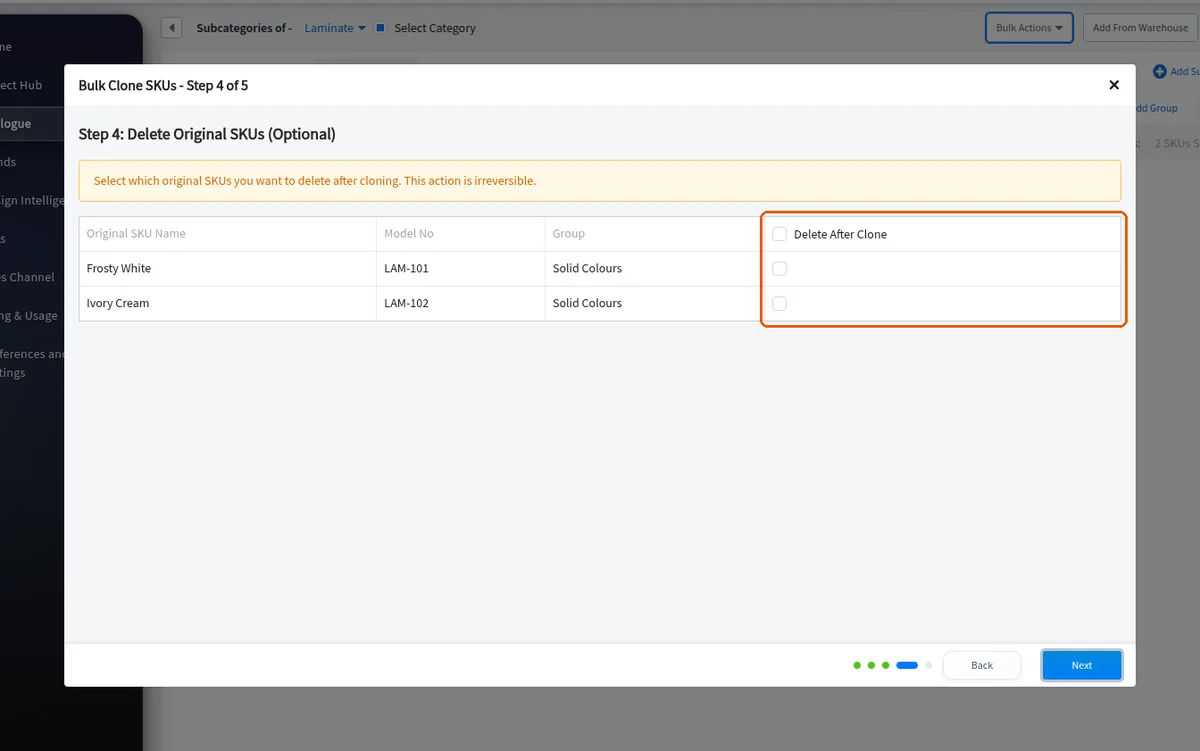
The bulk clone modal's delete-original option has a select-all checkbox in the column header.
✓ Comprobado en el producto el 19 de octubre de 2026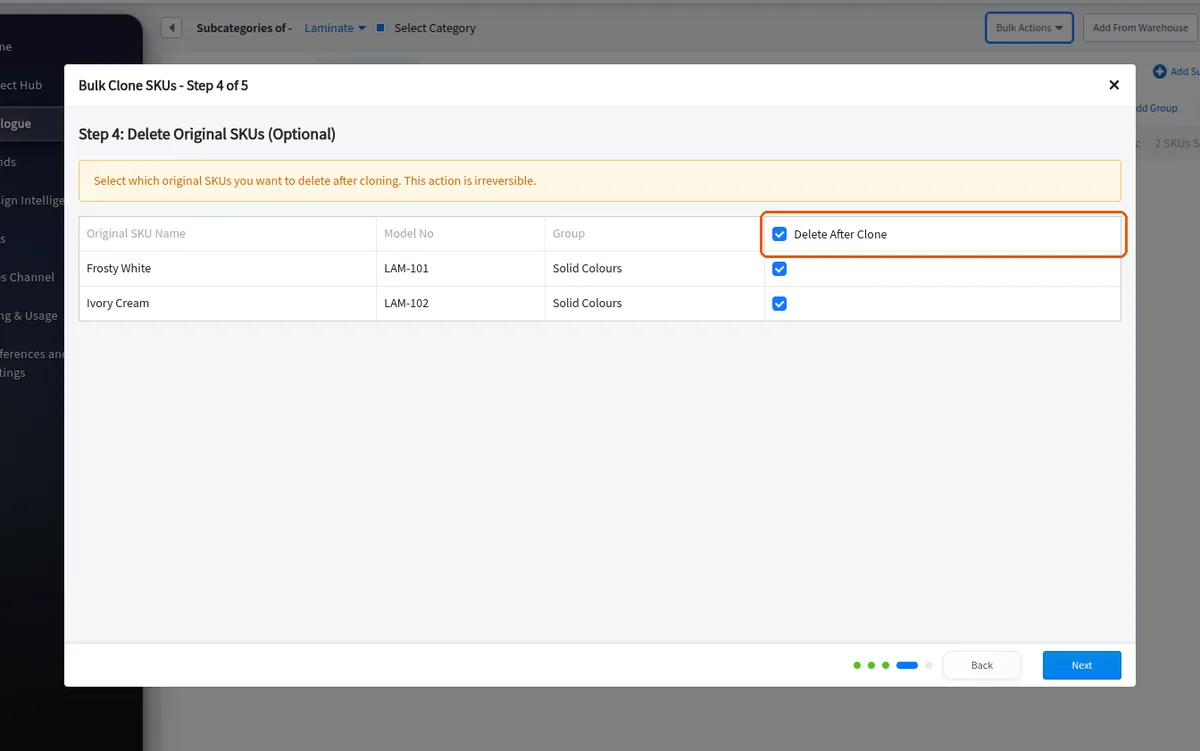
You can choose to remove the source items as part of the same clone operation.
✓ Comprobado en el producto el 19 de octubre de 2026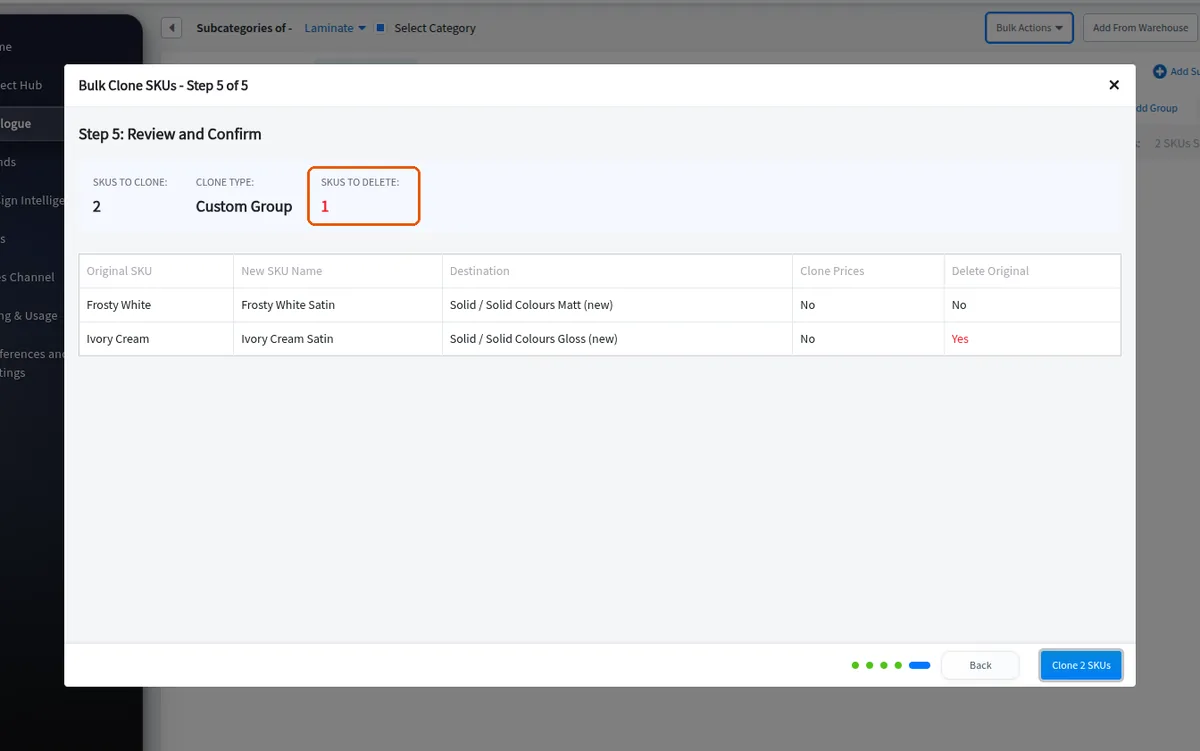
Cloned finishes can then have their properties edited so they render differently from the originals.
✓ Comprobado en el producto el 19 de octubre de 2026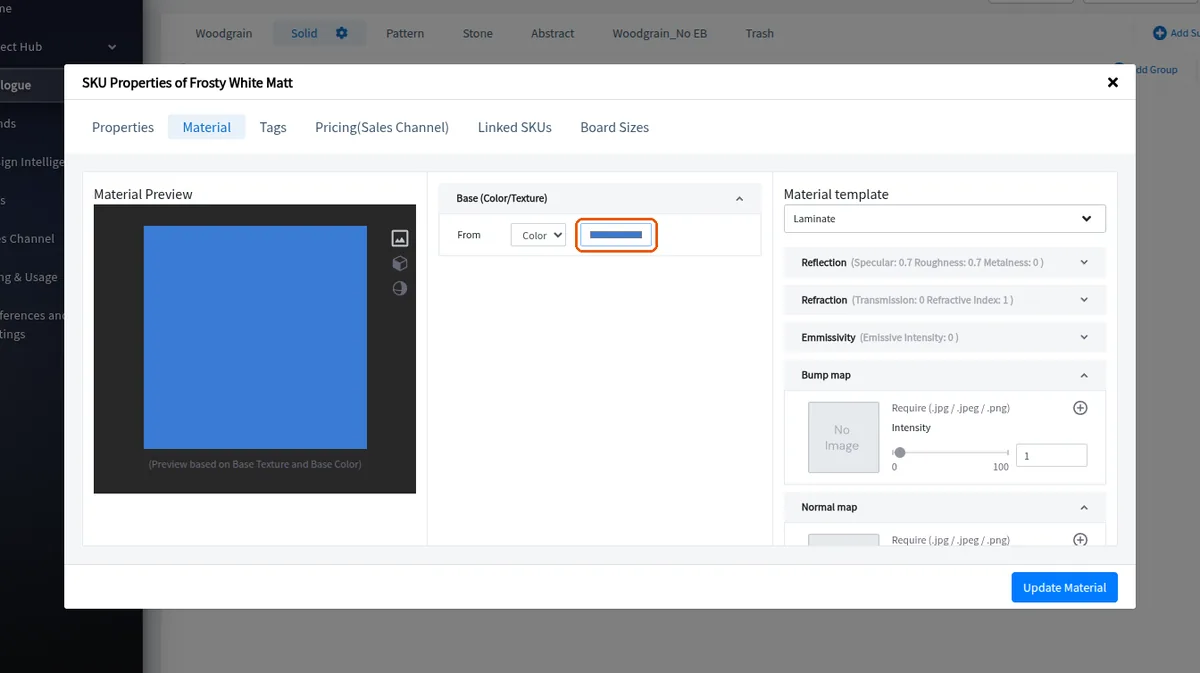
A whole group can also be cloned in one action from the group's Edit Group menu via Clone Group, which copies every SKU in the group together with its settings.
✓ Comprobado en el producto el 19 de octubre de 2026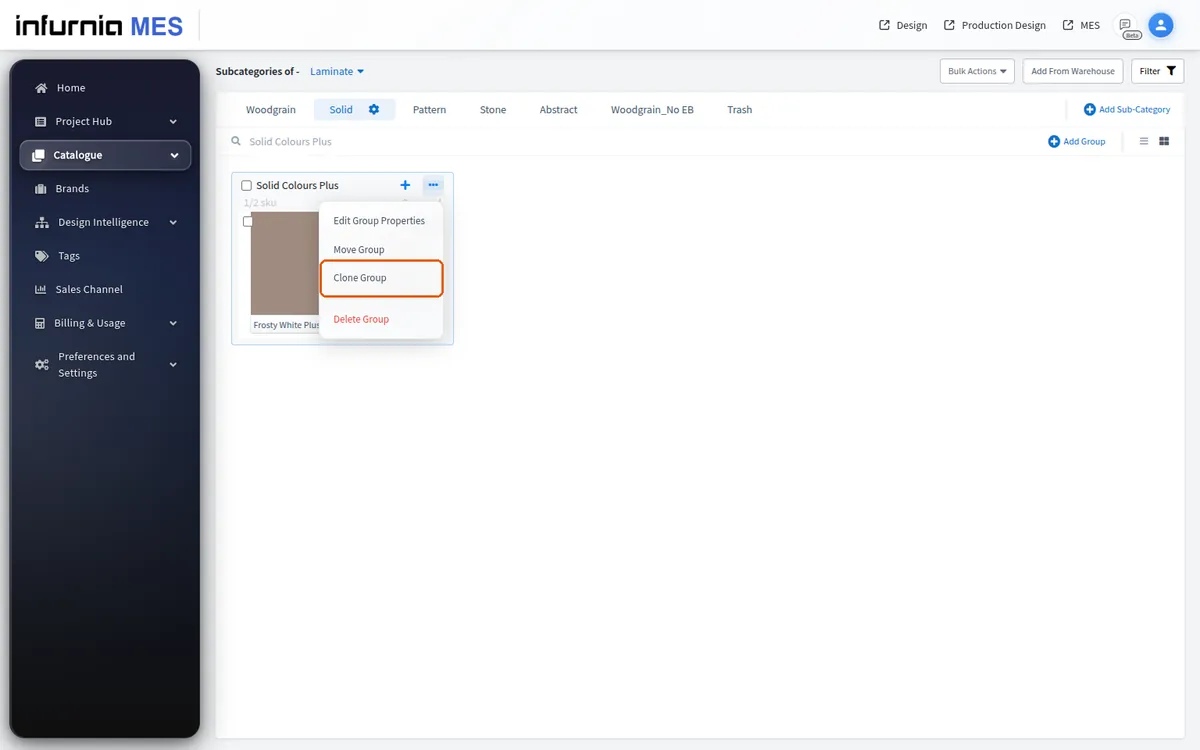
Cloning a group copies each SKU's existing image and details into the clone, so the copied SKUs can be edited afterwards instead of re-entering images and details from scratch.
Bulk Clone can be used to build a hinge library: select the base hinge SKUs, choose Bulk Clone, and clone them into a new group, giving each clone its own name and model number.
Bulk Clone can be used specifically to take a non-owned (Infurnia) global profile or glass and make an editable, workspace-owned copy by choosing the clone-into-a-new-group option, then deleting the originals as part of the same operation.
The Bulk Clone via CSV page (reachable from Bulk Create SKUs header) lists clone jobs with status (initialized/ongoing/completed/failed/reverted), creator email, and results. Reverted jobs display their results and details the same way completed and failed jobs do. Uploads require an attempt name plus a CSV or .xlsx (sheet 'Bulk Clone Data'). The clone mode is auto-detected from headers: destination_group_id means existing-group mode; destination_sub_category_id + new_group_name means new-group mode - if neither is present, upload is blocked with 'Unable to determine clone mode'. Rows validate original_sku_id, new_sku_name, new_model_no (plus mode fields, 200/100-char limits); all severity 'error' rows block upload. Jobs are polled every 5 seconds while the page is open; results show 'N cloned / M failed' - partial failure is normal and 'View Details' lists per-row successes, errors, and deleted originals. Revert is only offered for completed jobs that actually recorded cloned SKUs; jobs with no recorded cloned SKUs hide the Revert action. Reverting permanently deletes all cloned SKUs, removes newly created empty groups, and restores originals deleted by the job. The 'Download CSV' action only appears for jobs whose input file was copied to cloud storage; older jobs pre-dating that feature cannot re-download their CSV and the action is hidden for them.