Scan a panel QR to track it at a station
Point the scanner at a valid panel label to mark the panel tracked at the currently selected station.
On the Tracking page, scanning a valid panel QR immediately marks the panel as approved/tracked at the currently selected station — there is no separate confirm step, so warn operators that pointing the scanner at a label IS the action.
✓ Checked in the product on 20 October 2026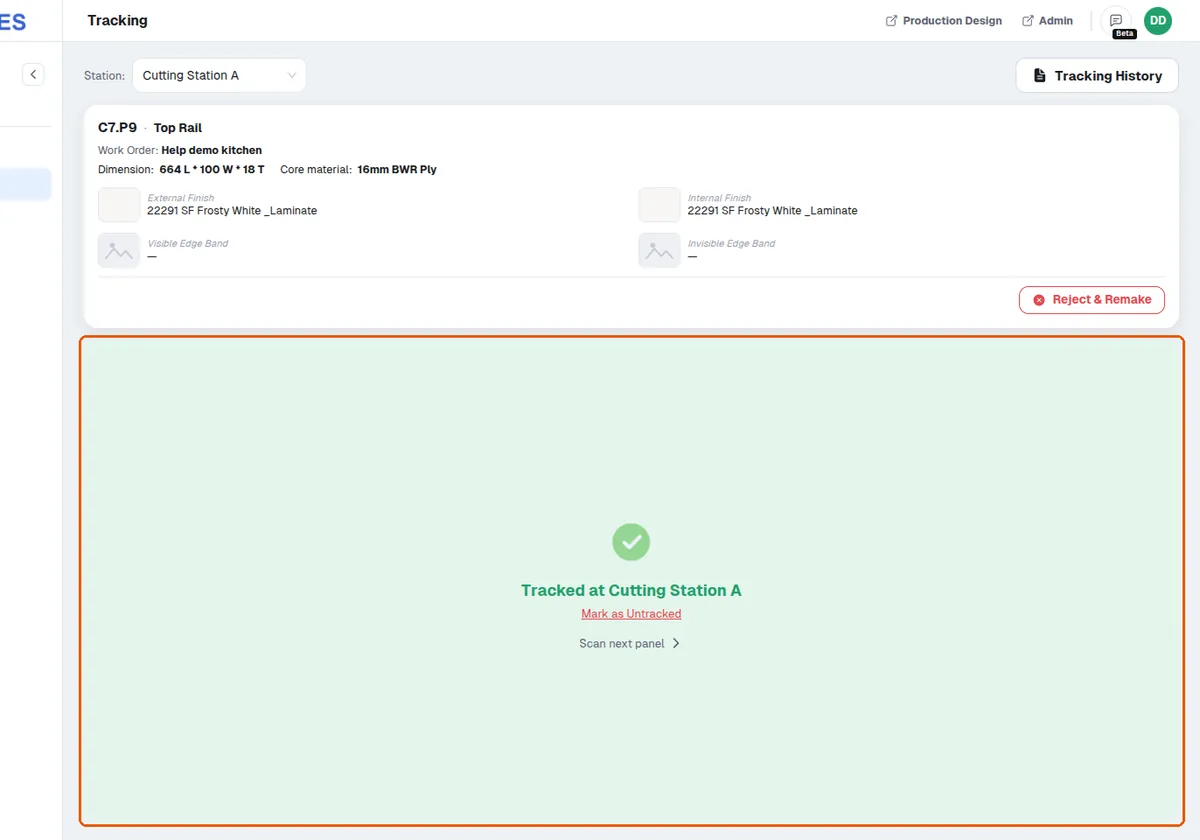
A green 'Tracked at <station>' screen confirms it.
✓ Checked in the product on 20 October 2026Scanning the same panel again at the same station shows a yellow 'Already tracked at <station>' screen instead (nothing is double-recorded, though a new comment can overwrite the old one).
✓ Checked in the product on 20 October 2026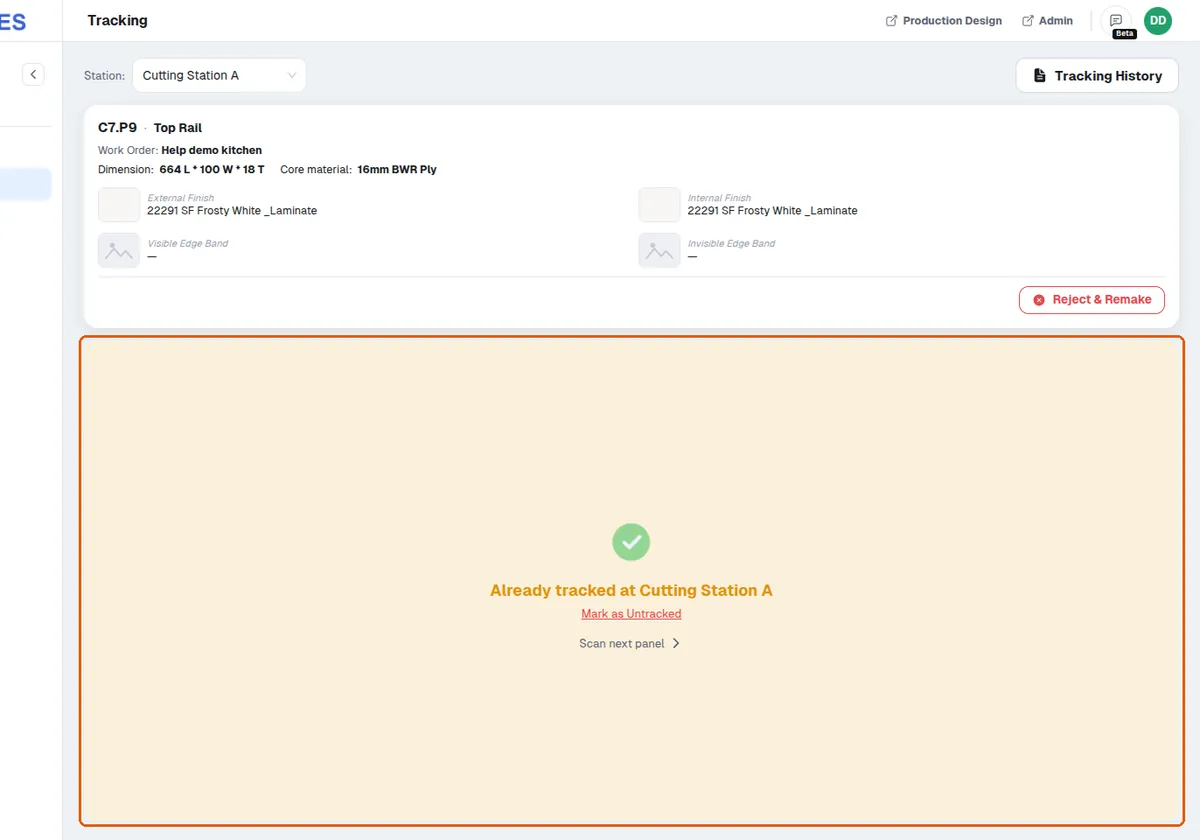
If design data says the panel was not required at that station type, the track still stands and appears in history, but a 'Panel Not Required' alert appears that the operator must acknowledge before continuing.
✓ Checked in the product on 20 October 2026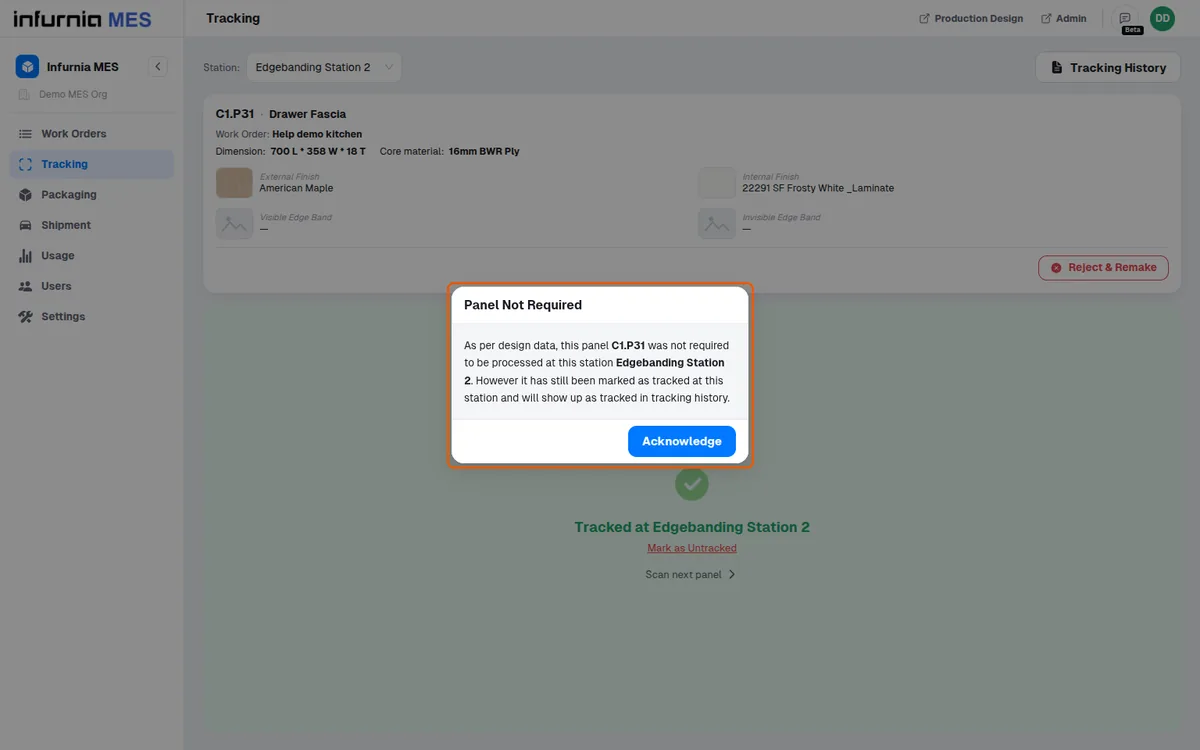
Both screens offer 'Mark as Untracked' to reverse a mistaken scan. On the scan result screen it untracks at once, with no confirmation; Tracking History's 'Mark as untracked' asks you to confirm untracking at the currently selected station.
A panel holds at most one tracking record per station TYPE.
✓ Checked in the product on 20 October 2026