Open Cutlist Settings and apply column changes
Open Cutlist Settings from the cutlist header and apply visibility, naming and order changes per cutlist type.
The gear icon in the cutlist header opens Cutlist Settings. The right panel lists the columns of the selected cutlist type: toggle visibility, type a custom name, and drag to reorder - the on-screen order is the exported CSV column order. When your cutlist supports all three types, the window shows a shared pre-milling panel in a left-hand rail alongside separate tabs for each cutlist type (Basic, Homag, Biesse); the shared panel has its own 'Apply to all types' button, and each tab's column configuration is applied on its own with Apply/Reset buttons in the tab bar. Custom fields (those with a formula) have an edit pencil that opens a formula editor. A formula is either variables and quoted constants joined by +, e.g. core_material_sku_name + '_' + internal_finish_sku_name, or a calculation over the number variables (Cut L, Cut W, L, W) using + - * / % ^, brackets, pi and functions such as round, floor, ceil, min, max, abs, sqrt, pow and clamp, e.g. cut_l * cut_w / 1000000 for panel area; a formula using only number variables is calculated, while text variables can only be joined with +, not calculated. Variables autocomplete from a fixed list, the editor's Help button explains both kinds of formula, and an invalid formula blocks saving with a specific error message. Gotchas clients hit: (1) custom names must be unique across all columns - duplicates highlight red and the Apply button is disabled until fixed; (2) while the column search box has text, drag-and-drop reordering is disabled (a yellow banner says so) - clear the search to reorder; filtering by visibility alone still allows reordering; (3) changes only persist after clicking Apply (the button shows 'Applying…' while saving); the cutlist then reloads and Apply stays disabled until that reload finishes.
The column layout is configured from the Admin portal's cutlist settings, which are organized by cutlist type: the settings window shows a shared pre-milling section plus a separate tab for each cutlist type (Basic, Homag and Biesse), and each tab's changes are applied on its own.
The saved setup is reused on future projects without reconfiguring each time.
The column layout configured in Cutlist Settings is saved and reused on subsequent projects, so it does not have to be set up again each time.
Alternatively, 'Refresh From Admin' can be used to always pull the latest admin-defined layout instead of configuring it per project.
✓ 19 అక్టోబర్, 2026న ప్రోడక్ట్లో తనిఖీ చేయబడింది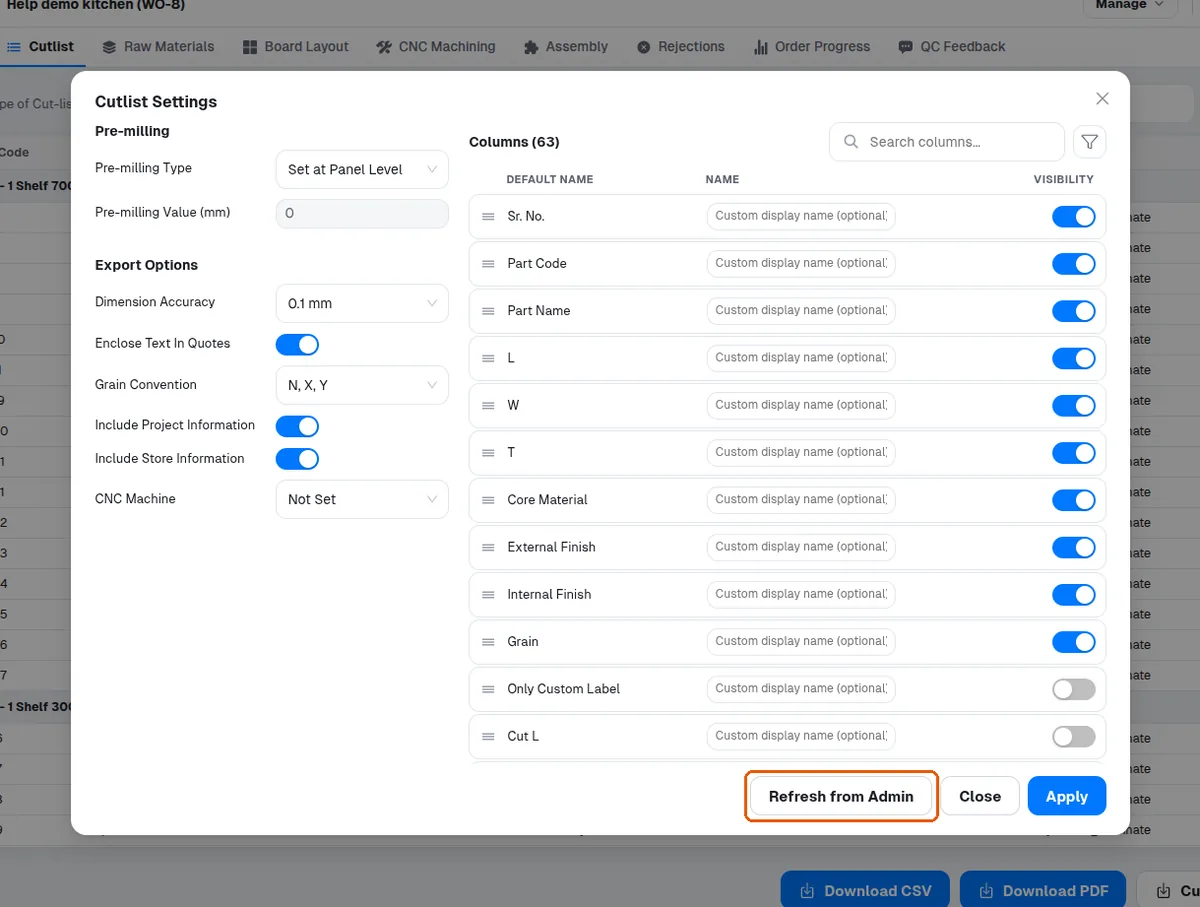
A change applied in a work order's Cutlist Settings (for example switching the 'Room name' column on) is saved to the work order: a later session opens that work order's cut list with the same columns until the setting is changed back.
✓ 20 అక్టోబర్, 2026న ప్రోడక్ట్లో తనిఖీ చేయబడిందిA panel saw machine (Settings > Machines: type Cutting, sub type Panel Saw, output PDF or CSV) has its own Fields table with the same per-field settings as Cutlist Settings - visibility, custom name and formula, in order - and that table decides the columns of the machine's export (Cutlist > Custom Cutlist > the machine). The settings window now separates the shared pre-milling options from per-cutlist-type tabs (Basic, Homag, Biesse), and each type's columns are saved and applied on their own. The work order's Cutlist Settings (Apply) change the cutlist's own Download CSV / PDF, not the panel saw machine's export; within the machine's settings, applying one cutlist type's tab does not change the other types' columns. A change saved in the machine's settings shows in its next export without reloading the work order page; the window waits for the cutlist to refresh before letting you apply again.