Find the cabinet editing tabs and selection tree
Locate the Quick Access, Customize and Construction tabs and the selection tree you use to edit a cabinet.
The cabinet editing panel presents three top tabs — Quick Access, Customize and Construction.
✓ 22 அக்டோபர், 2026 அன்று தயாரிப்பில் சரிபார்க்கப்பட்டது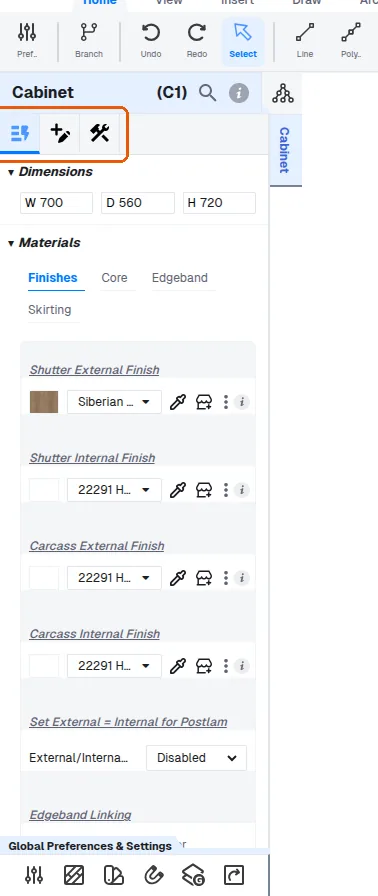
The selection tree is shown in the same panel as the list of parent sections (Panel, Shutter, ..., Cabinet) rather than as a separate tab.
✓ 9 அக்டோபர், 2026 அன்று தயாரிப்பில் சரிபார்க்கப்பட்டதுThe cabinet editing panel's three top tabs and the selection tree are used together with the detailing toolbar (width, depth, height, materials, positions) when repurposing a cabinet.
The Quick Access tab shows the unit's dimensions, materials, finishes, core and shutter core material, edge band and skirting at a glance.
✓ 22 அக்டோபர், 2026 அன்று தயாரிப்பில் சரிபார்க்கப்பட்டது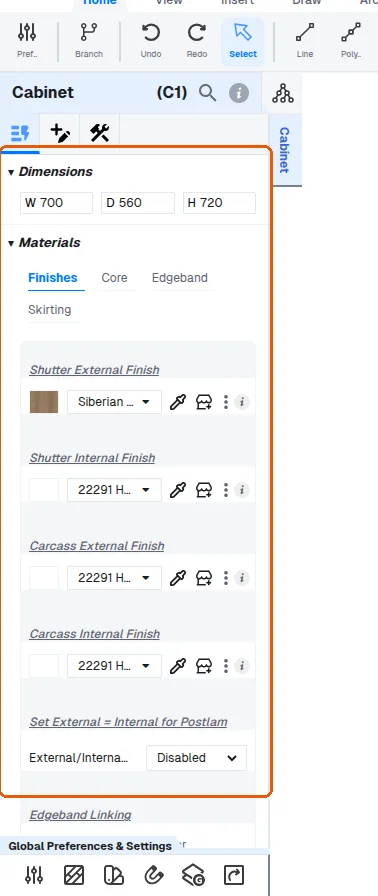
The Customize tab is where hardware accessories, dimensions and rules are added.
✓ 22 அக்டோபர், 2026 அன்று தயாரிப்பில் சரிபார்க்கப்பட்டது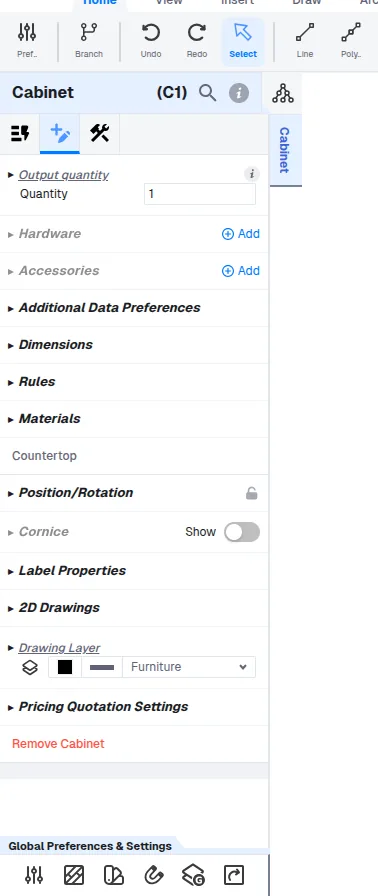
The Construction tab holds the carcass construction settings.
✓ 22 அக்டோபர், 2026 அன்று தயாரிப்பில் சரிபார்க்கப்பட்டது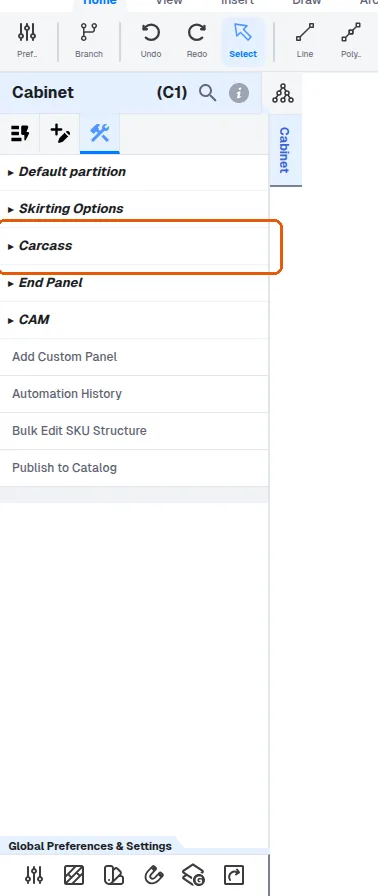
The Quick Access and Customize tabs are for changing existing parameters such as dimensions, while the Construction tab is for additions or removals — for example adding a mirror or a panel — and those Construction-tab changes flow through to production outputs, pricing and cut lists.
The customization flow is: select the item to edit, use the selection tree, then choose from Quick Access, Customize or Construction, and finally pick the option listed below that; the third step can be skipped when the desired option already appears in Quick Access or the first step.