How designs auto-save and how to restore an earlier version
Learn how every meaningful action is saved automatically as a named version and how to go back to an earlier state from the version history.
Infurnia saves the design to the cloud automatically after every meaningful action (adding a wall, moving a cabinet, changing a layer, etc.).
Each save appears in the design's version history, on its Active Branch tab, as an entry whose Actions column describes the action.
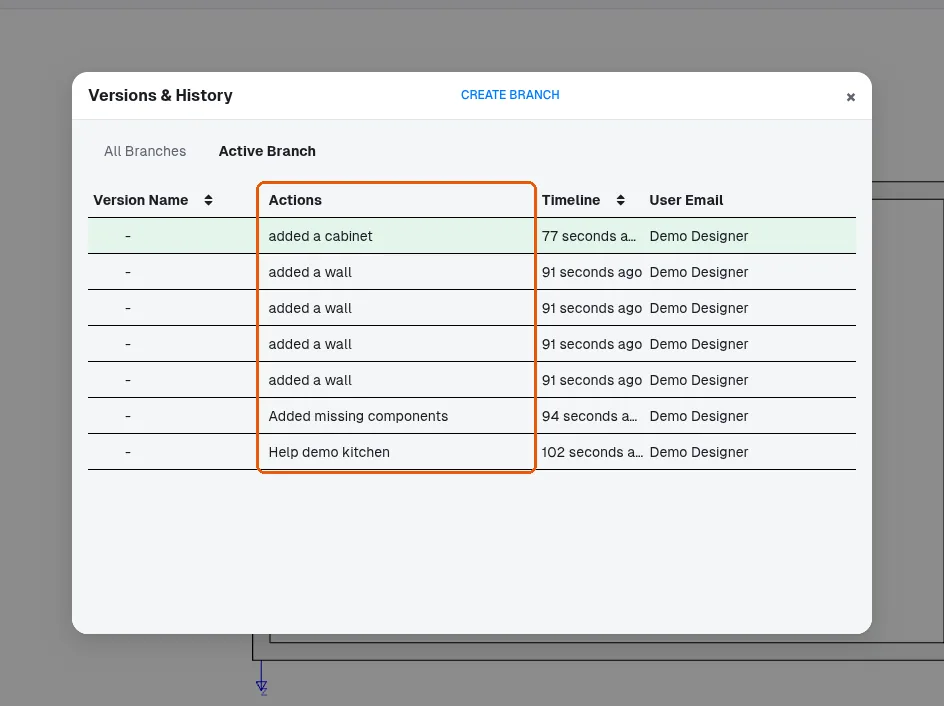
Designers never need to press a save button.
Deleting elements is also covered by auto-save: a completed delete is saved to the cloud like any other action, so the deleted state is what persists.
In a design, a version history is available that lets you see who made the most recent edit to that design. This is how you can check which user changed a particular project after access was granted to them.
✓ 21 ਅਕਤੂਬਰ 2026 ਨੂੰ ਪ੍ਰੋਡਕਟ ਵਿੱਚ ਜਾਂਚਿਆ ਗਿਆ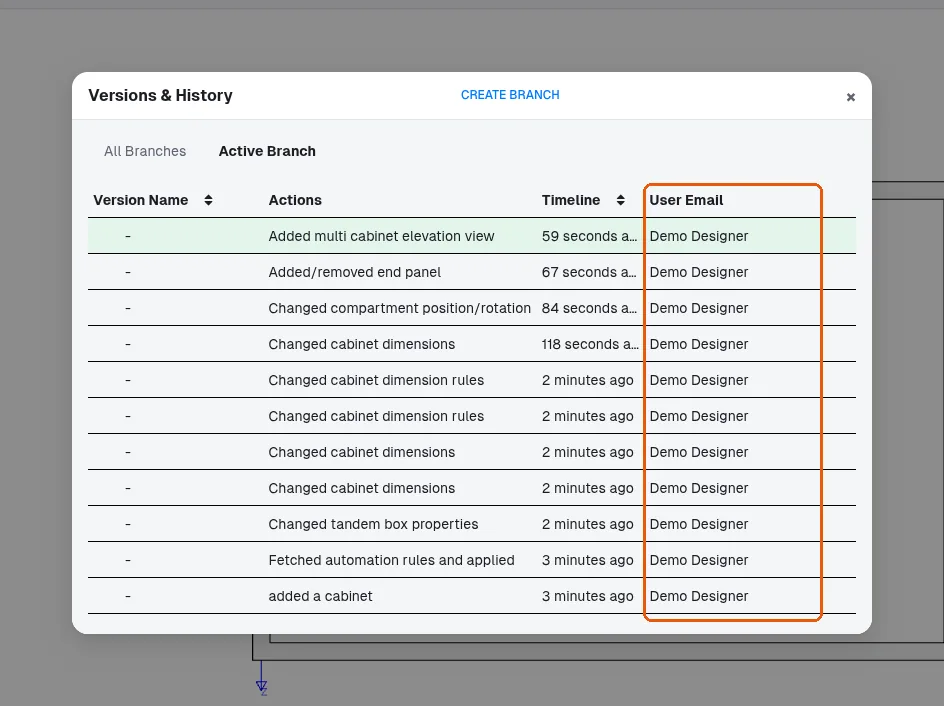
Version history can also be used to go back to any earlier state.
✓ 21 ਅਕਤੂਬਰ 2026 ਨੂੰ ਪ੍ਰੋਡਕਟ ਵਿੱਚ ਜਾਂਚਿਆ ਗਿਆ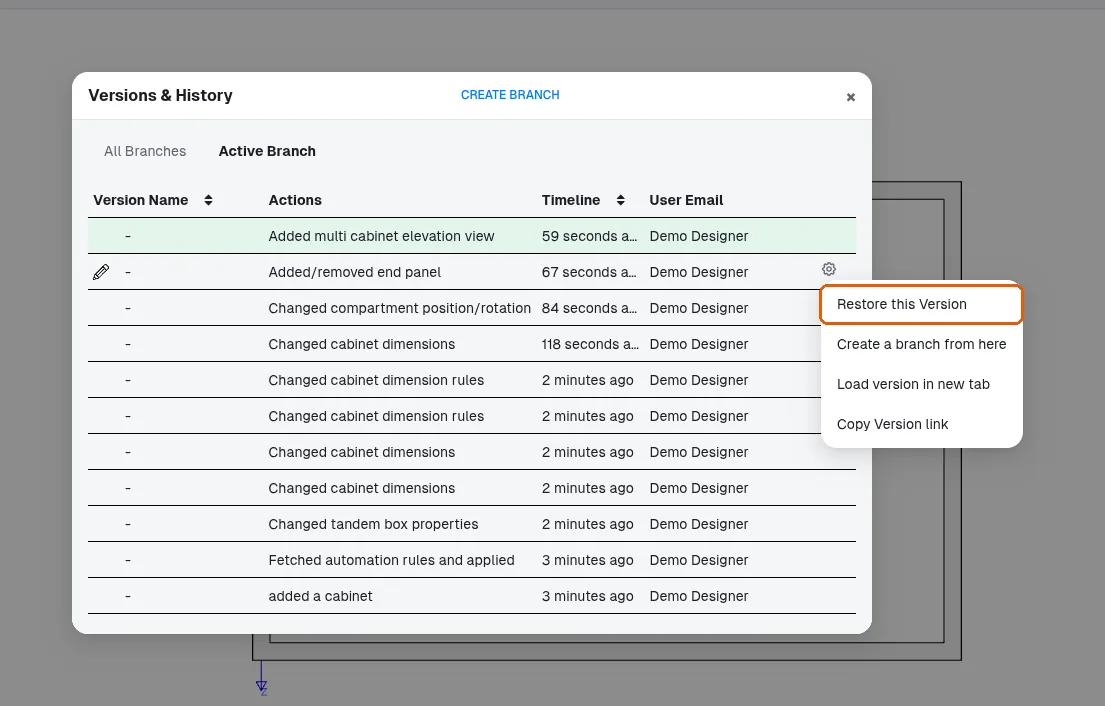
To go back to an earlier state, open the settings/dropdown for that version in the Branch panel and choose 'Restore this Version'.
✓ 21 ਅਕਤੂਬਰ 2026 ਨੂੰ ਪ੍ਰੋਡਕਟ ਵਿੱਚ ਜਾਂਚਿਆ ਗਿਆ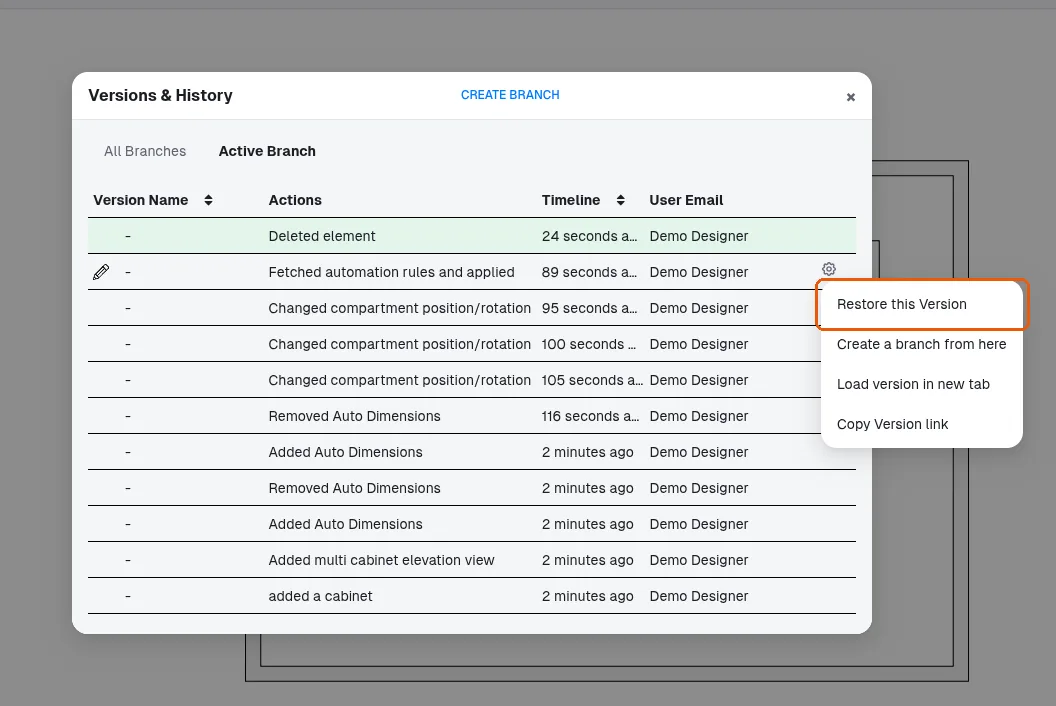
'Restore this Version' takes the design back to that version's state and adds a 'revived_version' entry at the top of the version history; the versions made after it stay listed, and restoring one of them brings its state back. The confirm dialog still calls the restore 'an irrevertible action'.
✓ 21 ਅਕਤੂਬਰ 2026 ਨੂੰ ਪ੍ਰੋਡਕਟ ਵਿੱਚ ਜਾਂਚਿਆ ਗਿਆUndo can be temporarily unavailable in three normal situations: (1) while recent changes are still uploading, the message 'Cannot undo while design is syncing with the cloud. Please try again' appears - waiting a moment and retrying resolves it; (2) while a previous undo/redo is still being applied, a similar 'try again' message appears; (3) while actively editing a board layout, undo is blocked with 'Cannot Undo while editing Board Layout' - exit the layout edit first. When the history is exhausted the message is 'No more steps to undo'. None of these indicate data loss.
When a designer switches to a different floor/level, the app immediately saves: any pending unsaved changes are written, and a version entry named 'Switched to <floor name>' appears in the version history. This entry is not an undo step of its own: pressing undo afterwards undoes the last real design change and also brings back the level that change was made on, so after a floor switch undo can take you back to the previous floor (deleting a unit on Ground Floor, switching to Floor 1 and pressing undo restores the unit and shows Ground Floor again). If a customer asks why their version history is full of 'Switched to ...' entries, this is normal behavior and each one also confirms the active floor/camera state was remembered for the next time the design opens.