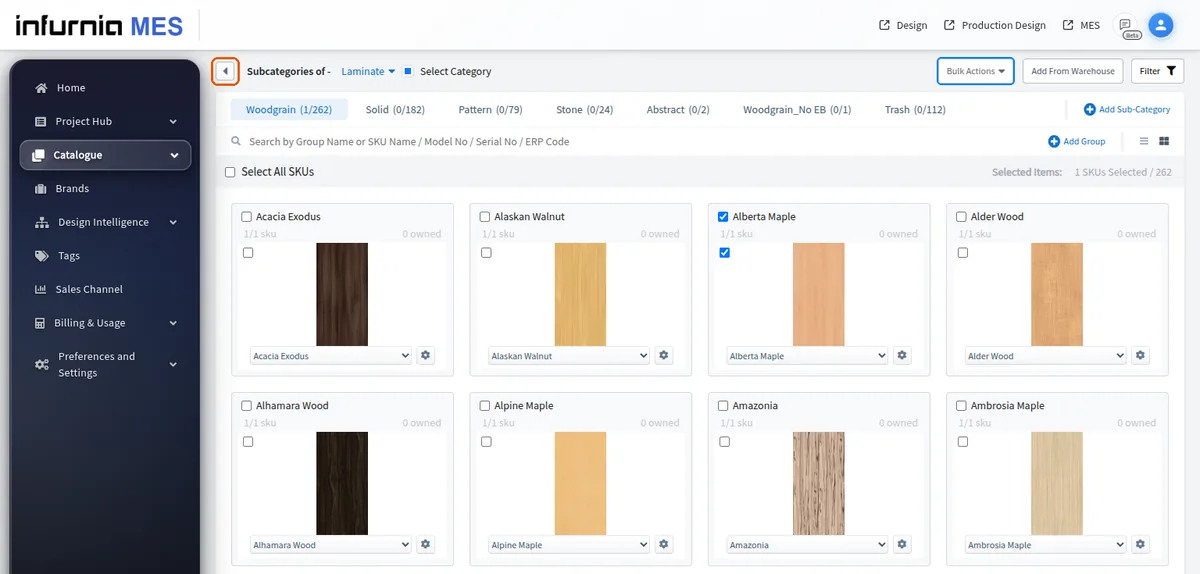
Enter and exit bulk-selection mode on the catalog page
Tick SKU checkboxes to enter bulk-selection mode and use the header controls, Escape or the back-caret to leave it.
On the admin portal catalog page (a category's groups/SKUs view), there is no explicit 'start bulk selection' button: ticking any SKU checkbox automatically enters bulk-selection mode, and unticking the last selected SKU exits it.
✓ २० ऑक्टोबर, २०२६ रोजी प्रॉडक्टमध्ये तपासले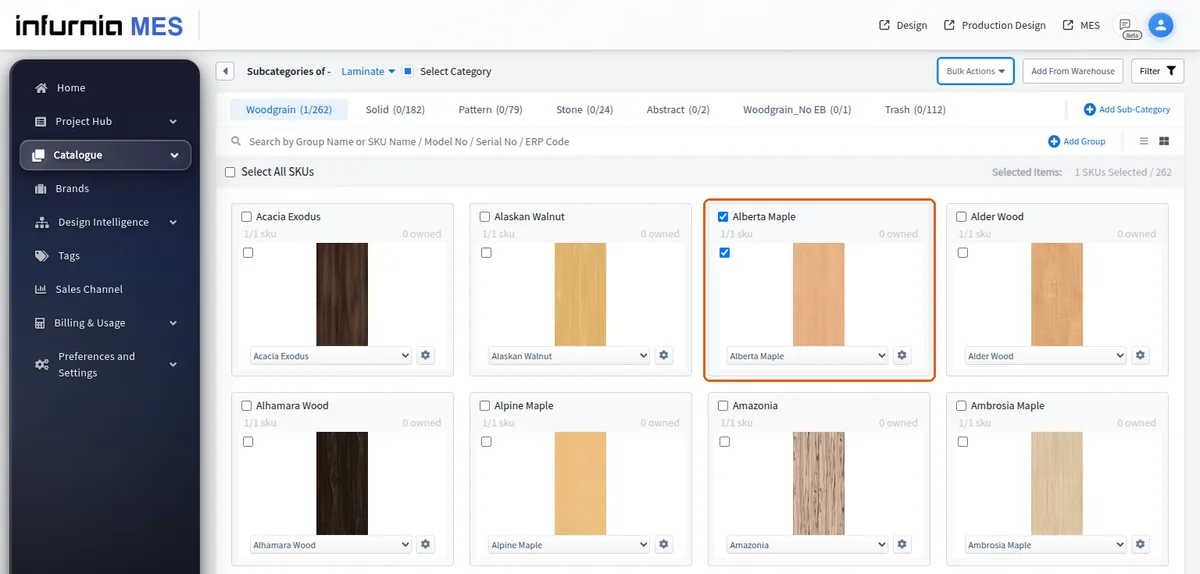
A 'Select Category' checkbox at the top selects/deselects every SKU in the category. When filters or a search are active, it applies only to the SKUs those filters and search show, and the label reads 'Select Category (filtered)'; changing a filter or the search clears the current selection. Per-subcategory / per-group selection counts are shown as you select.
Each subcategory also has its own select-all checkbox that ticks every SKU in that subcategory.
✓ २० ऑक्टोबर, २०२६ रोजी प्रॉडक्टमध्ये तपासले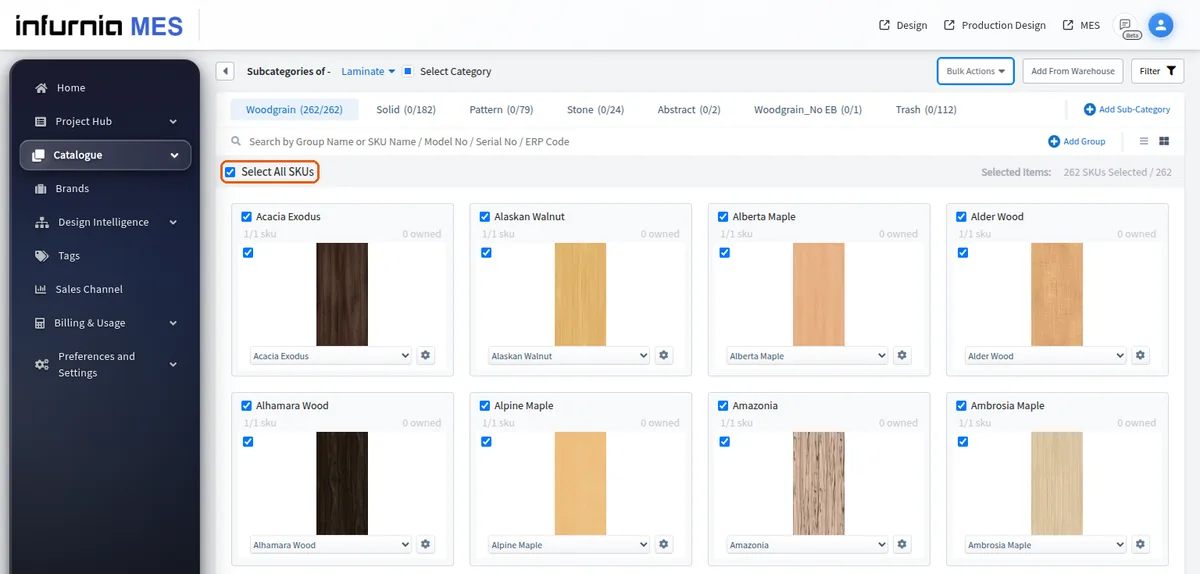
In the admin catalogue's selection mode, each sub-category tab shows its selected / total SKUs in brackets (for example 'Woodgrain (262/262)').
The bulk actions live in the 'Bulk Actions' drop-down next to the category heading: Bulk Create, Bulk Edit, Bulk Clone, Bulk Edit SKU Structure and Bulk Delete.
✓ २० ऑक्टोबर, २०२६ रोजी प्रॉडक्टमध्ये तपासले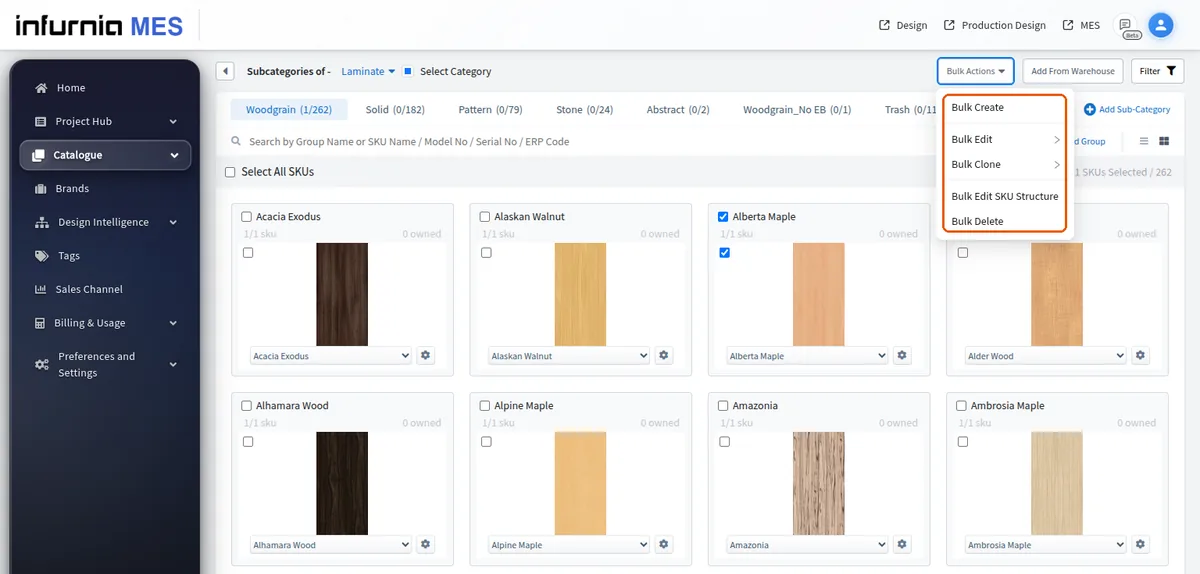
The bulk actions (Bulk Edit, Bulk Clone, Bulk Edit SKU Structure, Bulk Delete) stay disabled until at least one item is selected.
✓ २२ ऑक्टोबर, २०२६ रोजी प्रॉडक्टमध्ये तपासले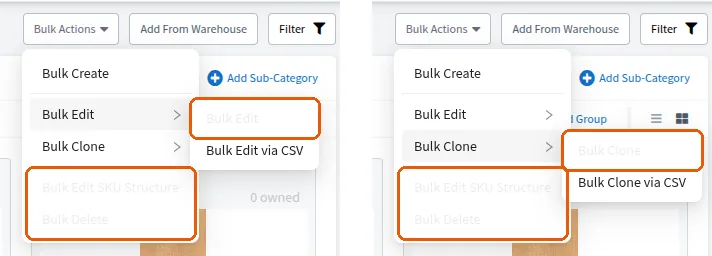
Pressing Escape exits bulk-selection mode and clears the selection, but only when none of the bulk modals (edit/clone/delete/SKU-structure) is open.
✓ २२ ऑक्टोबर, २०२६ रोजी प्रॉडक्टमध्ये तपासले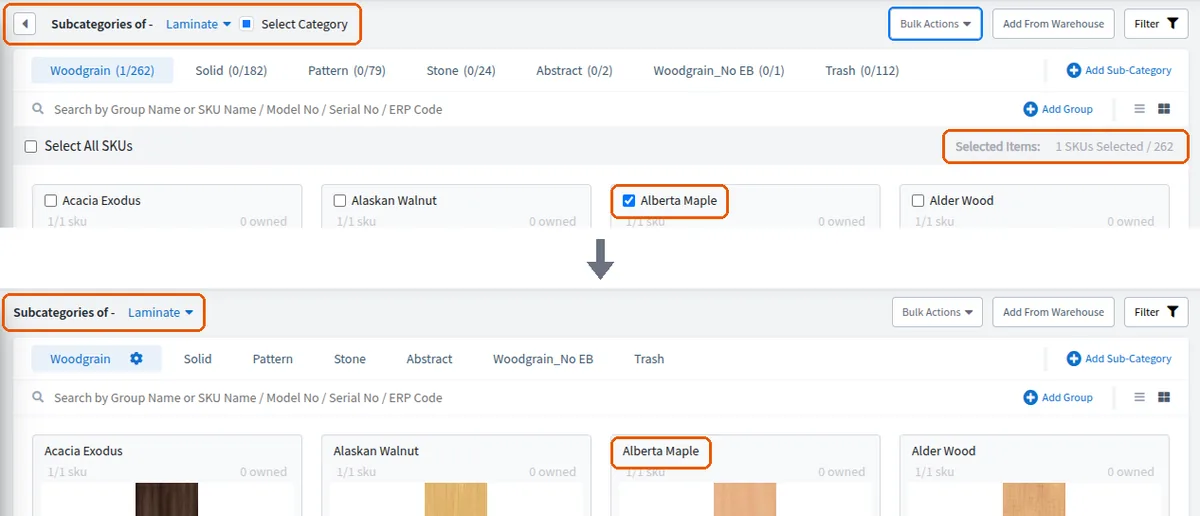
There is also a back-caret exit button that appears at the left of the header while selection mode is active.
✓ २० ऑक्टोबर, २०२६ रोजी प्रॉडक्टमध्ये तपासले