Use custom layers and know what auto-generation relayers
Create custom layers, move units onto them, and check which elements a presentation run reassigns.
Custom layers can be created from the layer panel's Custom tab.
✓ Comprobado en el producto el 22 de octubre de 2026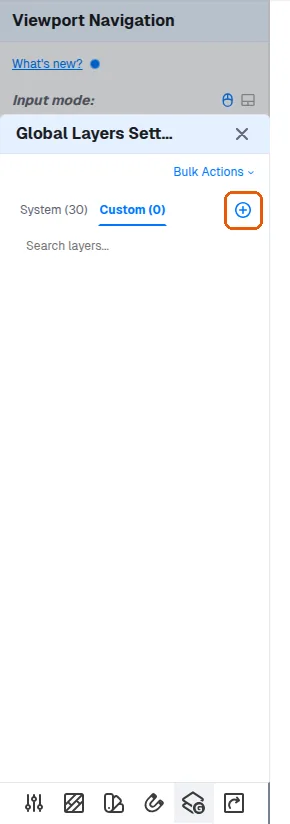
Units can be reassigned from the default furniture layer onto those custom layers before hiding or unhiding layers per view.
✓ Comprobado en el producto el 22 de octubre de 2026Generating a presentation reassigns furniture onto Base/Wall/Loft Units layers - either freshly created '(auto-generated)' layers or existing layers the user picked in wizard step 4. This is by design (the per-bucket plan sheets work by hiding the other buckets' layers), and the step 5 warning table lists exactly the elements whose layer will change. Scope rules worth knowing: only elements inside the rooms selected in step 2 are reassigned; elements in unselected rooms keep their layers. Loose furniture that does not belong to any room is never reassigned by the wizard (the room filter excludes it), so such items may be absent from the bucket layers and can render inconsistently on the bucket plan sheets. 'Specify existing' in step 4 still moves units onto that layer if they were on a different one, so the warning table can be non-empty even in append mode. If the client did not want any of this, one undo reverses the layer changes together with the generated sheets, because the whole operation is saved as a single step. Dimension lines created on key plans go to a separate 'Annotations (auto-generated)' layer.