Edit, tag and delete a sub-category in the admin catalogue
Open a sub-category's gear to manage its tags, edit its name and order, map categories to a tag, and delete it with confirmation.
In the admin catalogue, a sub-category's gear opens 'Edit Sub Category' on its Tags tab (Inherited Tags, Update Tags).
'Remove Sub Category' is on the Details tab, with the sub-category's Name and Order.
✓ Checked in the product on 22 October 2026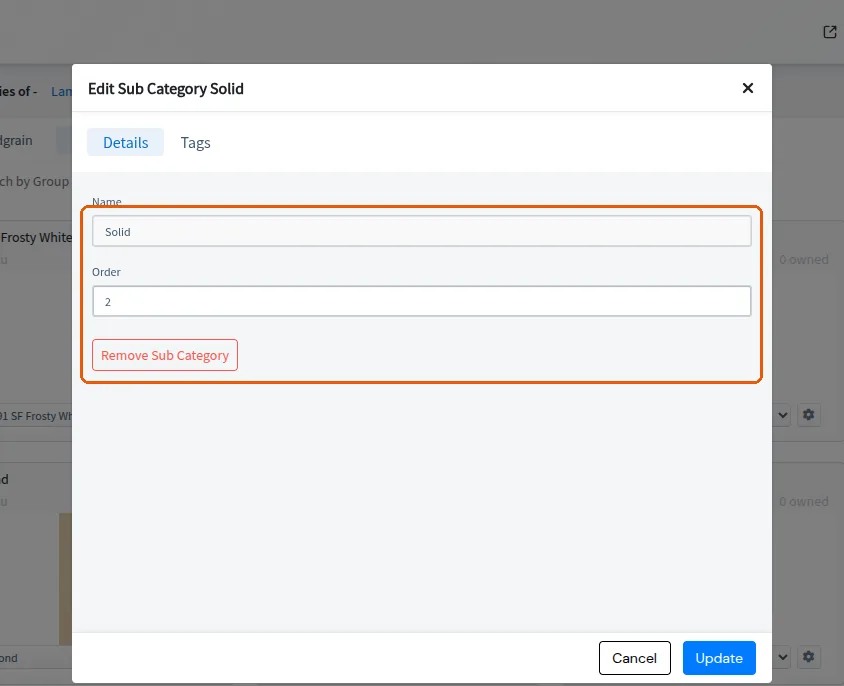
In Add Tag, once a Category Type is picked (for example Cabinet), 'Categories mapped to tag' opens a Category Selector (Division on the left; Categories with a 'Search Category' box on the right; No Changes / Apply) that lists only that type's categories: for Cabinet, Furniture's Wall Unit, Base Unit, Kitchen Fillers, Tall Unit, Kitchen Loft, Mid Tall Units and Multipurpose Modular Furniture, and not other furniture categories such as Chair, Table or Bed.
✓ Checked in the product on 20 October 2026In the admin catalogue, Delete Sub Category asks for confirmation with the message 'This sub-category will be permanently deleted from the store. This cannot be undone.'
✓ Checked in the product on 22 October 2026