Select SKUs across a filtered or searched catalogue list
Narrow the list with filters or search first, then select the shown SKUs knowing that changing them clears your selection.
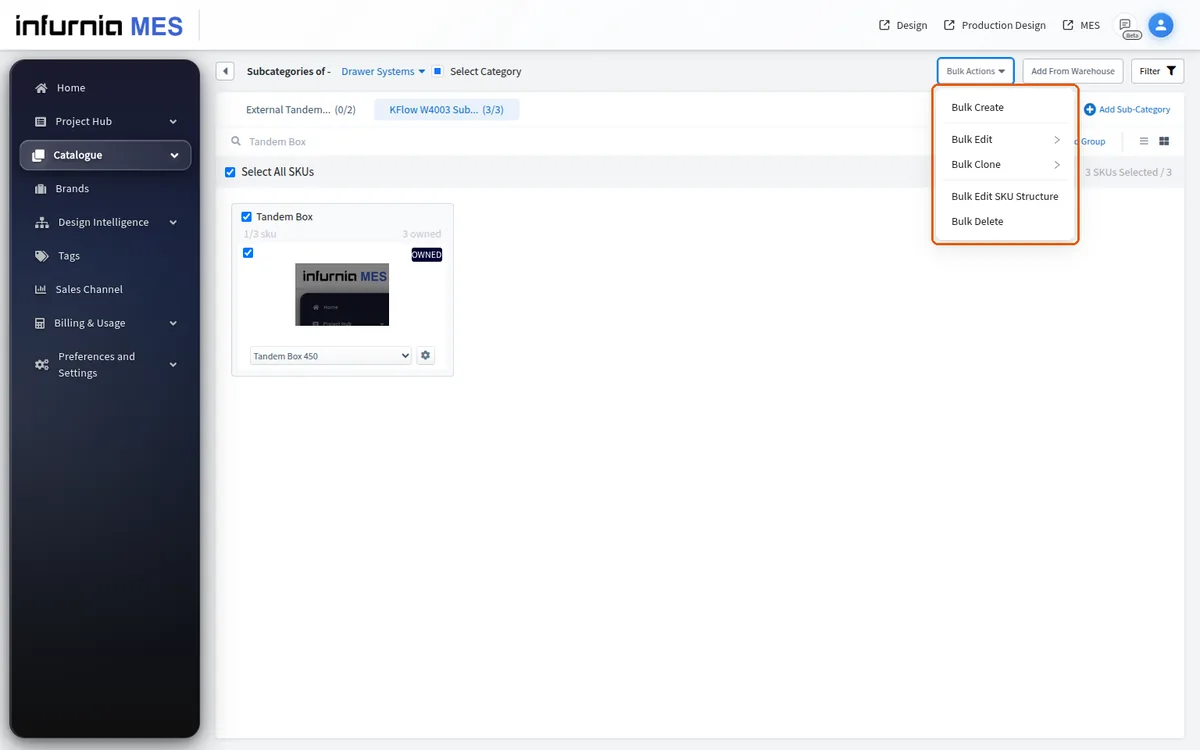
The header's Select Category checkbox extends the selection to the whole category. When filters or a search are active, it selects only the items those filters and search show, and the checkbox is labelled to make that clear. Changing a filter or the search clears the current selection and exits bulk selection mode.
Bulk edits are scoped by first selecting the SKUs, groups or the whole category in the admin portal furniture catalogue.
When brand, ownership, tag or sales-channel filters (or a search) are active, selecting the category or a group picks only the SKUs currently shown, and the category checkbox is labelled 'Select Category (filtered)'. Changing a filter or the search clears the current bulk selection, so you re-select after narrowing the list.
You can first narrow the list with the catalogue filters (Brand, Owned, Tags or Sales Channel); patterns such as Woodgrain or Solid are sub-category tabs, not a filter.
Then use select-all plus the Bulk Actions menu to apply a bulk edit or bulk delete across the filtered selection.
Select-all only picks the SKUs currently shown by your active filters and search — when any filter or search is applied the checkbox reads "Select Category (filtered)" and selects just those matching SKUs. Changing a filter or the search clears the current selection and leaves bulk selection mode, so re-select after adjusting filters.
Bulk edit or bulk delete can be applied across many SKUs at once.
✓ Am 19. Oktober 2026 im Produkt geprüft