Create, rename, update and default panel and box label templates
Manage the org's panel and box label templates, from creating and customising them to setting the org-wide default.
Settings > Panel Labels and Settings > Box Labels share the same template model. Templates are org-owned catalogue items: the dropdown lists all of the org's catalogue templates, including ones the org does not own; 'New template' clones from the Infurnia default; 'Copy current template' clones the selected one. Only owned templates can be updated or renamed — a template that is not part of the org shows 'Non owned templates cannot be updated. Use copy template and then update'; to customise it, make a copy first. All create/rename/update actions require catalogue publish access; without it the buttons are disabled with a no-publish-access tooltip, and the org admin must grant publishing rights. For box labels, edits (properties, field visibility and drag-drop order) apply to the live preview immediately but are NOT saved until 'Update template' is pressed; switching templates with unsaved edits pops an 'Unsaved changes' warning and discards them on continue. For panel labels, property edits and layer visibility/field-order changes are applied and saved as you make them, so there is no separate update step for those; the fuller canvas editor ('Open editor') is a separate step, offered only for templates your org owns and only when the engine supports it, and saving inside it requires catalogue publish access. 'Set as default' makes the selected template the org-wide default used wherever no more specific choice exists (e.g. work orders without a box-label override); when no template has been chosen yet, the org default is pre-selected. Common tickets: 'my label changes disappeared' = switched templates without updating (box labels); 'Update template greyed out' (box labels) or 'Save greyed out' (panel labels, including inside the label editor) = non-owned template or missing publish permission.
The label template's width and height can be set to match the physical label stock.
✓ ১৯ অক্টোবৰ, ২০২৬ তাৰিখে প্ৰডাক্টত পৰীক্ষা কৰা হৈছে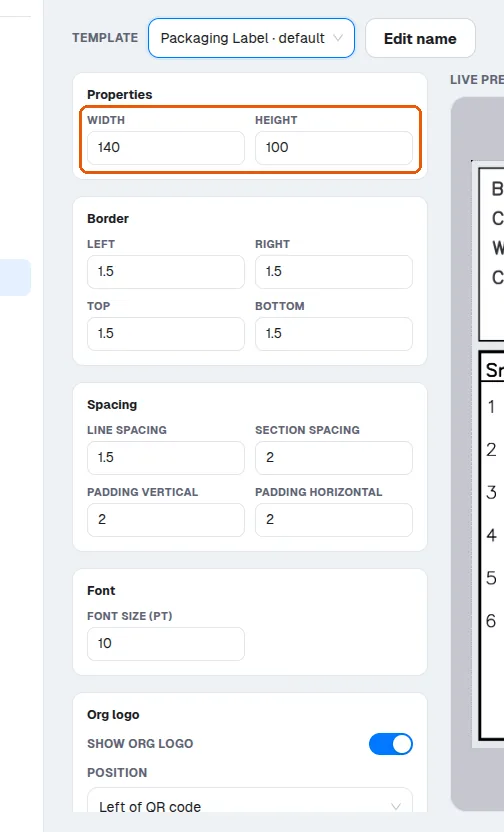
Fonts and sizing can be adjusted on the label template.
✓ ১৯ অক্টোবৰ, ২০২৬ তাৰিখে প্ৰডাক্টত পৰীক্ষা কৰা হৈছে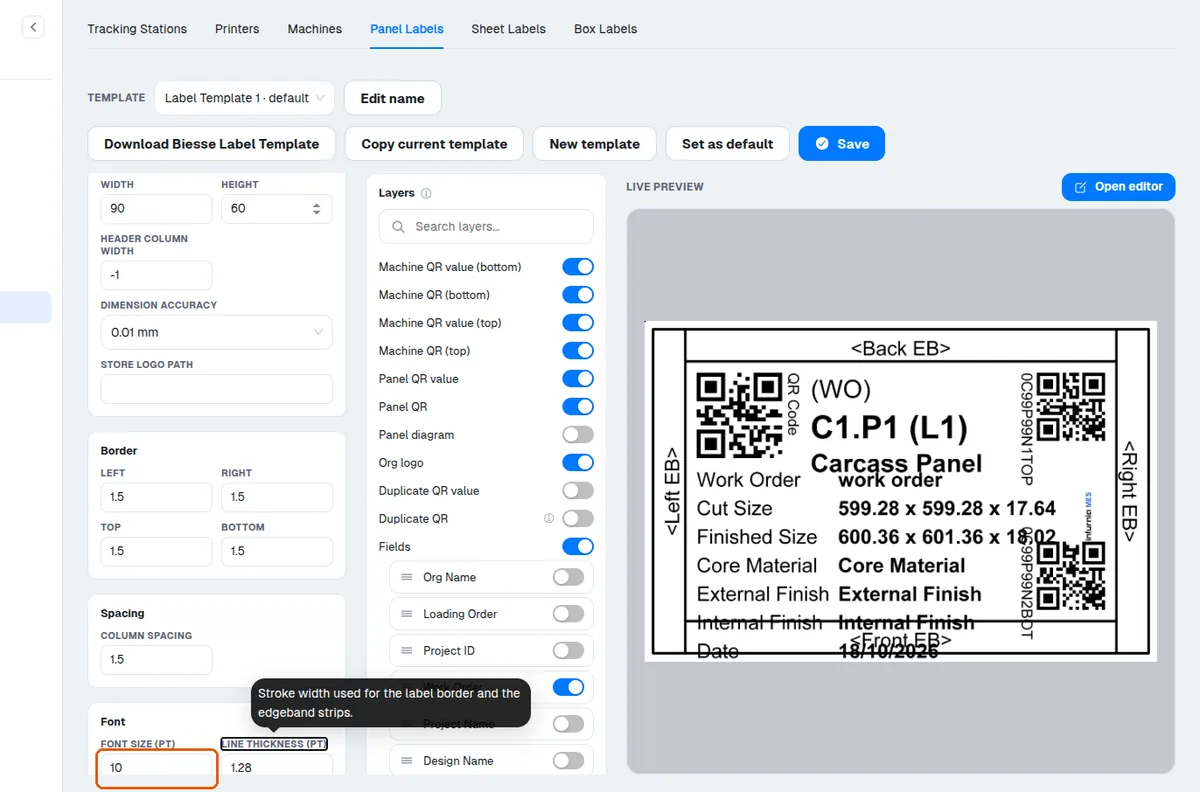
The label font size is a numeric value in points, so it can be set to any smaller size (for example 7.5 or 6) when the default is too large for the label.